From QR code to polaroid wall: engage 1,000 guests without an app
A QR code, a phone browser and your screens. How to set up sticky notes, questions and a polaroid wall for a big crowd, and what changes when a thousand people post.
The Wunderframe team 5 min read
Getting a room full of people to take part is hard. Asking them to install an app first makes it nearly impossible. Most guests won’t download anything for a single evening, and the ones who would are standing in the part of the hall with no signal.
So the rule we built Wunderframe’s live engagement around is simple: a QR code, a browser, and the screen. This post walks through setting it up for a large crowd, from the code on the first slide to the polaroid wall in the lobby, and the choices that change when a thousand people are in the room instead of thirty.
How it works in one paragraph
A guest scans a QR code on a screen. Their phone opens a page in the browser, with your event’s colors and words and no login. From there they throw a sticky note, ask a question, shoot a polaroid or record a short video. It lands on every wall that points at the same engagement, in the room and in the lobby at the same moment.
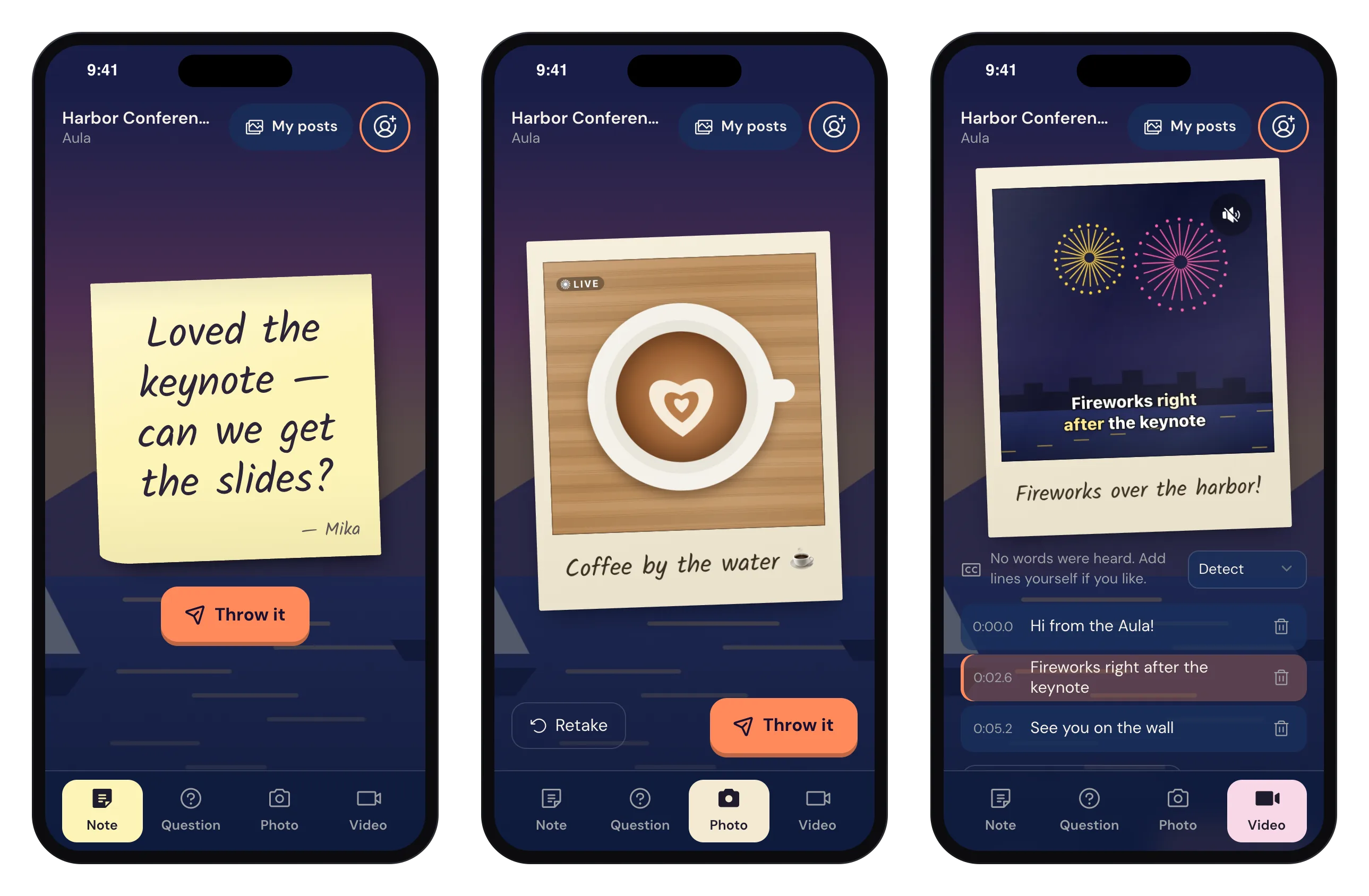
The guest page: writing on the sticky note itself, a Live polaroid with its caption, and a video with caption lines to check.
Step 1: create the engagement
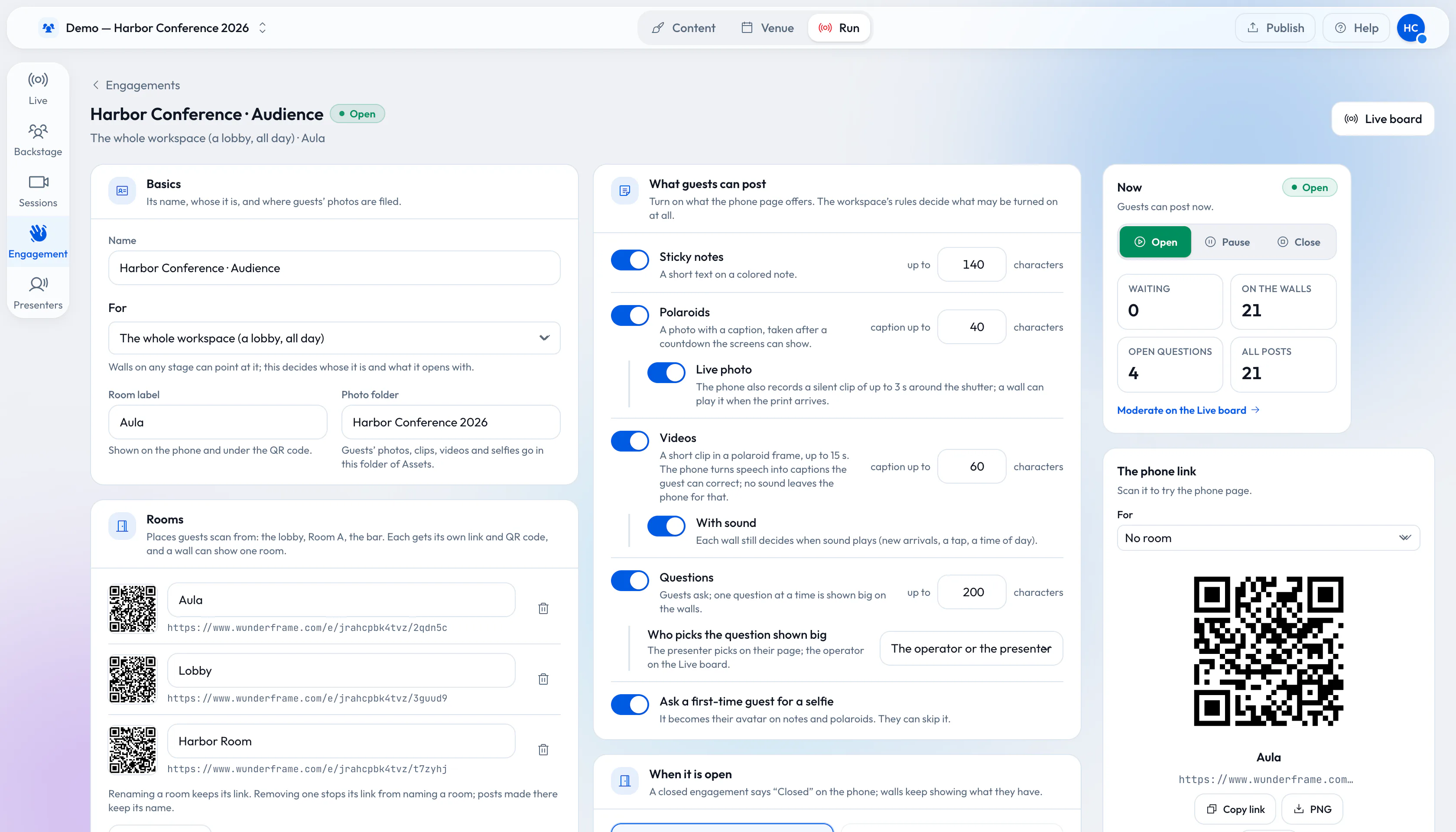
An engagement is the one setup behind it all. You create it under Run → Engagement, and it belongs to the whole workspace, a show or a single session. Four decisions matter:
- What guests may send: notes, questions, photos (with or without Live photos) and videos.
- When it is open: by hand, while a session is live, on a schedule, or while it is on screen. With that last one, the engagement is open whenever a stage shows one of its QR codes or walls, and closes when none does.
- What gets through: open, approval by an operator, or auto-check, which holds back text that breaks simple rules, and bursts.
- Rooms: the hall, the lobby, the bar. Each room gets its own link and QR code, so a wall can show everything or just one room.
The engagement editor: what guests may send, the rooms with their QR codes, and the live status on the right.
Step 2: put a QR code where people look
The QR code is a block you place on any slide, so it can sit on the Up next screen, the agenda board or the wall itself. You can style it with rounded or dotted modules, your colors and a logo in the middle.
Two tips from testing: the Standard preset scans on the widest range of phones, and a code people have to read from twenty meters away must be big. Scan it from the back row before the doors open. See QR codes.
Step 3: give the phone page your look
Under Content → Guest pages you make a reusable design: colors, fonts, logo, background picture, the headline and welcome words, and which tabs show in which order. The editor shows the real guest page next to your settings, as a phone or a desktop, and warns when text and background are too close in color. The guest page speaks English, German and French, depending on the phone. See The guest page.
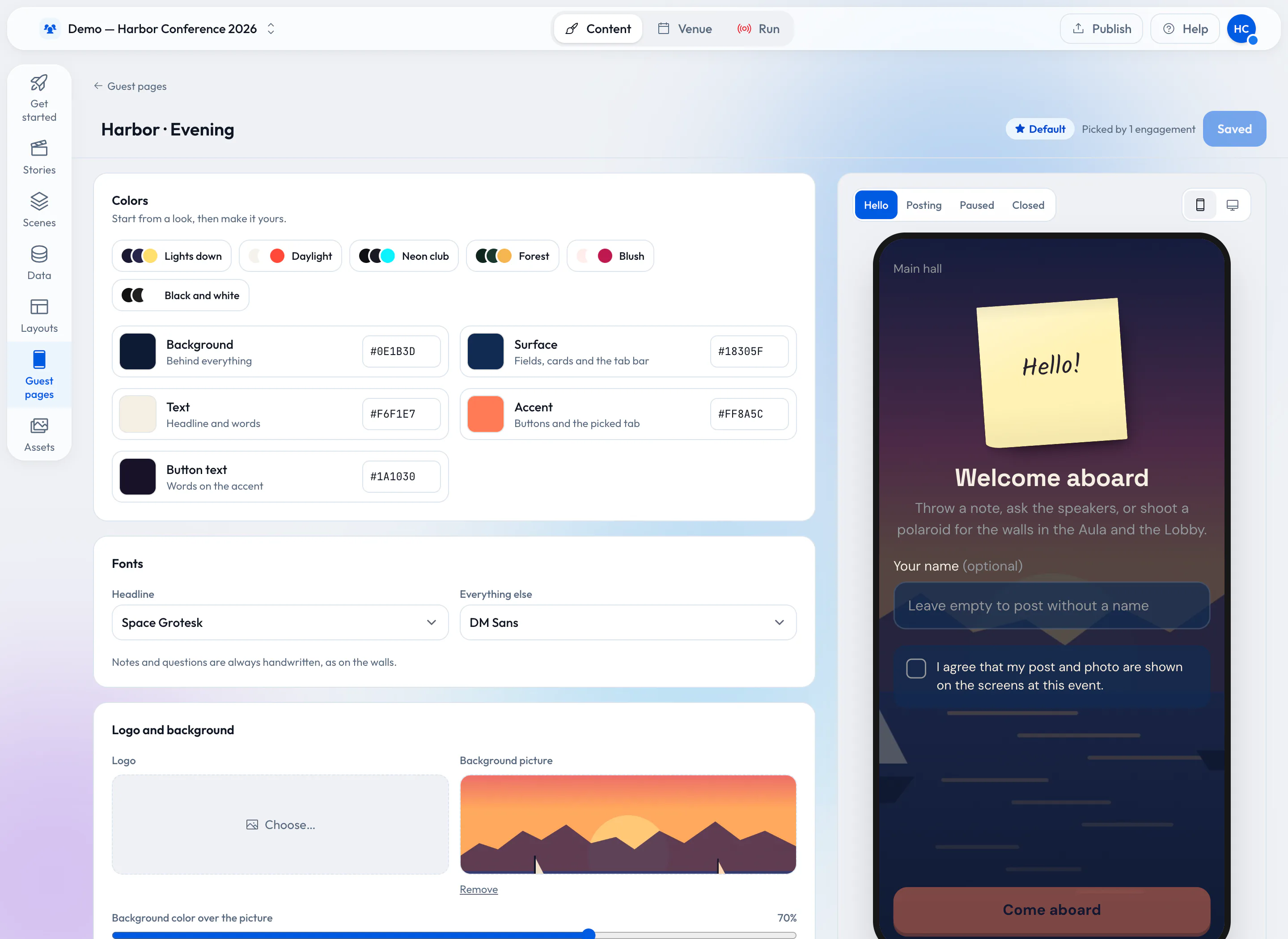
A guest page design with its live phone preview.
Step 4: put the walls on your stages
Walls are blocks too, so they go on any stage and in any scene. There are two:
- Sticky notes with a curled edge, a soft shadow and handwriting. They slap on as they arrive. A question the operator picks is shown big.
- The polaroid wall. Prints develop in and hang on the wall, and Live photos and videos play inside the print.
Each wall shows either every room or one, and chooses between live (posts appear as they arrive) and overview (posts collect quietly and come in together when the scene starts, which suits a “what you told us” moment at the end).
What changes with a thousand guests
With thirty people, everything fits on the wall. With a thousand, it doesn’t, and the setup has to allow for that:
- Not everything fits, so let the wall take turns. The polaroid wall shows a set number of prints at once. Each gets a short, medium or long stay, new ones come first and no one is skipped. The notes wall piles what doesn’t fit into neat stacks instead of shrinking the notes until nobody can read them.
- Approval doesn’t scale by itself. One operator can’t approve a post every few seconds for an hour. Use auto-check for notes and questions, and keep approval for where it matters, or put two people on the Engagement panel of the Live desk.
- Split by room. Give each area its own QR code. The lobby wall shows the lobby, the hall shows the hall, and the big screen can still show everything.
- Plan the network. Guests use their mobile data or your Wi-Fi. Photos are small, but videos are not. The first video on each phone also downloads what the phone needs to turn speech into captions. In a hall with weak reception, turn videos off and keep notes and photos.
- Pause during the talks. An engagement can be paused while a speaker is on. Guests can still post, and the posts appear when it opens again.
With a big crowd, the question isn’t whether people will post. It’s what the wall does with everything that doesn’t fit.
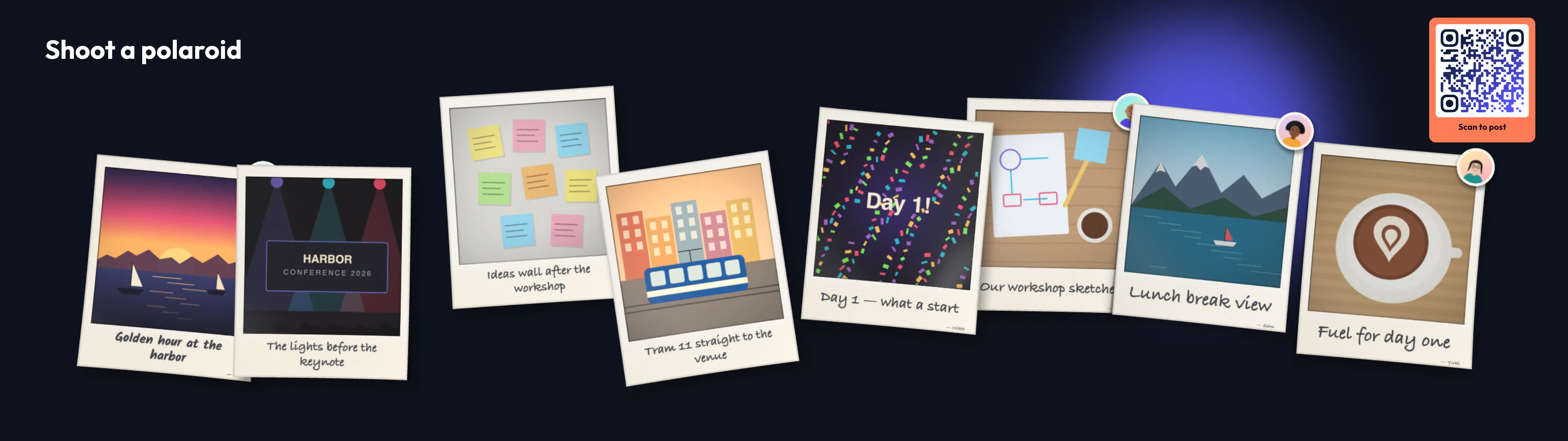
The polaroid wall on a 3840×1080 stage: a set number of prints at once, taking turns.
Step 5: run it on the day
On the Live desk, the Engagement panel shows the queue, the counts and each post’s state, and has Open and Close. A presenter can open the Audience tab on their own presenter page to pick questions. When a question is picked, every wall showing questions brings it forward. See Running it live.
Privacy, before the first post
A workspace owner decides whether guests must agree to a consent text, and how long posts are kept. After that, posts and their files are deleted automatically. A name is optional, and a selfie can always be skipped. Speech in a video is turned into captions on the phone and never sent to a speech service (more in Accessible events). See Privacy.
Start with one note
The quickest test takes five minutes: create an engagement, scan its QR code with your own phone and send a note. Then put a sticky notes block on a scene and watch it land. When you want the whole evening, read How an event should really run, and if you are weighing a hired booth, Photo booth hire vs a photo booth on your screens. Start free, or see Pricing.
Related posts
Connect your photo booth to the big screen
Your booth already takes great pictures. With the Engagement API every shot lands on the polaroid wall seconds later, and the guest scans a QR code to take it home. The three calls, and a recipe for Sparkbooth, pibooth, dslrBooth and any booth with an output folder.
A guest photo wall for your wedding, no app needed
Guests take the best photos of a wedding, and the couple usually sees them weeks later. A photo wall puts them on the big screen during the party. How to set one up, what makes guests use it, and what to decide about privacy first.
Live speakers without surprises: a playbook for event managers
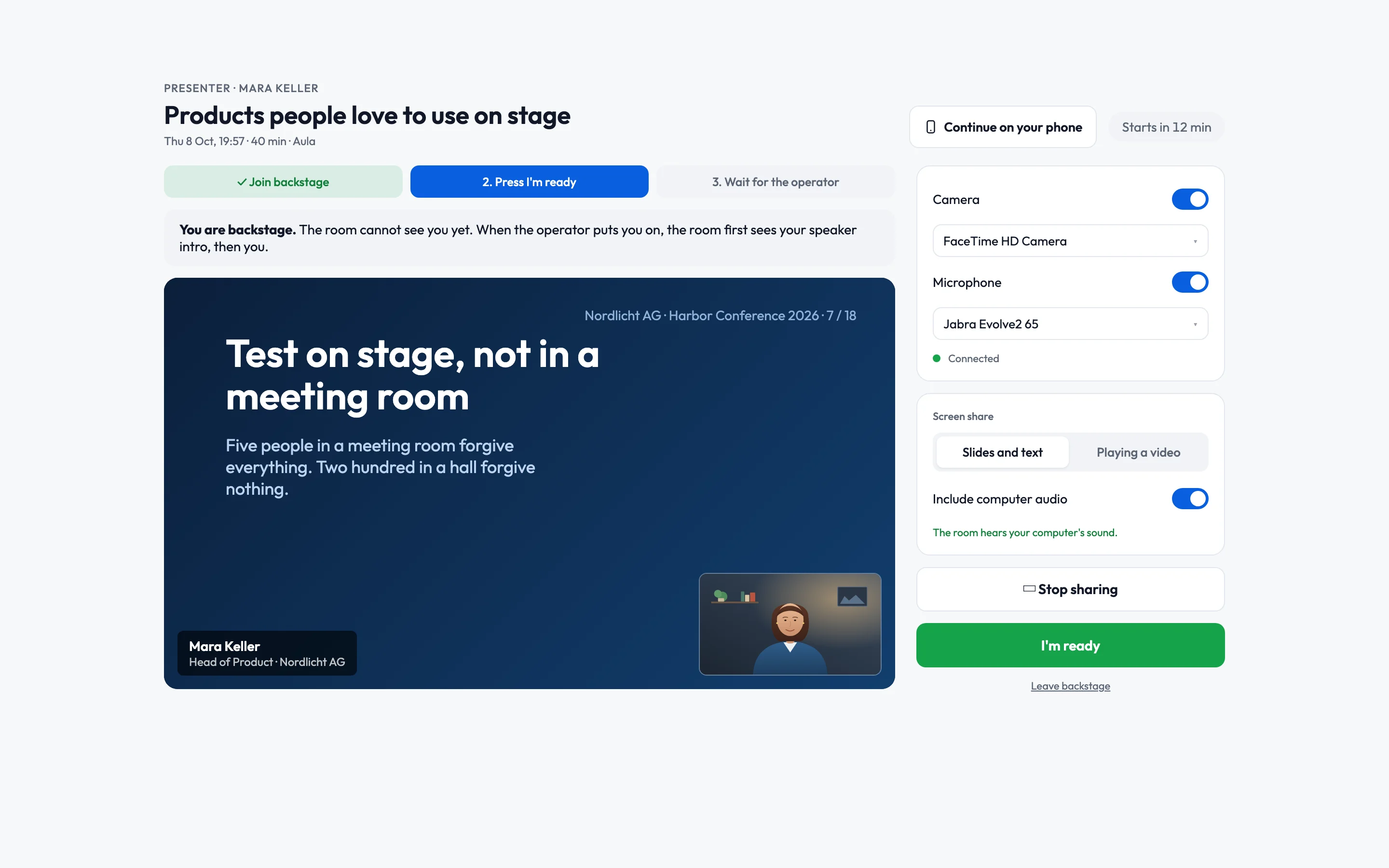
Rehearsals, the backstage link, a network you control, operators for every room and a Q&A that knows who picks the questions. What to prepare with your speakers before the day, and how the day itself runs.