Accessible events: live captions on the phone and the big screen
Captions on guests’ videos, made on the phone and shown on the wall, a guest page that works with a screen reader, and what Wunderframe does not cover.
The Wunderframe team 5 min read
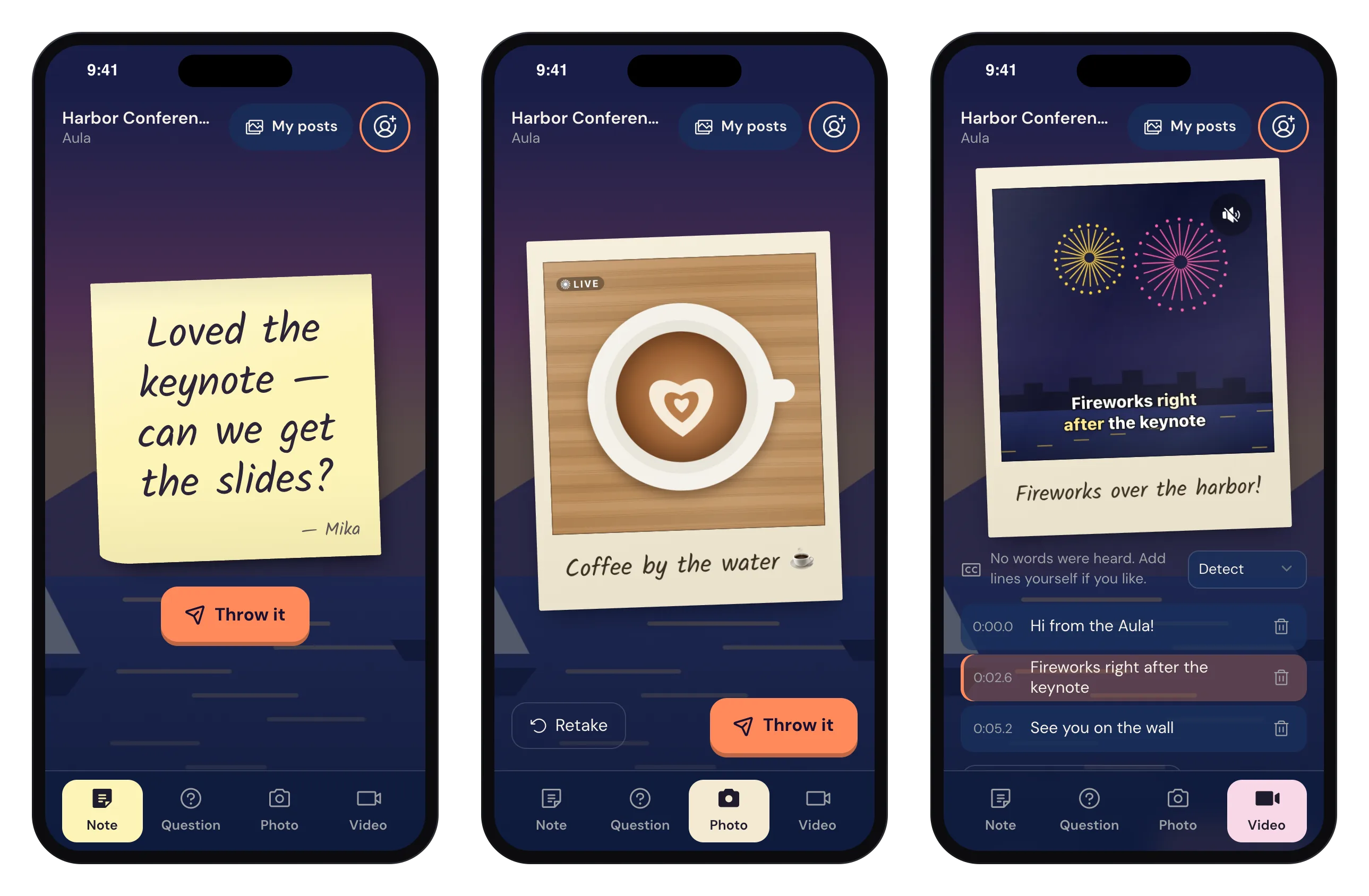
At most events, some guests can’t hear well, some are following in their second or third language, and some are standing next to the bar where nobody can hear anything. Captions help all of them. So does a phone page that works with a screen reader, and a wall that makes sense with the sound off.
This post covers what Wunderframe does for accessibility today, specifically captions on guests’ videos, made on the phone and shown on the big screen. It also covers what it does not do, so you can plan for the rest.
First, what this is not
Wunderframe does not caption the speaker on stage live. If you need live captions of talks (and for many audiences you do), book a captioning service or a live captioner (CART) and plan where their text appears. Everything below is about what guests send to the walls. We would rather say this at the start than have you find out on the day.
Captions on guest videos, made on the phone
When an engagement allows videos, a guest can record a short clip on the guest page, up to the length the workspace allows. Then:
- The phone turns speech into text. A small speech recognition model runs inside the phone’s browser. The audio never goes to a speech service.
- The guest sees timed caption lines and can correct each one, remove one or add one before sending. Speech recognition makes mistakes, especially with names, accents and noise, so the guest has the last word.
- Only the corrected text is kept, as timed lines next to the video.
Two practical notes. The first time a guest opens the Video tab, the phone downloads what it needs for speech recognition. On mobile data that can take a little while, and after that it’s quick. On older iPhones (before iOS 16.4), the guest types the captions themselves.
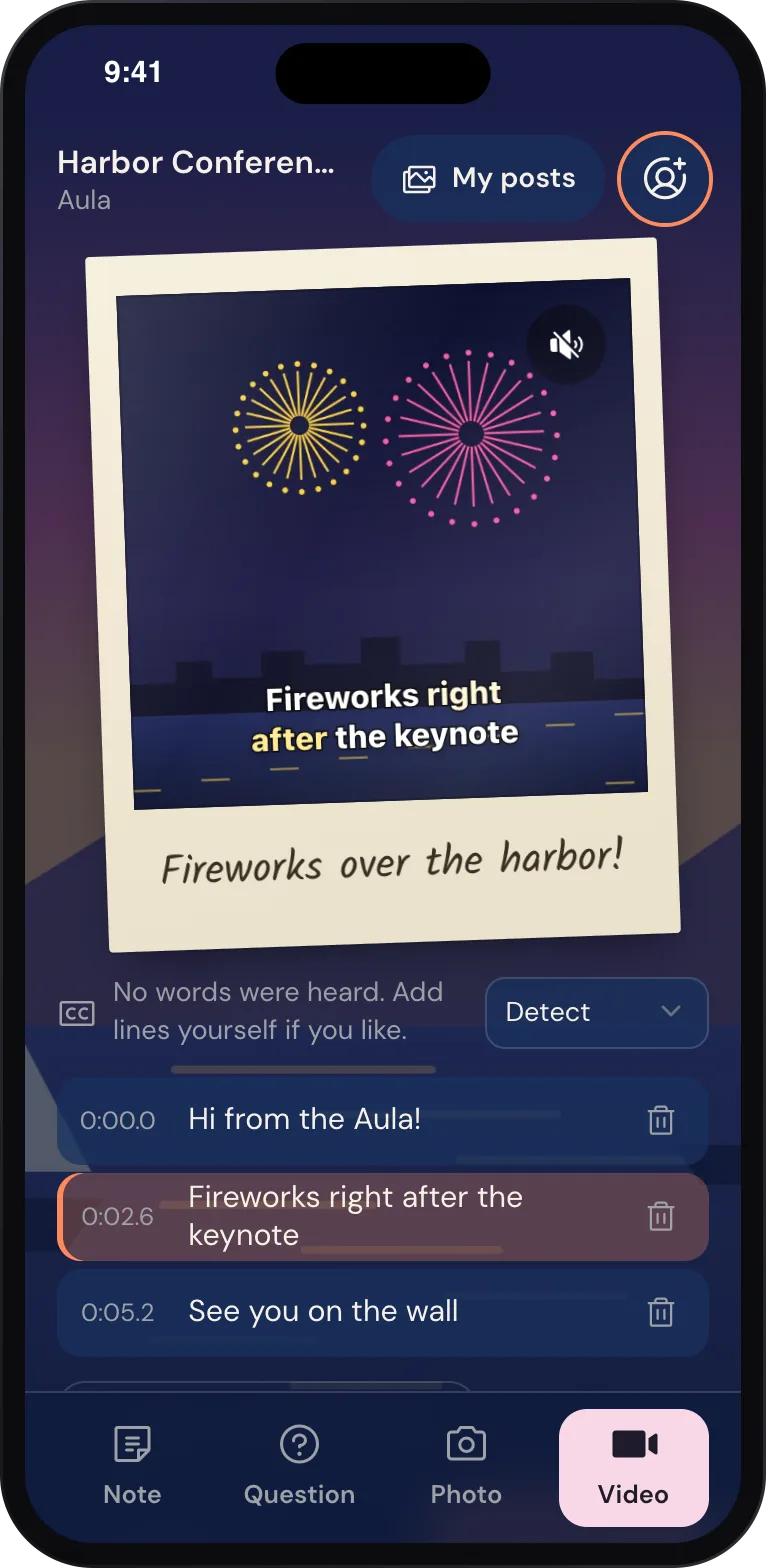
A video polaroid on the phone, with its caption lines ready to correct before sending.
Captions on the big screen
On the polaroid wall, a video plays inside its print, and with Captions on, what the guest said runs over the picture as timed words. The caption style is set per wall:
- a look: bold outline, boxed, karaoke (the word being said is highlighted) or minimal;
- the font, where the text sits and its size;
- the colors of the text, the word being said and the box, and whether to use capitals.
For readability from across a room, a boxed or bold outline style at a large size works best. Karaoke looks lively, but it can be harder to follow for slower readers.
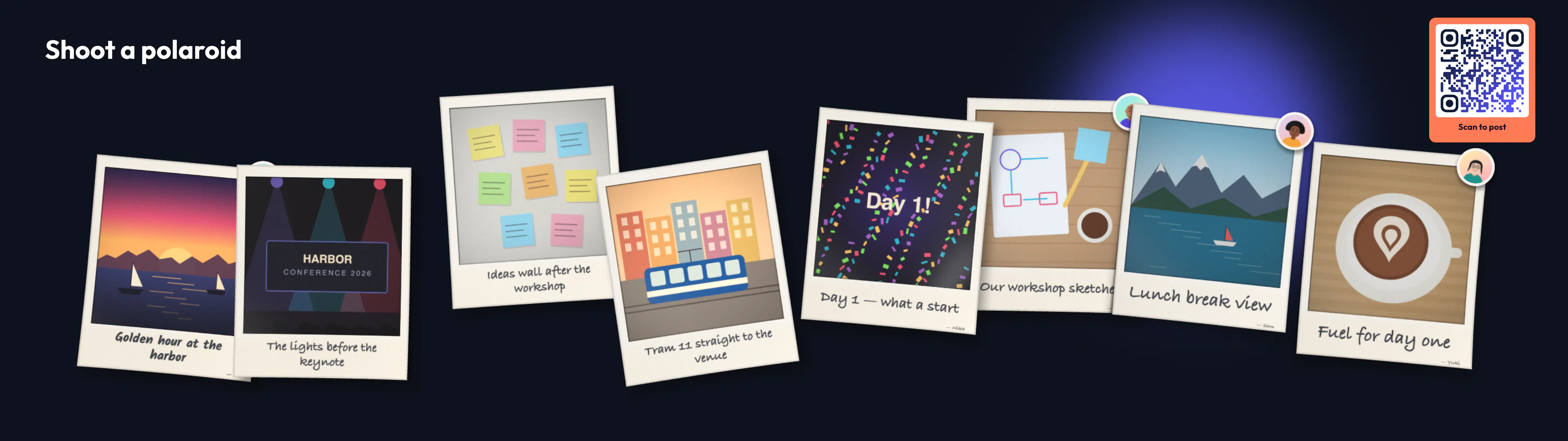
The polaroid wall, where videos play inside the prints and captions run over them.
A wall that works with the sound off
Video sound on a wall is off by default. You can turn it on for new videos only, or for new videos and now and then. Rules can change this over the day: sound during networking hours, a silent wall while a keynote is live, quiet after 22:00. So on most screens, most of the time, the captions are how the room understands a video. That’s why they are part of the print, not an afterthought.
A video on a wall is usually watched with the sound off. Captions are how the room hears it.
A phone page that works with a screen reader
Guests write their notes, questions and captions straight onto the sticky note or the polaroid strip. Under the handwriting look it is a real text field, so the phone’s own tools all work: autocorrect, dictation, selection and screen readers.
- The field says what it expects, for example “Up to 140 characters. Enter sends.” The limit is set per engagement.
- A screen reader hears the limit coming at 10 left, at 5 left, at the limit and when a text is too long for the screen, once each, not on every key.
- The field is sized so iPhones don’t zoom in unexpectedly while the guest types.
- A name is optional. A selfie can always be skipped.
- The page speaks English, German or French, following the phone’s language.
Readable designs
The guest page design editor warns when text and background colors are too close, before a guest ever sees the page. On the walls, notes shrink long text only down to a size that still reads, and a guest is told “Too long for the screen” on their phone before the wall would have to cut anything.
Screens people can read
Accessibility on the venue screens is mostly design, and a few habits go a long way:
- Size for the back row. Check a slide from the farthest seat, not from your laptop.
- Keep text up long enough. A slide in a story plays for as long as you set. Give text slides enough time to be read twice.
- Don’t rely on color alone. “Now” and “Next” on an agenda board should differ in words or position, not only in color.
- Make the QR code reachable. Put one where it can be scanned from a seat or a wheelchair, not only high on the stage screen, and write the short address under it. The QR code block has a caption for that.
A checklist for an accessible event
- Book live captioning for the talks if your audience needs it. Wunderframe doesn’t cover the stage speaker.
- Turn captions on on every wall that plays guest videos, in a readable style and size.
- Keep video sound off where the room is loud, and let captions carry it.
- Check contrast in the guest page design and on your slides.
- Tell guests what’s possible: a line on the slide such as “Send a video, and it gets captions” invites people who might otherwise not join in.
- Test on a real phone, including with a screen reader, before the event.
Read more
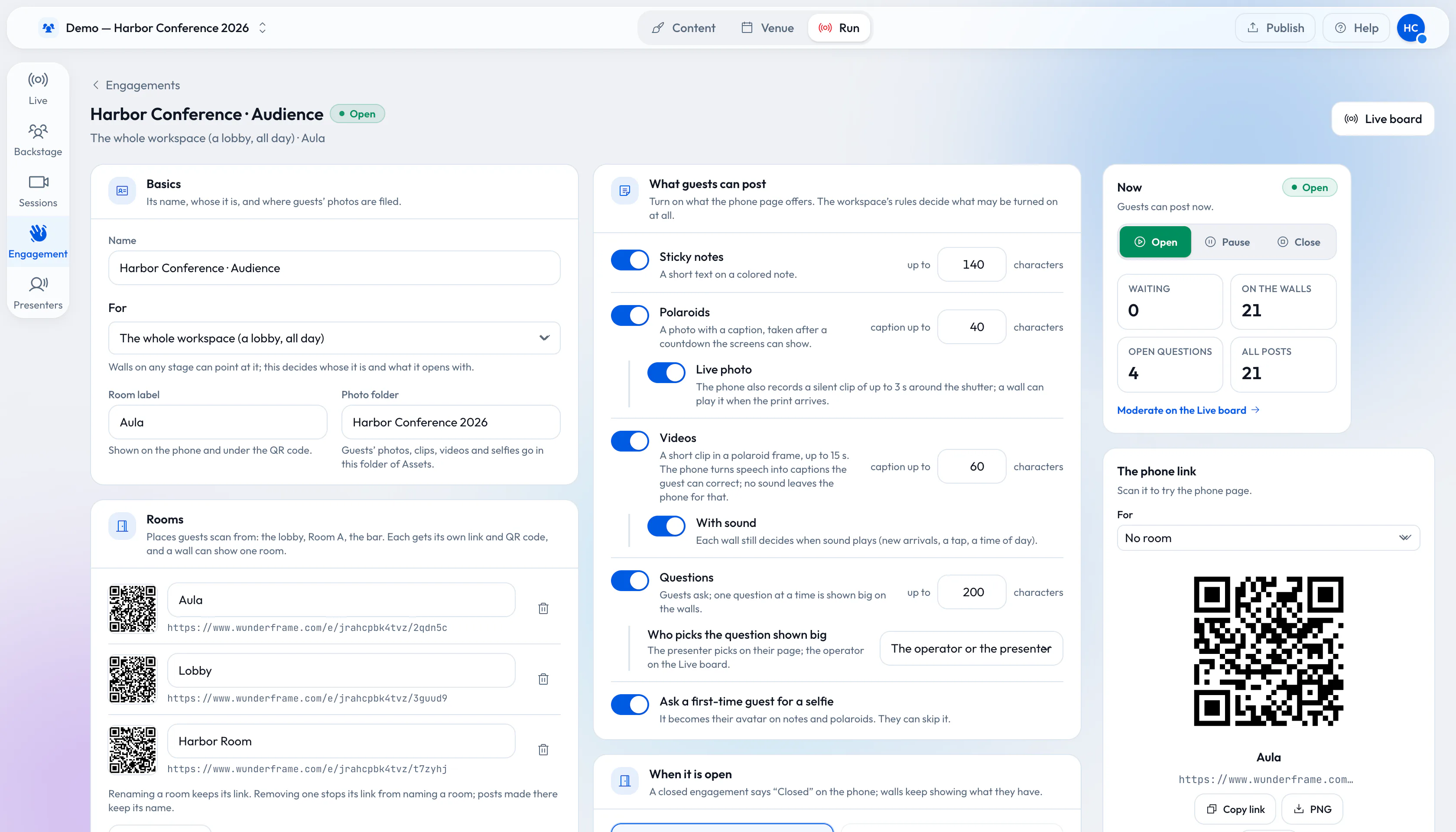
Walls covers captions, sound and rules in detail, and The guest page covers what guests see. For the whole engagement setup, read From QR code to polaroid wall. Plans are on Pricing, and you can start free.
Related posts
From QR code to polaroid wall: engage 1,000 guests without an app
A QR code, a phone browser and your screens. How to set up sticky notes, questions and a polaroid wall for a big crowd, and what changes when a thousand people post.
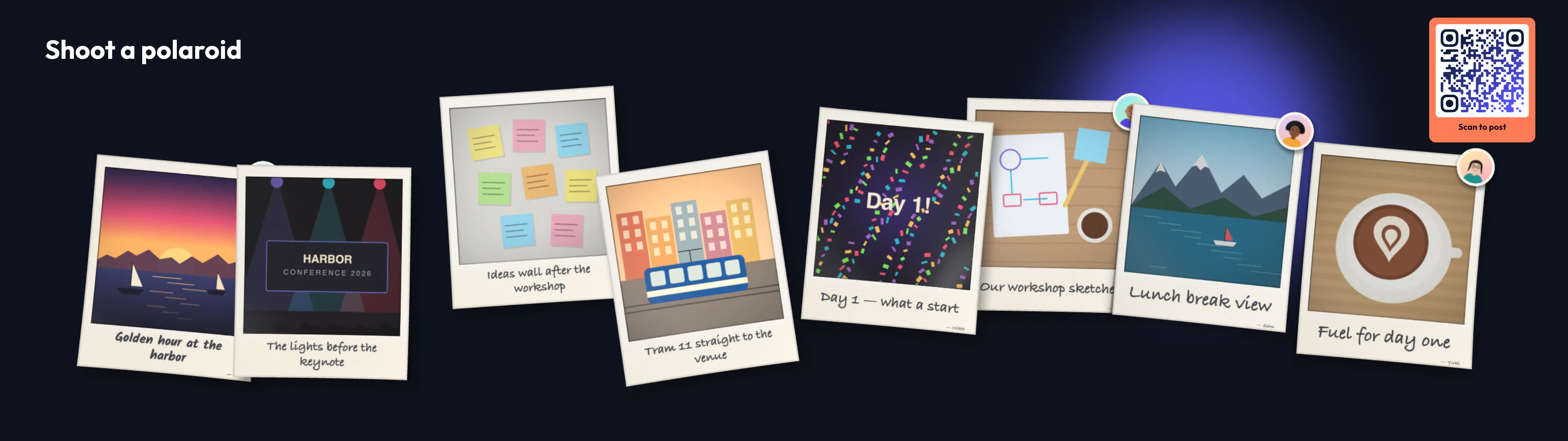
Photo booth hire vs a photo booth on your screens
A hired booth gives you prints and great light. A polaroid wall gives every guest a camera and the whole room a show. What each costs and does, and when to use both.
Connect your photo booth to the big screen
Your booth already takes great pictures. With the Engagement API every shot lands on the polaroid wall seconds later, and the guest scans a QR code to take it home. The three calls, and a recipe for Sparkbooth, pibooth, dslrBooth and any booth with an output folder.