Event productionLive presentersHow-to
Live speakers without surprises: a playbook for event managers
Rehearsals, the backstage link, a network you control, operators for every room and a Q&A that knows who picks the questions. What to prepare with your speakers before the day, and how the day itself runs.
The Wunderframe team 13 min read
Most things that go wrong with a speaker on the day were decided weeks earlier. The laptop that will not share its sound, the Wi-Fi that wants a room number before it lets anyone in, the question nobody knew who was supposed to pick. On stage they look like bad luck. Behind the stage they are gaps in the preparation.
This post is a playbook for the people who organize a conference or an event with live speakers: what to settle with each speaker before the day, how to rehearse, what to ask of the venue’s network, who runs which room, and how the Q&A works. The screenshots come from a made-up conference, the Harbor Conference 2026, with a keynote by Mara Keller in the Aula.
The shape of it
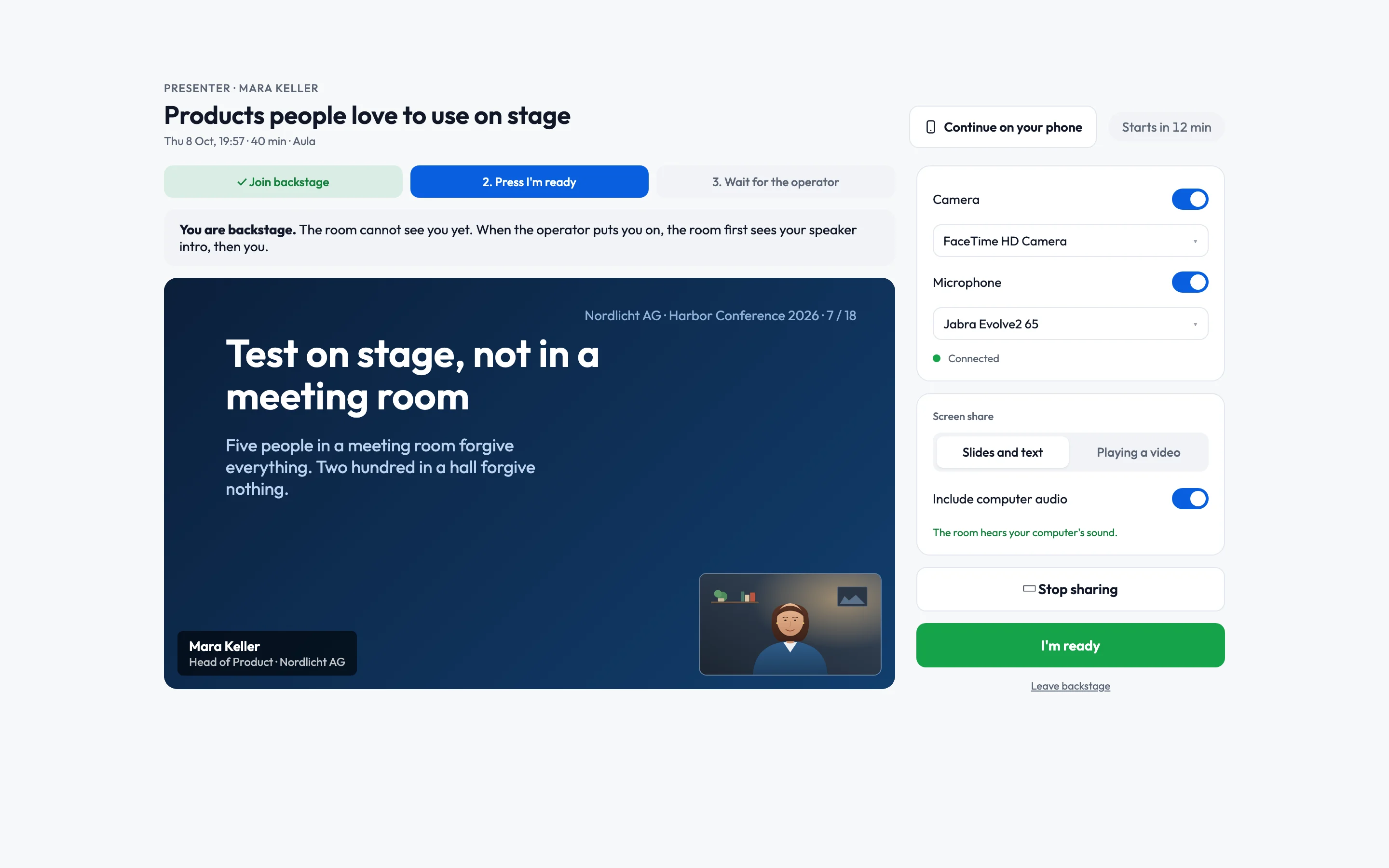
In Wunderframe every talk is a session: a slot in one room, with its presenters, the slide that frames them, and a rule for how it goes live. Each speaker gets a personal link. Behind that link is their own page: a waiting room called backstage, where they check their camera and microphone, share their slides, say I’m ready, and later pick questions from the audience. They need no account and no app. The same link works for every rehearsal and for the talk itself.
That gives the preparation a clear order:
- Plan the sessions and send the links, about three weeks out.
- Rehearse from home, a week before.
- Walk the venue and settle the network.
- Rehearse on site, on the real screen.
- Brief every speaker on the day.
Three weeks out: sessions, links and four decisions
Create a session for every talk, with its room, start and length (see Plan a session). Add the speakers, then send each one their link with Send by email: they get the link and a calendar entry with the room, the start in the venue’s time, and how early backstage opens. Send the page What to expect as a presenter with it. It is short, and it answers the questions you would otherwise get by phone.
Four decisions belong in the same email, because the speaker prepares differently for each answer:
- Who puts them on screen. Either the session switches by itself when the speaker presses I’m ready (or at the start time), or an operator at the desk presses Take. For anything with an audience in the room, we recommend the operator: someone who can see whether the speaker is really at the lectern. The details are in Go-live modes.
- How they show their slides. From a laptop, by sharing their screen, or as one HTML file they upload in advance, which the screens play by themselves while their phone changes the slides (Present your own HTML deck). The second needs no laptop at the lectern at all.
- Whether they bring their own laptop or use the lectern’s. Their own is familiar; the lectern’s is tested. Choose one and rehearse on that one.
- Who picks the audience’s questions: the operator, the speaker, or either. More on that below, because it changes what the speaker has in their hands during the talk.
A speaker who knows who presses the button stands differently at the lectern.
A week before: the rehearsal from home
On the session page, plan a rehearsal. Same time, one week before fills in a good default: the speaker rehearses at the hour of day they will present, with the same light at their window and the same load on their home network. They use the link they already have; it opens 15 minutes before the rehearsal. A banner tells them it is a rehearsal, and nothing reaches a screen.
Twenty to thirty minutes is enough. Go through it in this order:
- Camera and microphone. The right devices chosen, the level meter moving, a headset if there is any echo. You hear them with Listen on the session page.
- The screen share, with sound. A video in the slides needs Include computer audio, and in Chrome the speaker has to pick the tab and turn its sound on in the share picker. This is the step that fails most often, and the one nobody wants to find out about in front of two hundred people.
- Slides and text or Playing a video. One switch on their page that tells the stream what to keep sharp.
- The framing. Their page shows what the stage will show when they are on. Look at it together: the name, the title, whether the slide leaves space for the camera.
- I’m ready, and what happens next. Let them press it once, so that on the day it is a habit, not a question.
Did it all work? Then the link, the browser and the devices are proven. Anything that changes after this rehearsal (a new laptop, a new headset, a different browser) is a reason for a short second one.
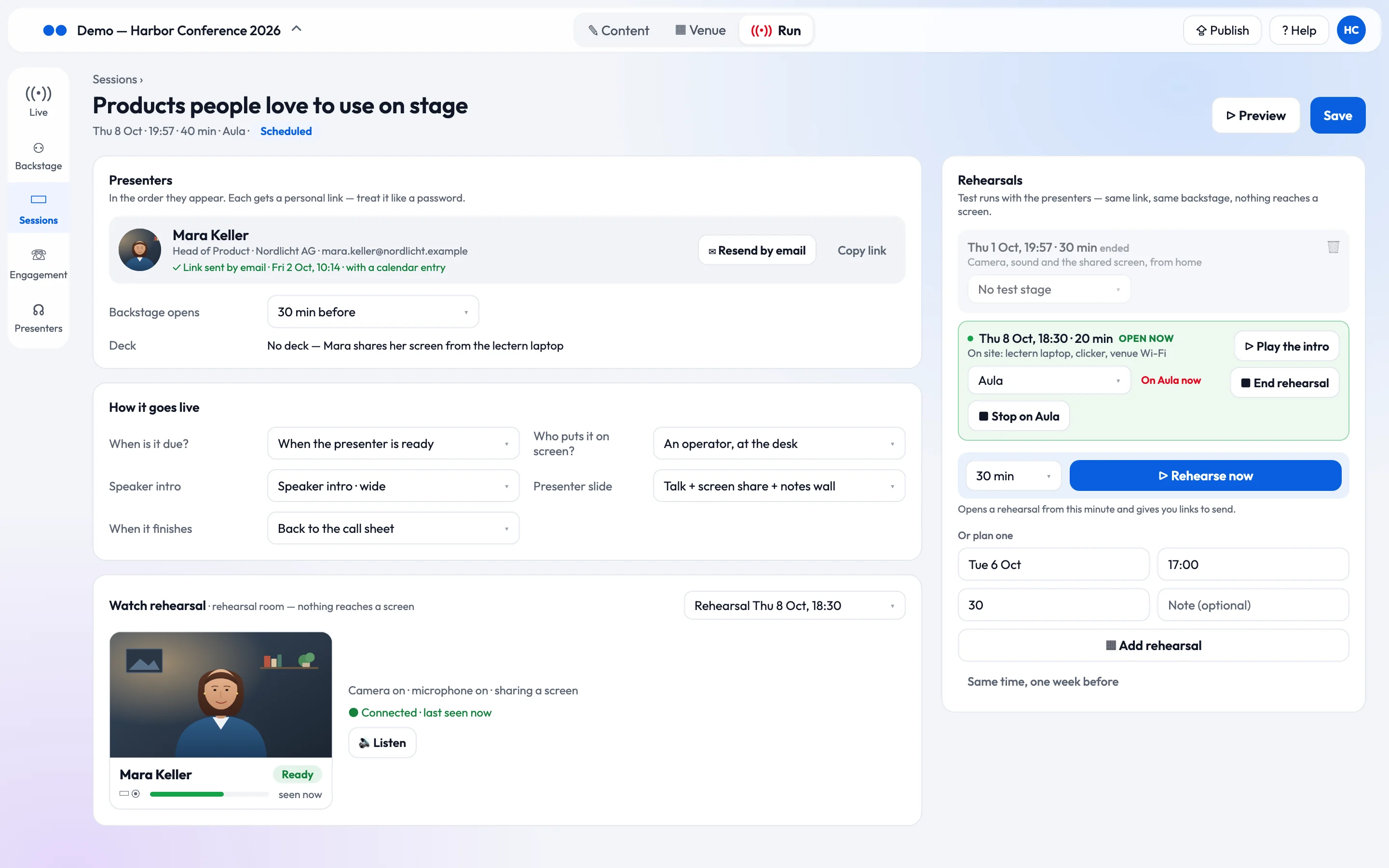
The session page. One rehearsal from home a week before, one on site on the Aula screen, and the speaker's tile marked Ready while they rehearse.
The site visit: Wi-Fi, or better, your own network
A live speaker is a video stream, and a stream needs a steady connection in both directions. Screens keep playing their program through a network drop (see Offline, caching and storage); a person on camera cannot. So walk the venue with one question: what will the lectern, the phones and the screens be connected to, and who else is on it?
Venue Wi-Fi tends to break in the same few ways:
- A login page. Guest networks often want a room number or an accepted form first. A laptop can click through it. An Android TV box or a Raspberry Pi behind a projector usually cannot.
- Shared with the audience. The network was fine at the site visit with nobody there. At 10:00 on the day, three hundred phones are uploading photos.
- A strict firewall. Some corporate and hotel networks block the connections that live video uses. Ask for the venue’s IT contact early, and test on the actual network, not on a promise.
- The password changes every day, or the network ends at the door of the room you rented.
Our advice: bring your own network for the stage. A travel router with its own SIM card on the lectern gives the lectern laptop, the speaker’s phone, the room coordinator’s phone and the screen players one network with a name and a password you chose, and nobody else on it. Wire the screen players to it where you can, and plug the router into power, not a battery. Then the speaker’s part really is plug and play: open the lid, the laptop is on the stage network, the link opens.
Keep the venue’s network as the backup, and test it at the site visit like the main line: with a screen paired to it and a presenter link open on a laptop. If the venue offers a wired connection or a separate network for production, take it. Guests stay where they are: on the venue’s guest Wi-Fi or their own mobile data, which is all they need to send questions.
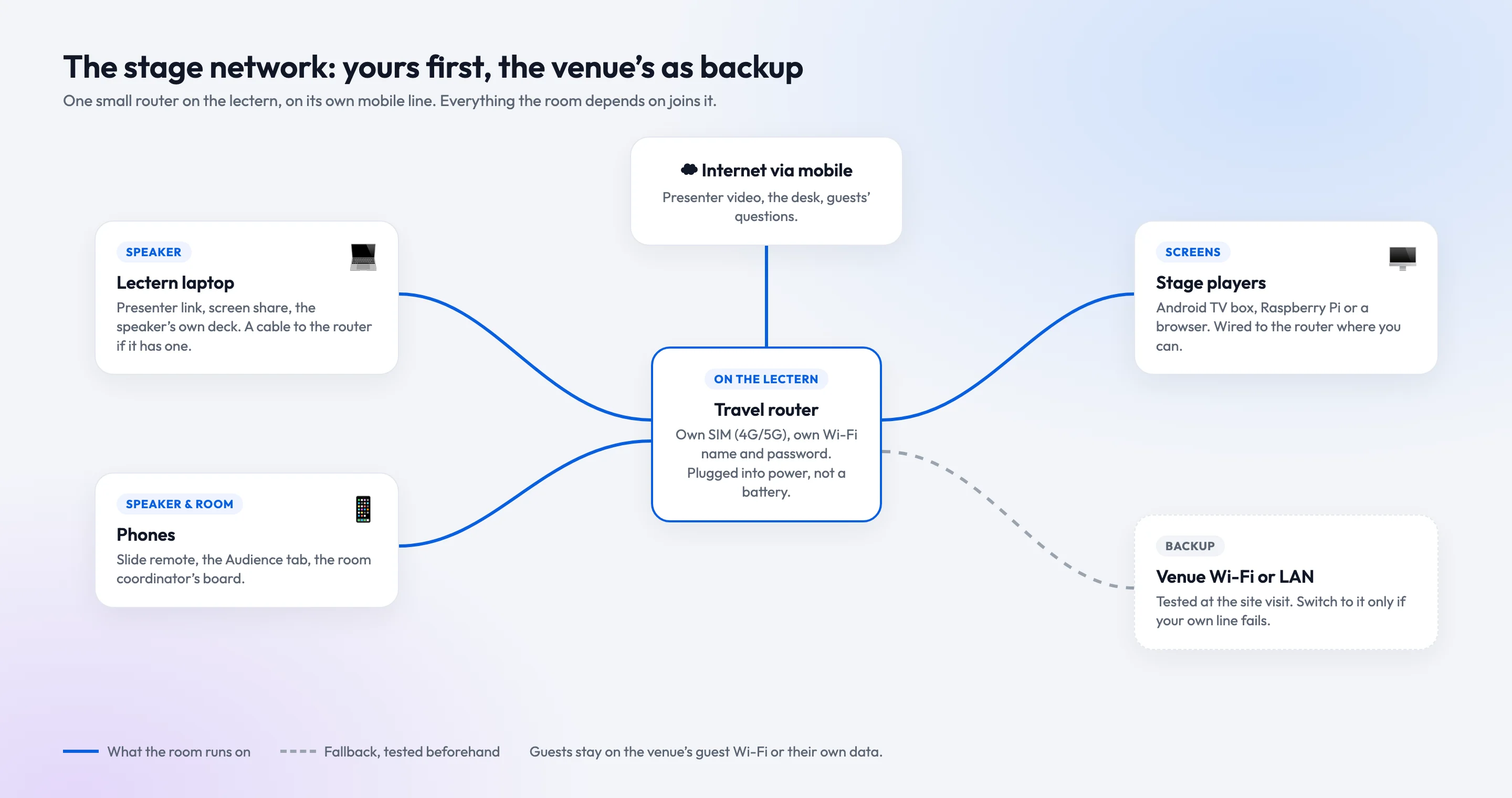
One small router on the lectern carries everything the room depends on. The venue's network is the tested backup.
On site: rehearse on the real screen
The rehearsal at home proves the speaker. The rehearsal on site proves the room. Plan a short one in the setup hours on the day, or the evening before, and give it a test stage: any screen, including the session’s own. While the rehearsal is open, Show on Aula puts the speaker on the real projector, framed exactly as they will be during the talk. The speaker sees their slides at the size the last row sees them, walks the stage, tries the clicker or the phone remote, and hears the room’s sound. Play the intro lets them watch their own speaker intro once. End rehearsal gives the screen back to its schedule (see Rehearse on a test stage).
For the whole day, not just one talk, run a test run from the Live board: every screen, every presenter link and every audience page behaves as it will at a moment you choose, say five minutes before the keynote, with a small TEST RUN mark on the screens. Speakers can check in and go live, guests can post, you can Take and GO. When you end it, everything made during it is deleted (Test run before the event). Never start one while the real event is on.
What to tell every speaker
The briefing fits on one page, and it is worth sending again the day before:
- Your link is personal. No account, no password, please don’t forward it. If someone else presents, they get their own.
- Backstage opens 30 minutes before your talk (or whatever you set). Come early; the page tells you when it opens, and opens by itself if you leave it open.
- Join backstage, then press I’m ready. Backstage, we see and hear you. The room does not. Nothing reaches a screen until you are live.
- Who puts you on. Tell them plainly: “the operator takes you live” or “you go on the moment you press I’m ready”. When the operator has seen them, their page says so.
- The intro plays first. If the session has a speaker intro, their page counts it down. They start talking when it ends.
- Nobody cuts you off. Running over only alerts the organizers. When you are done, press Session finished, or we do it for you.
- Where you will stand, and on which network. The stage network’s name and password, which laptop, and whether you share your screen or bring an HTML deck.
- How the Q&A works, and whether you pick the questions yourself. That is the next section.
The speaker's own page on the lectern laptop. Backstage, sharing the slides, one press from I'm ready. The room sees nothing yet.
Operators, and a coordinator for every room
Somebody owns every room while a speaker is on. With one stage, that is one operator at the Live board, often the stage manager. With several rooms you have two good options:
- One desk for all rooms. Backstage shows every presenter session of the day side by side, a column per room, with pictures, microphone levels, readiness and a Take button. One experienced operator can run three or four rooms from a laptop, as long as someone in each room can tell them what the room looks like.
- A room coordinator in each room, with a phone or a tablet. On the Live board, Rooms opens a room’s own page: the session now and next, the speaker’s status, one big button (Presenter ready — Take, Session finished), the room’s questions and its screens, with Black out this room for emergencies. Save that page to the coordinator’s home screen and it opens straight into their room (Operate one room from a phone).
Most conferences mix the two: an operator at the desk who watches everything and handles the lobby screens, and a coordinator per room who stands where the speaker can see them. Give every one of them a spare device, and put them on the stage network too.
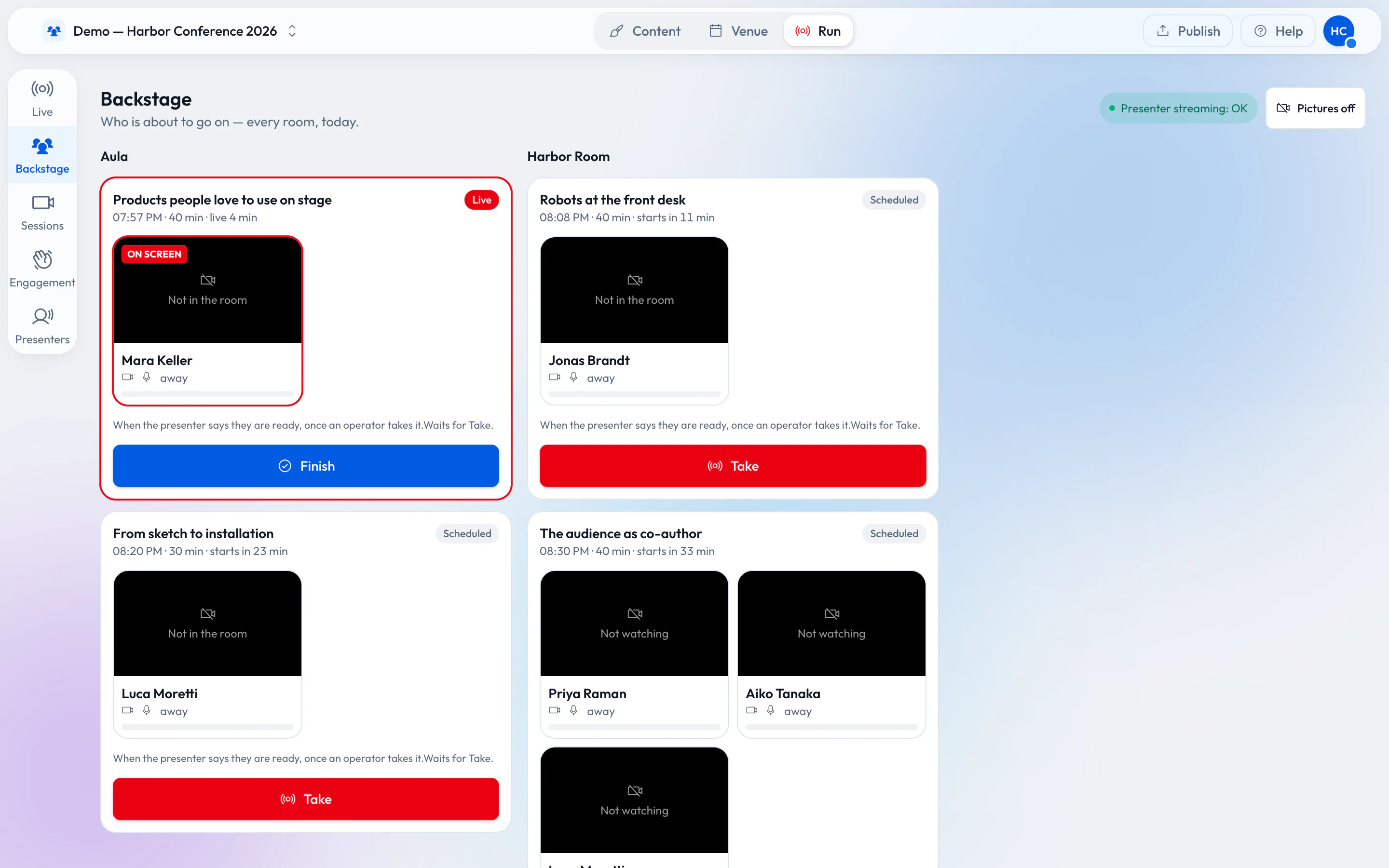
Backstage at the desk: who is about to go on in every room, and who is on now.
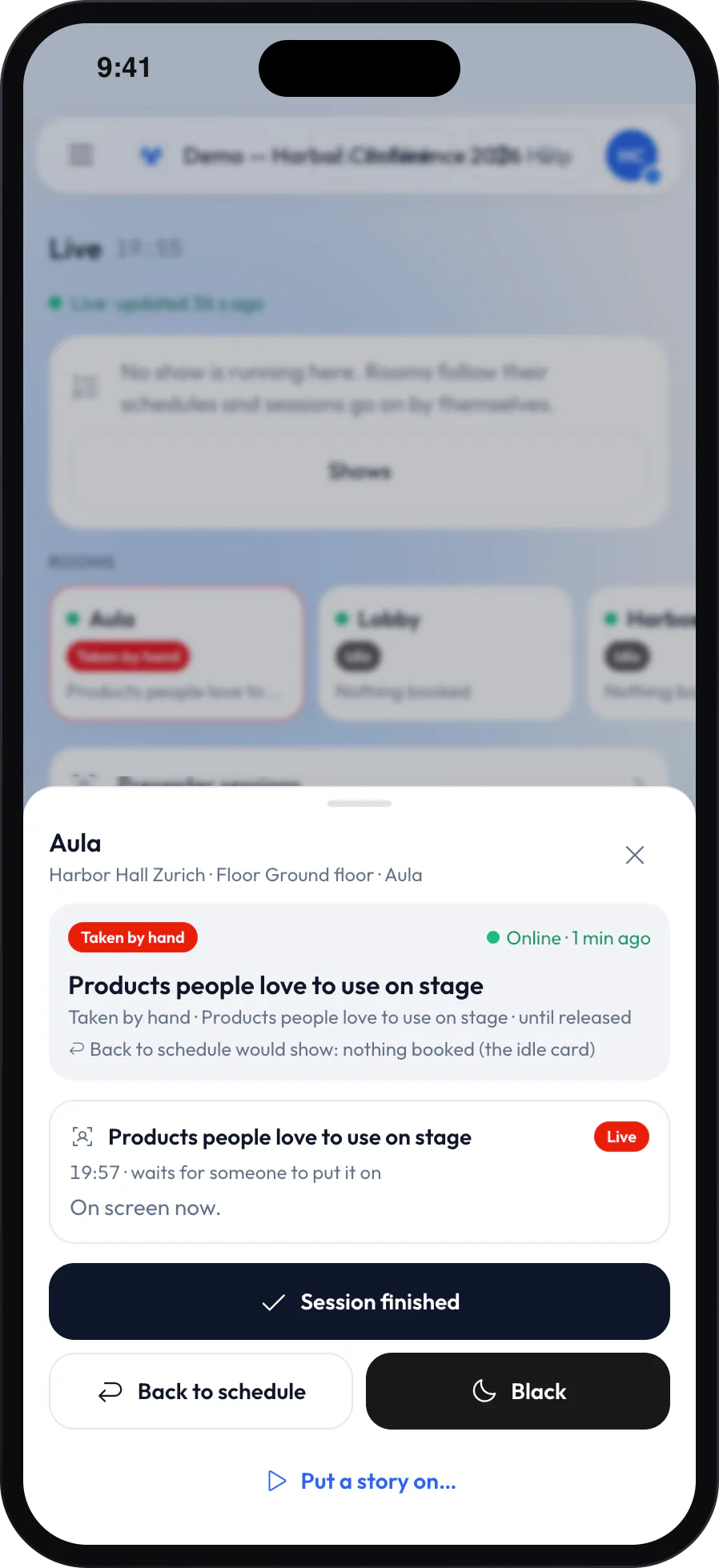
The room coordinator's phone: the Aula, the live session and its controls.
The Q&A: decide who picks the questions
Guests scan the room’s QR code and send questions from their phones. One question at a time can be shown big on the room’s screens, and it goes back when the next one comes forward. The part to decide beforehand is who presses Show big. The engagement’s setting Who picks the question shown big has two answers that matter:
- The operator picks. The operator or the room coordinator reads the questions in the Engagement panel, approves or rejects what waits, shows one big and marks it Answered. The speaker only talks. This suits keynotes, nervous speakers, a moderator on stage, and any room where a wrong question on the big screen would be a problem.
- The speaker picks. The speaker gets an Audience tab next to Stage on their own page: the question big on the screens with Answered, the queue with Show big, and the answered ones to bring back. With The operator or the presenter, both can, and the desk still sees everything. For a small session with no one at the desk, the speaker can even approve the questions themselves (The presenter approves questions). Photos, notes and videos always stay with the operator.
Tell the speaker which one it is. A speaker who expects the operator to pick and then sees nothing happen waits in silence; a speaker who picks needs a free hand and a second screen for it. The Running it live guide has every button.
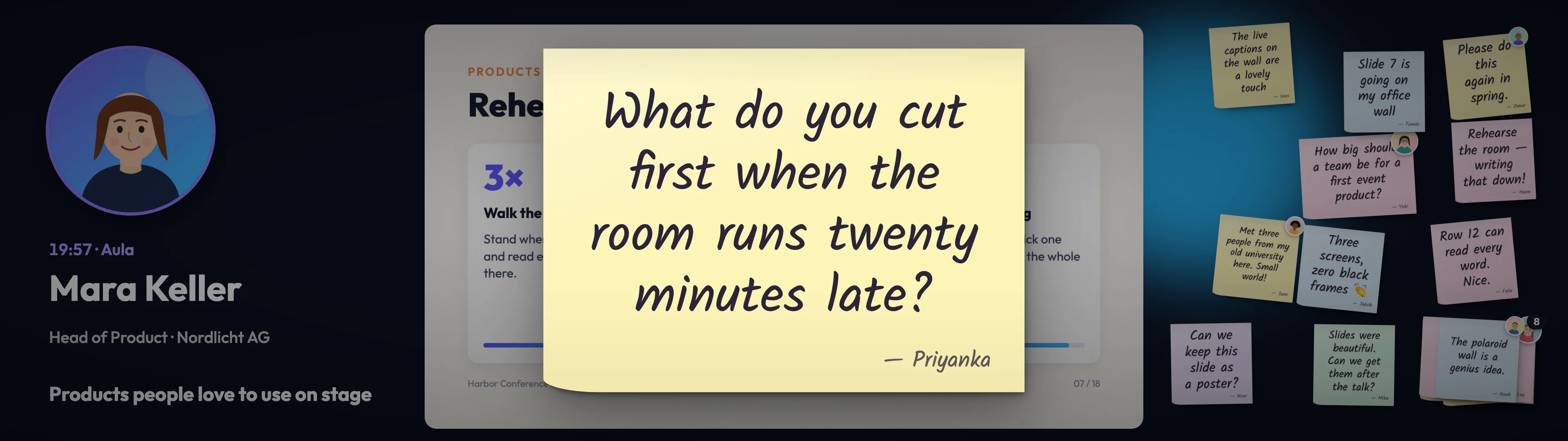
The picked question fills the Aula screen. Who picked it, operator or speaker, was decided three weeks earlier.
The phone in the speaker’s hand
At the lectern, the laptop is busy sharing the slides. So the speaker’s phone does the rest. On their page, Continue on your phone shows a code; they scan it with the phone’s camera and the same page opens there, signed in. The code works once and for one minute, and it never contains the link itself. It should still not be on screen while the laptop is sharing, so do it backstage, before going live. The phone stays signed in for the event day.
On the phone, the speaker has the Audience tab at their fingertips while the laptop keeps the slides. A speaker who uploaded an HTML deck gets a full-screen slide remote instead: the slide number, the title, the notes for the current slide, a touchpad to swipe, and big Back and Next buttons. With hand signs turned on, the phone’s camera turns a thumb up into the next slide. Rehearse that on site, in the real light; the touchpad always works.
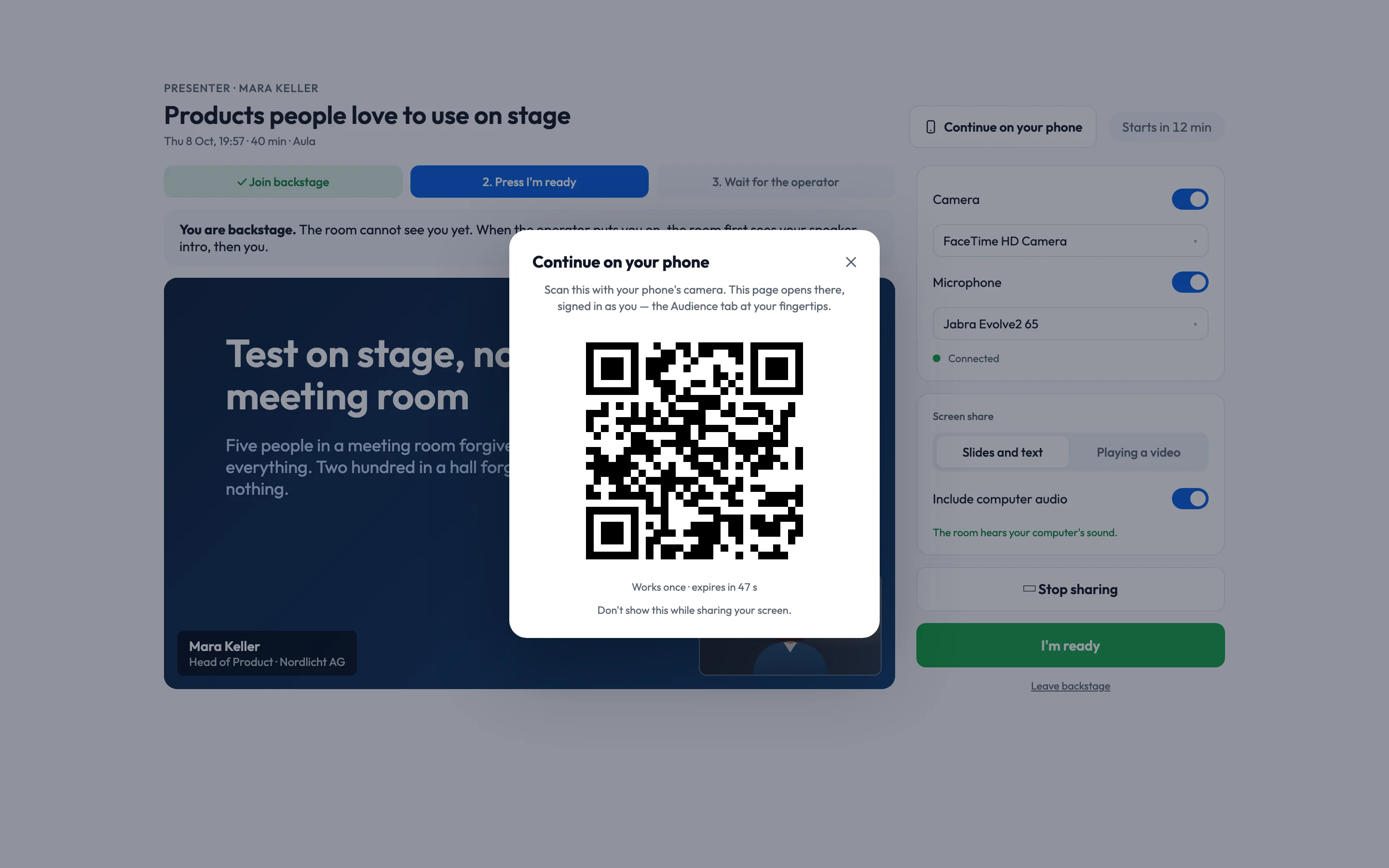
Continue on your phone: a one-time code moves the page to the speaker's phone, signed in. Scan it backstage, not while sharing.
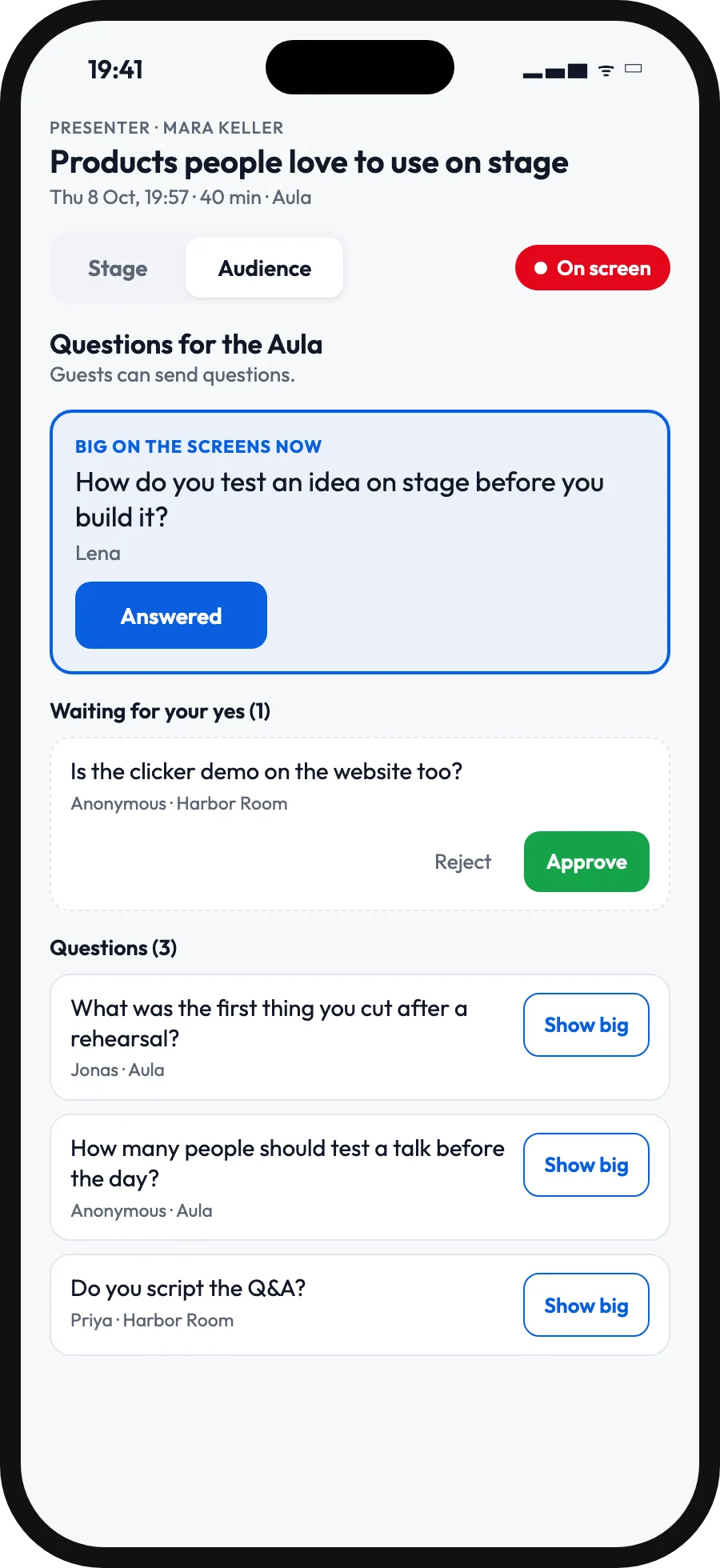
When the speaker picks: the Audience tab on their phone, while the laptop shares the slides.
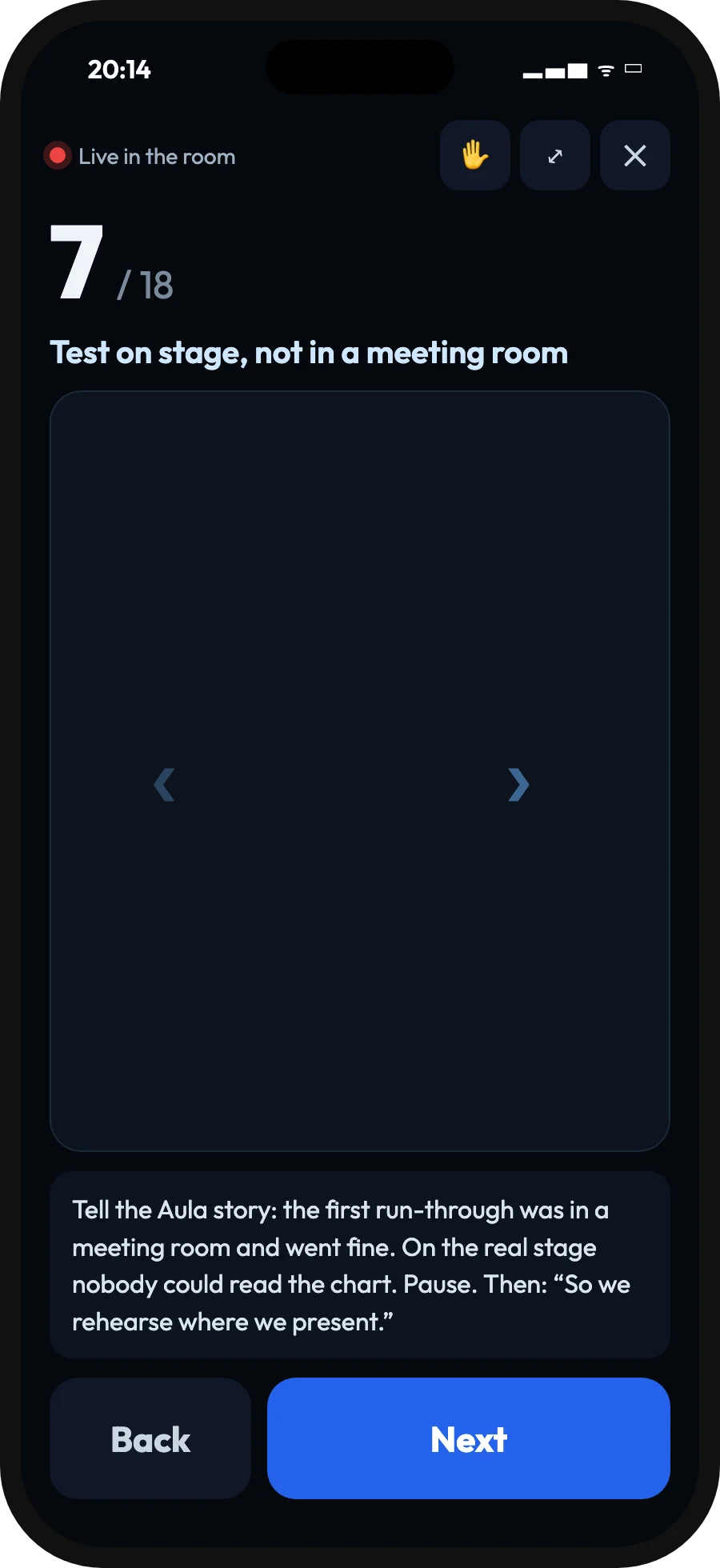
No laptop at all: with an uploaded HTML deck, the phone is the slide remote.
The day itself, minute by minute
- Doors minus 60 minutes. Every screen shows a green dot in Venue → Stages, every tile on the Live board shows what you expect, and the board says Presenter streaming: OK. The stage router is on power.
- Talk minus 30 minutes. Backstage opens. The speaker opens the link on the lectern laptop, joins backstage and, if they pick questions or use a deck, moves the page to their phone.
- Talk minus 10 minutes. The speaker presses I’m ready. The coordinator looks at the lectern, not just at the tile, and waits for the cue.
- The start. The operator presses Take. The intro plays, then the speaker is on.
- Q&A. The questions come up, big, picked by whoever you agreed on.
- The end. Session finished, by the speaker or the coordinator. The screens move on to what you chose: the call sheet, the next cue of a show, or a story.
The checklist
- Every talk is a session, with a room, a presenter slide and a go-live rule.
- Every speaker has their link, the calendar entry and What to expect as a presenter.
- Decided per talk: who puts them on, laptop or deck, whose laptop, who picks the questions.
- A rehearsal from home a week before, and a short one on site on the real screen.
- Your own stage network, with the venue’s tested as the backup.
- An operator at the desk, a coordinator per room, and a spare device for each.
- A test run of the whole day, ended before the doors open.
None of this needs a large crew. It needs the answers before the day. See Presenters and sessions and the Operator guide for the details, and Keynotes that wait for the speaker for a worked morning. Then start free and send your first rehearsal link.
Related posts
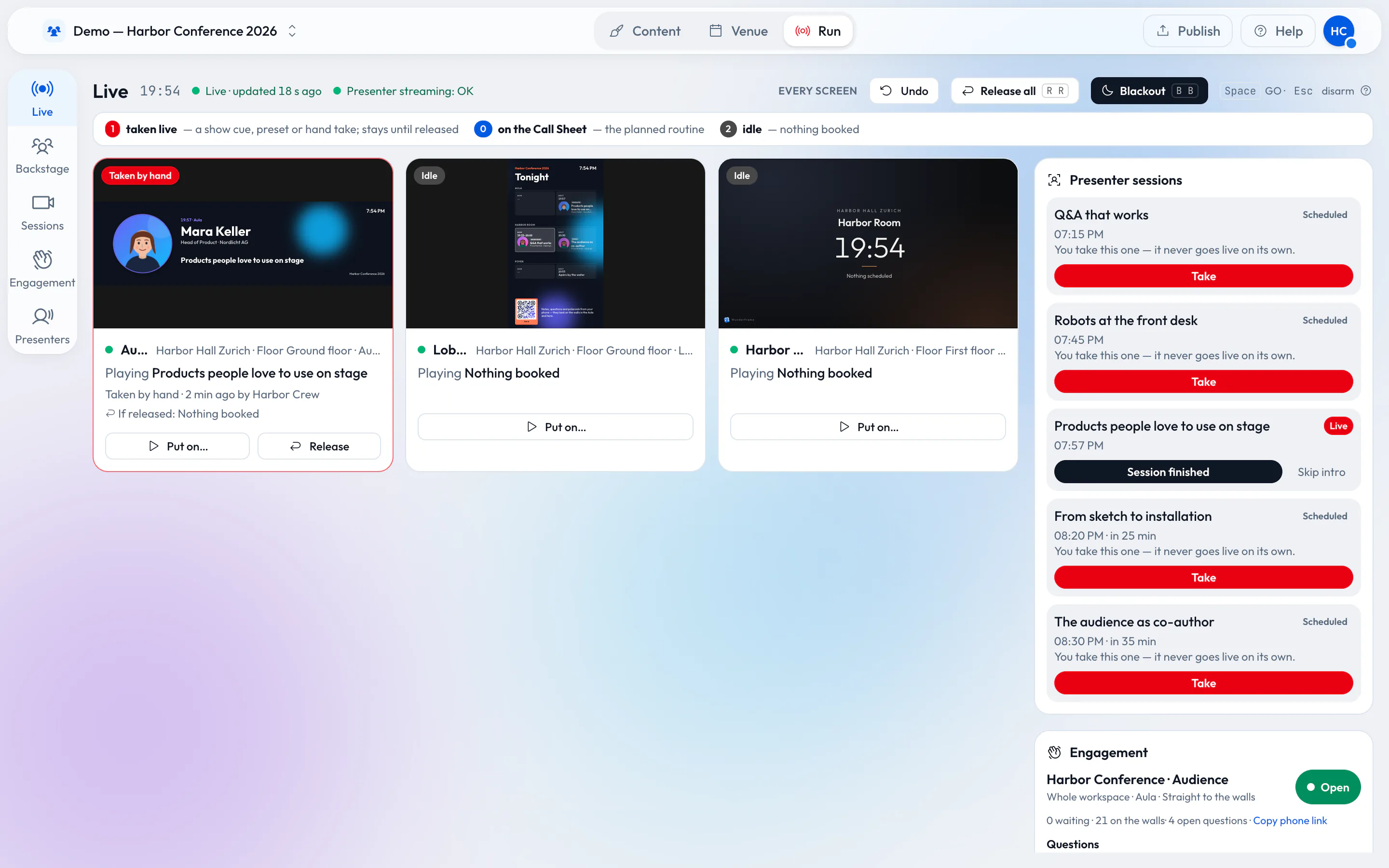
How an event should really run
A wide stage screen, speakers who join from anywhere and an operator with a phone. For a conference, a wedding or a company evening in a rented venue, with little more than a browser, an Android TV box or a Raspberry Pi.
Keynotes that wait for the speaker
A morning of three keynotes in one hall, and why the screen should move on when a person is ready, not when a timer runs out. Timed stories and live sessions, and how to tell which one you need.
Running a conference from one live desk
A multi-room conference usually means a laptop per room and a lot of walkie-talkie. What changes when every room screen, the lobby and the audience’s questions run from one desk — and what still needs people.