Digital signage
Screens that run by themselves, every day of the year.
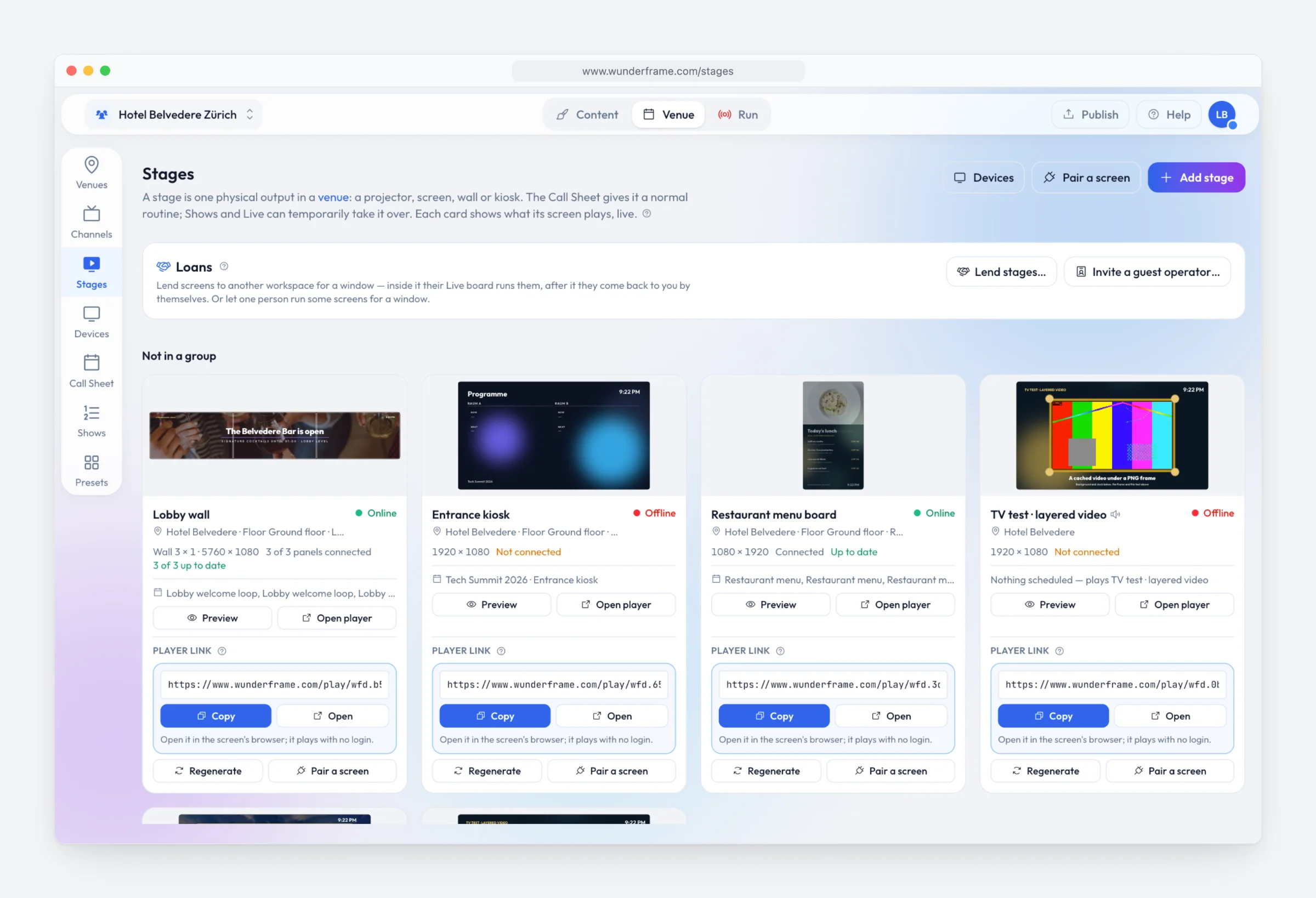
The menu board above the counter, the reception screen, the shop window, the TV in the break room: Wunderframe runs the screens that play every day — the right content at the right time, changed from your office, with a copy of the program kept on every screen.
The situation today
A USB stick in the back of the TV, a slideshow from last season, and the opening hours still say summer because nobody wants to climb up and change them.
Schedules and rules
Breakfast in the morning, the evening menu at six.
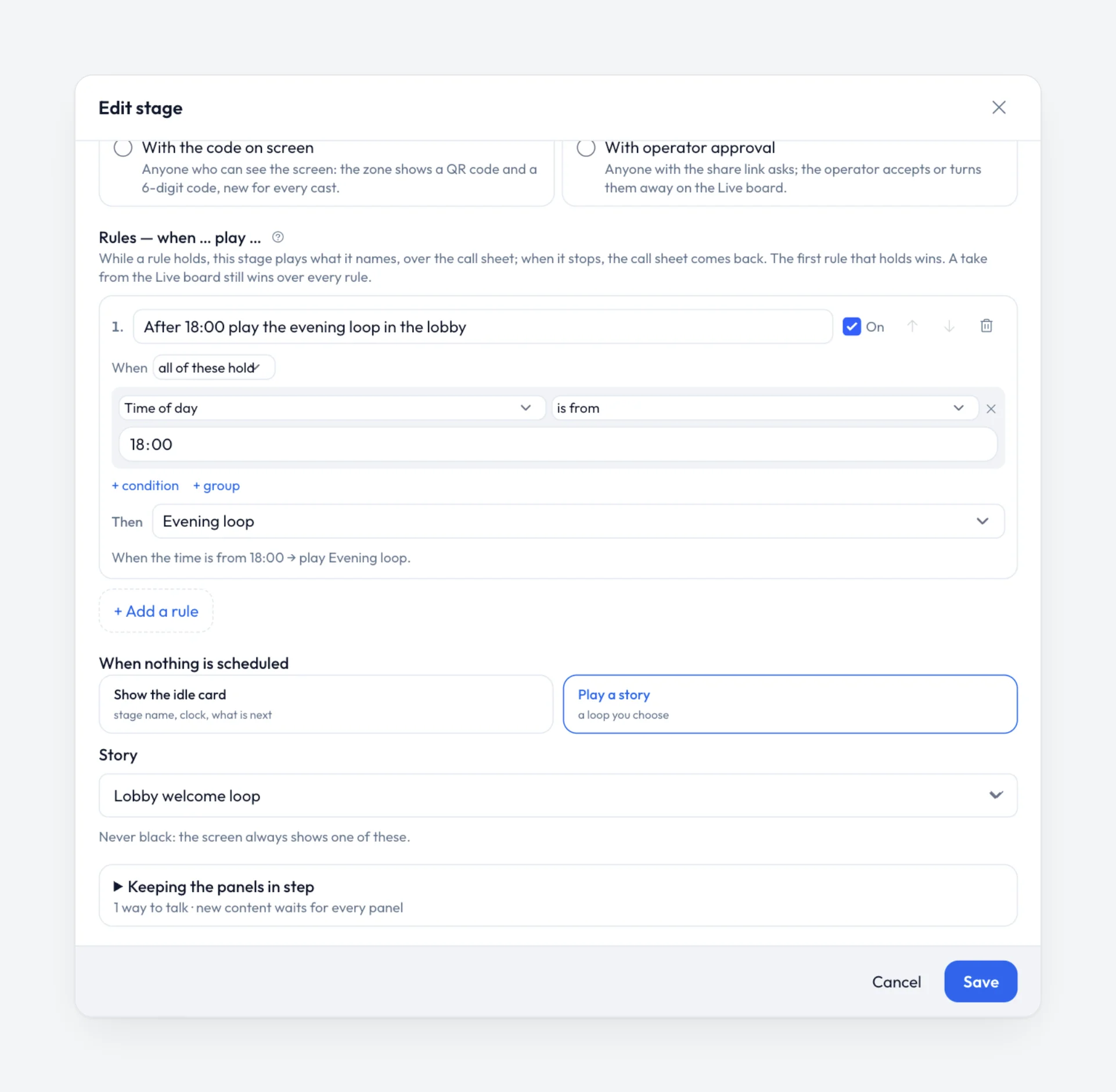
Each screen plays what you booked for it, and something sensible when nothing is booked. Rules switch it without anyone at a desk.
- By time of day, weekday or date — or by dayparts you name once, so “evening” means the same everywhere
- By a value in your data: sold out, closed today, the next appointment
- By someone standing in front of the screen, read by its camera
Your data on screen
Menus, prices and opening hours from a list.
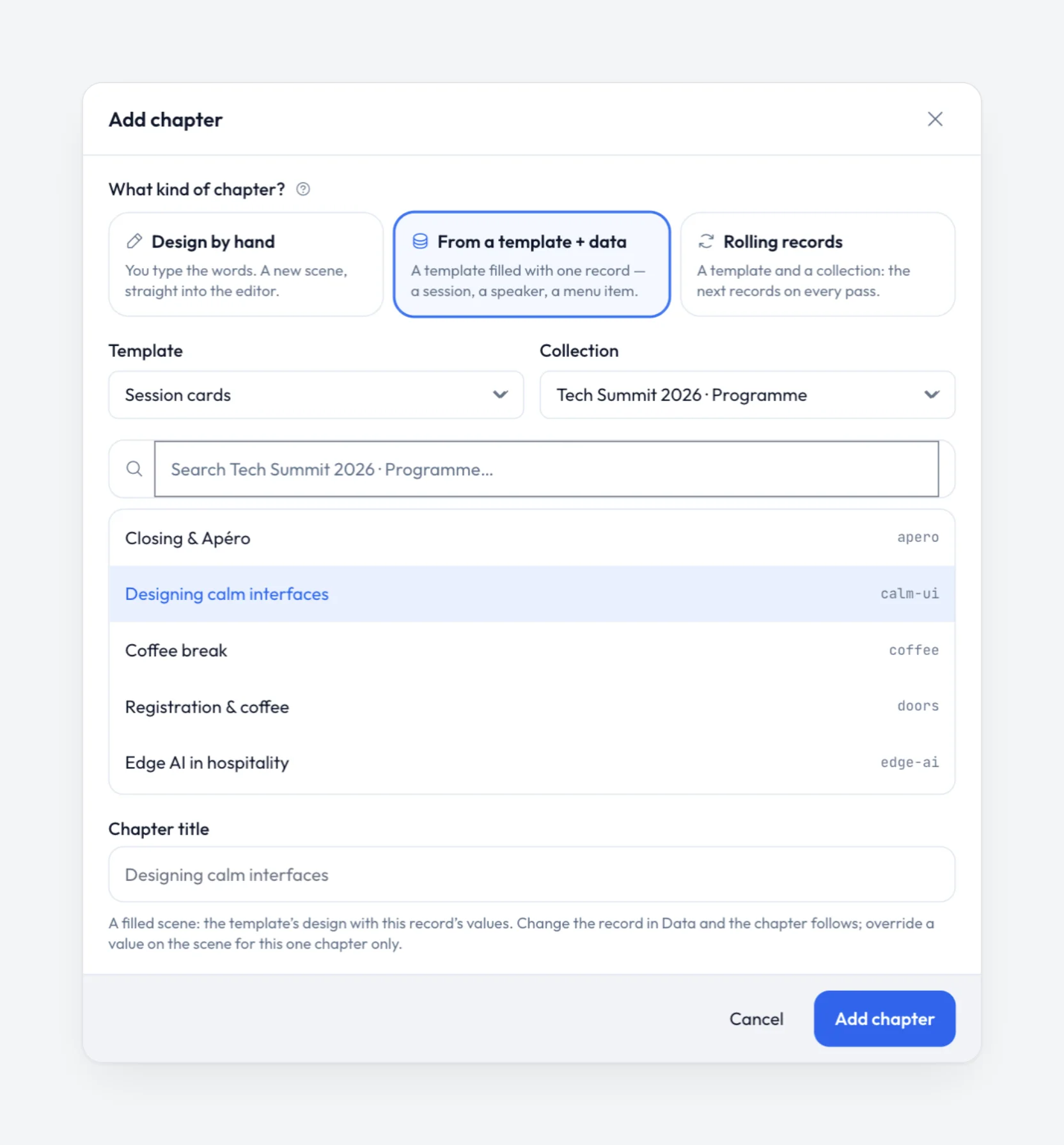
Design a screen once with blanks, and fill it from a collection: typed in, uploaded as a CSV from Excel, or kept up to date from a news feed or a JSON address. Change the list and every screen that shows it changes — no one touches the design.
Screens people can use
Turn an ordinary TV into an interactive screen.
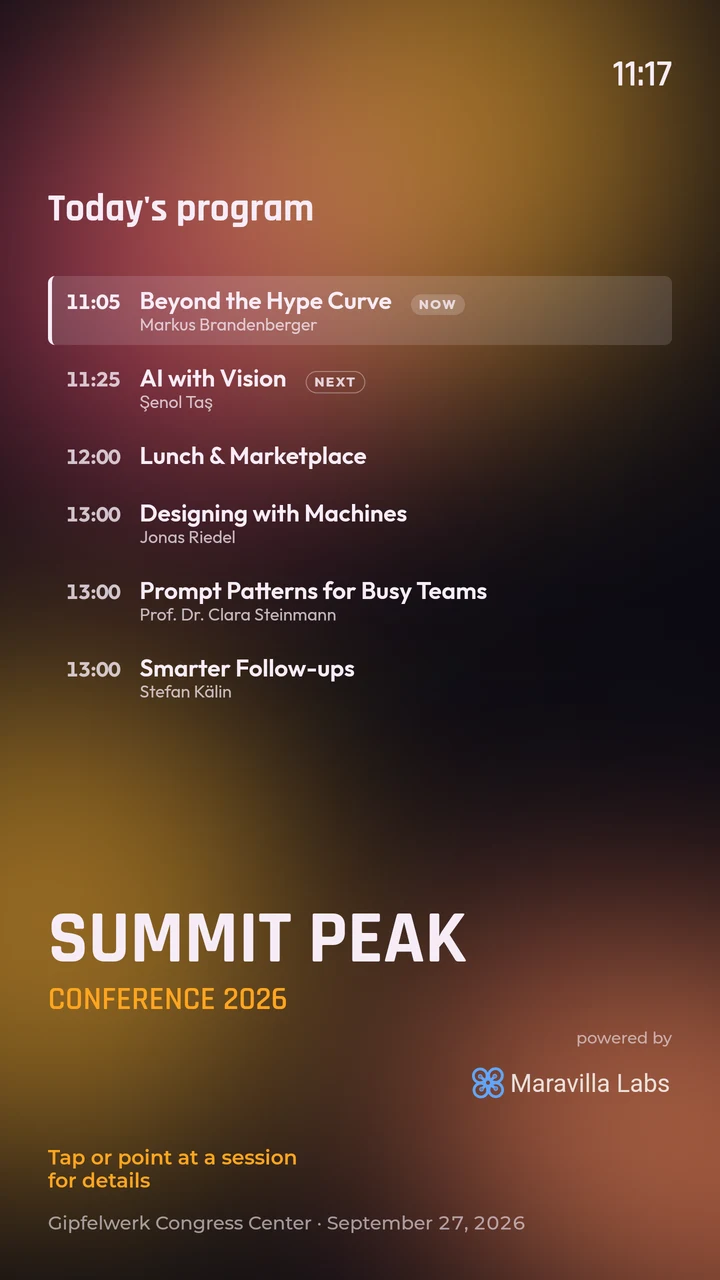
Turn on Visitors can use this screen and a visitor can open a row for its details, swipe to the next, and go back. On a touch screen they tap. On an ordinary TV, a webcam is enough: the visitor points with their hand and pinches, or holds still, to choose. When they walk away, the screen goes back to its loop by itself.
The camera picture never leaves the screen: it is not shown, stored or sent, and nobody is recognized or counted.
Runs without you
A screen you never have to visit.
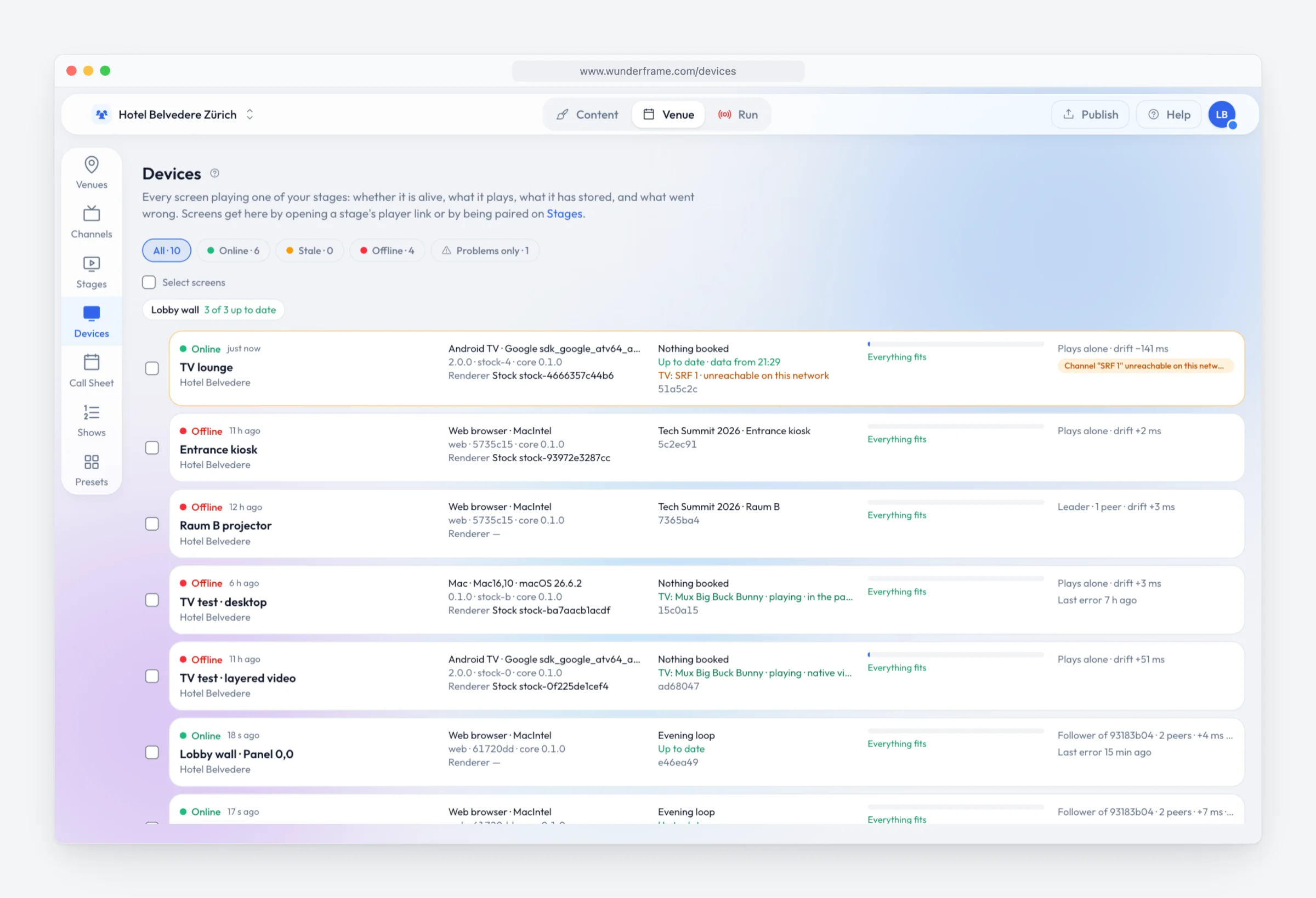
Every screen keeps its content on the device and keeps playing when the network goes away. From the office you see which screens are online and what they play, take a screenshot, change a setting, restart one, or tell it when to switch off at night.
Live TV
The TV channel, inside your own screen.
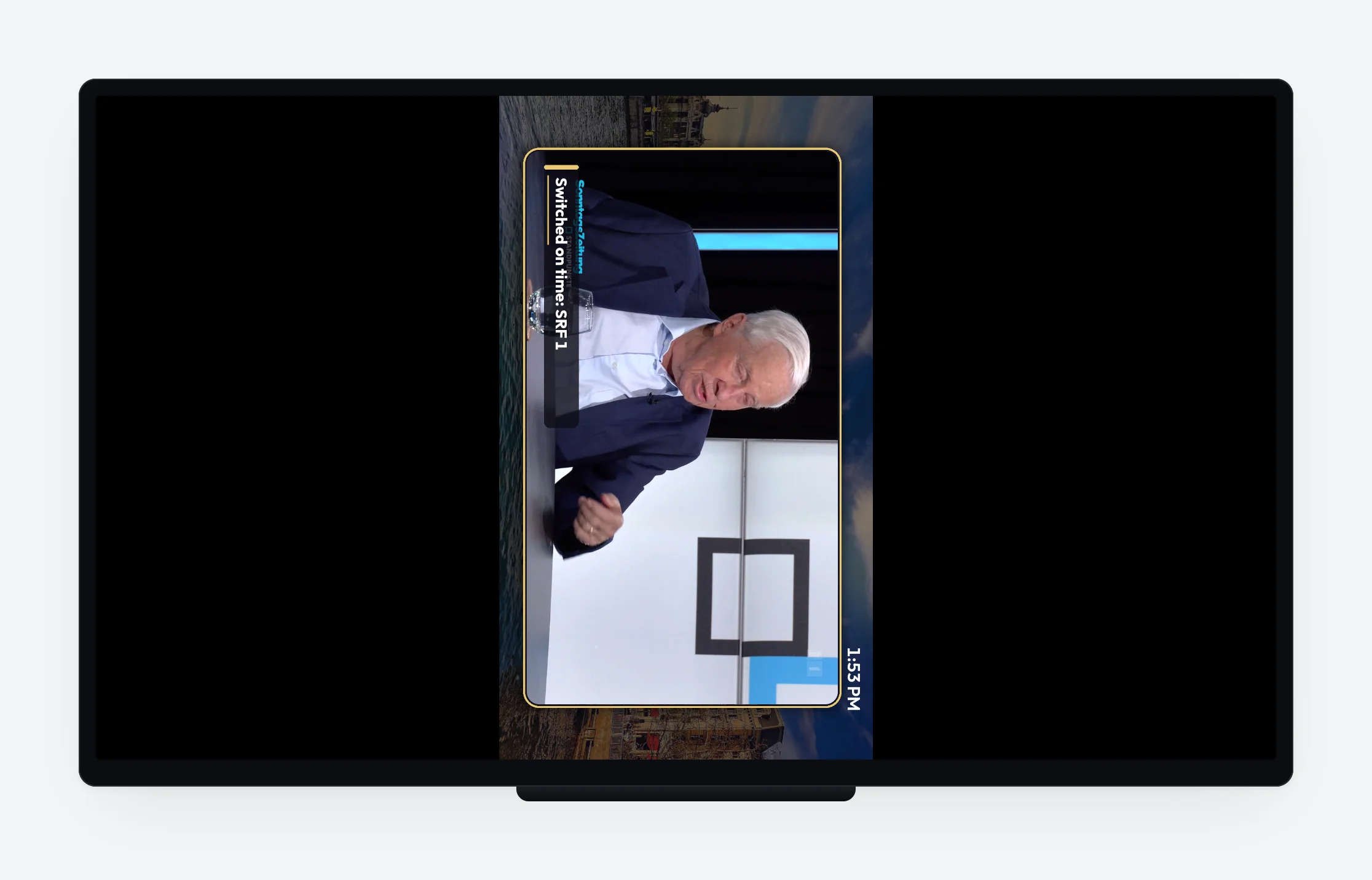
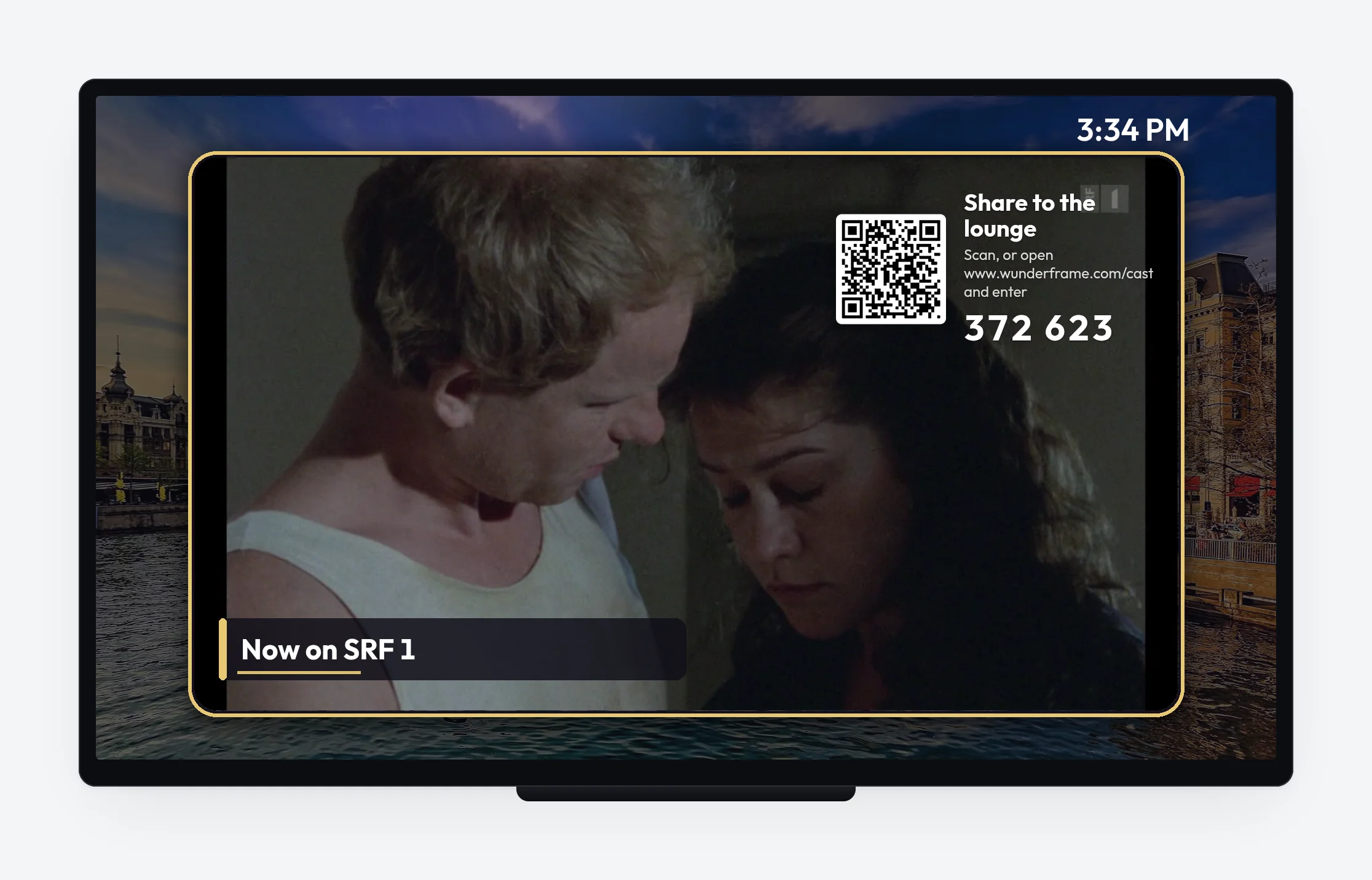
Add your TV provider’s channel lists and play a live channel inside your own design — with your logo, the time, what is on now, and your messages around it — instead of a bare TV picture.
- Test a channel on a screen on site before you rely on it
- Change the channel from the Live board, or let rules do it: the news in the morning, sport in the evening
- A portrait TV or a screen in the bar plays the same channel, each in its own layout
Where it fits
The screens every business has.
-
Restaurants and cafés
Data and templatesMenu boards by time of day, today’s specials from a list, and “sold out” the moment you mark it.
-
Shops and showrooms
People in front of the screenOffers and prices in the window, a product film that plays when someone stops, and a screen customers can browse.
-
Receptions and offices
RulesA welcome for today’s visitors, the news, the canteen menu, and the week’s events on the screen by the lifts.
-
Practices and waiting rooms
What playsOpening hours, holiday closures and helpful notes, switched by the calendar instead of by hand.
-
Lounges, bars and break rooms
TV channelsLive TV inside your own frame, with the time, the news and your own messages around it.
-
Big statements
WallsSeveral screens as one picture — a video wall in the entrance, built from ordinary TVs.
What you need
The screens you already have.
-
A player behind each screen
An Android TV box with the Wunderframe app, a Raspberry Pi, a PC with the desktop app, or the browser of a smart display. Each pairs with a six-letter code.
-
A network now and then
Screens fetch new content when they are online and play what they have when they are not.
-
A webcam, if you want gestures
Only for screens people use with their hands or that react to someone in front. Any USB webcam works.
Read more
For everyday screens.
-
Digital signage, not only for events
Read the postWhat Wunderframe does for the screens that run every day.
-
What digital signage costs in Switzerland
Read the postScreens, players and software, added up honestly.
-
Old TV boxes and Raspberry Pis as players
Read the postWhat the cheapest players can and can’t do.
Try it on the screen in front of you.
Open a player link in any browser, or pair a TV box with its code, and change what it shows from your desk.
Free while in early access. No credit card needed.