For conferences and corporate events
Every room on cue, every speaker on screen.
Wunderframe runs the screens of a conference day from one place: the room screens, the lobby, the speakers who join from elsewhere and the questions your audience sends in. You follow it all on a laptop, a tablet or your phone.
The situation today
A conference day often runs on a laptop per room, a capture card for the remote speaker, a Q&A tool in another tab and a lobby screen showing yesterday’s program.
Live desk
See every room and act on it.
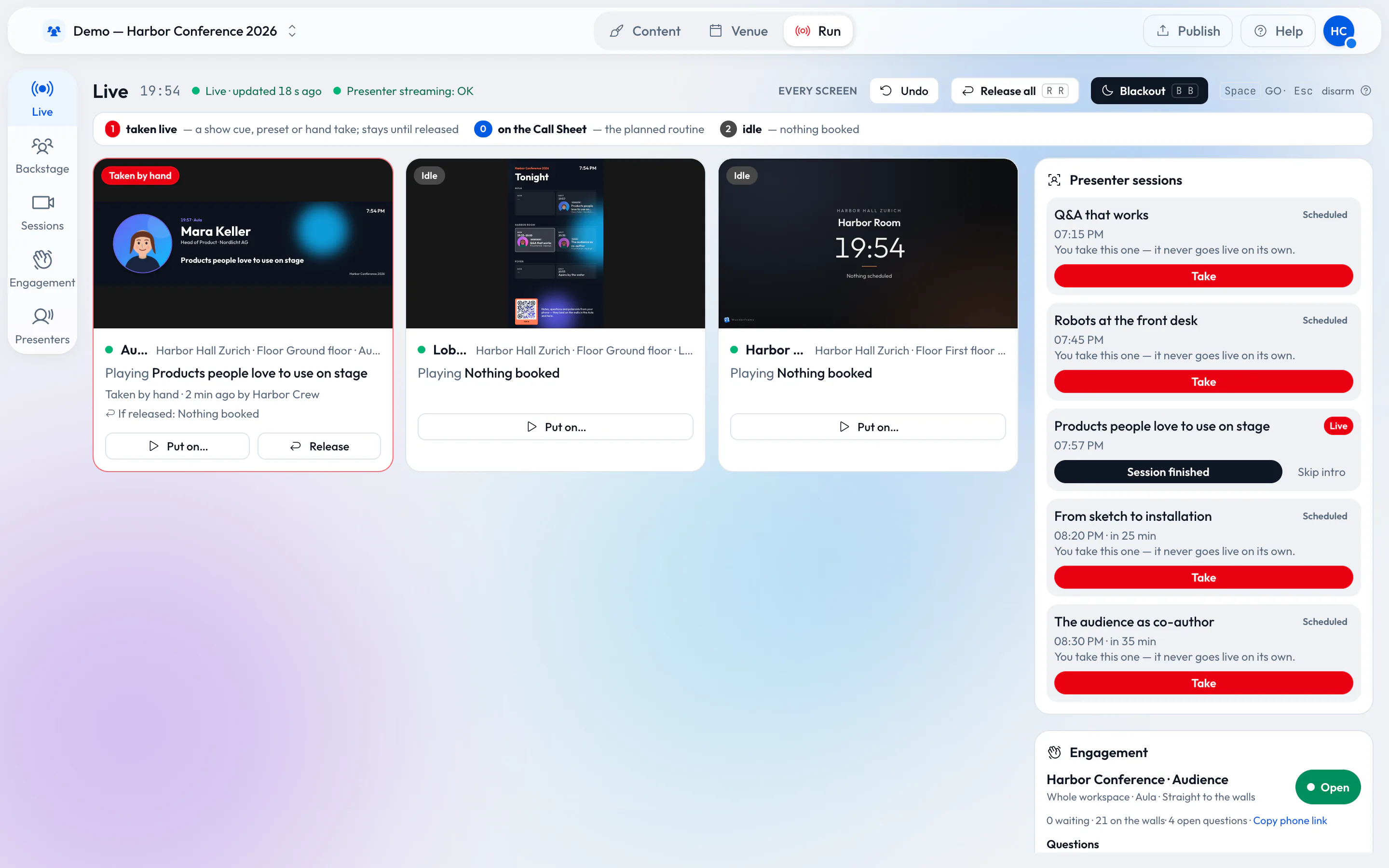
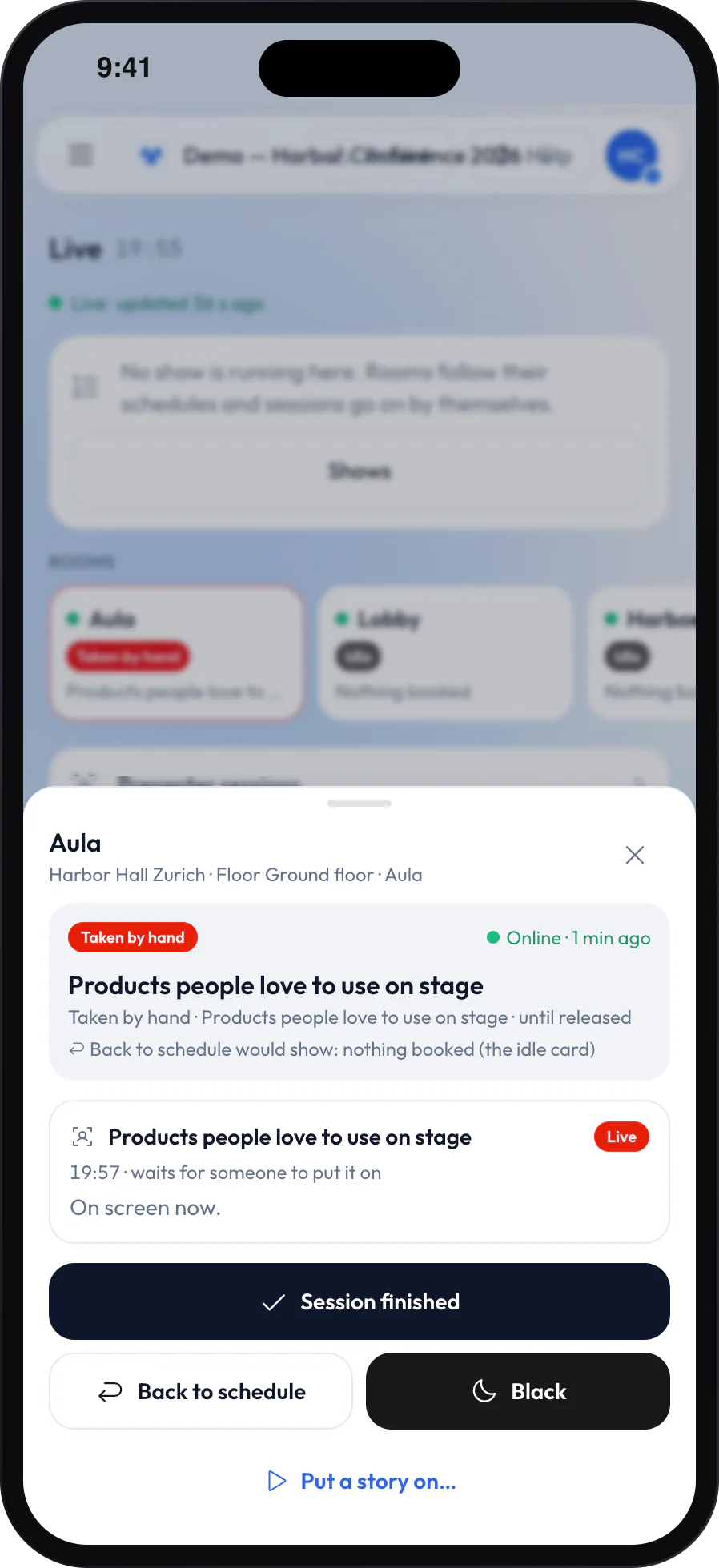
The live desk shows what every stage plays, why it plays it and who holds it. Take a scene by hand, run a show cue by cue with GO, finish a session or black out a room. On a phone it becomes one big GO button and the room you need.
- Group stages to switch several rooms together
- Rules change screens by themselves — for example when a session goes live
- An operator role runs the screens and edits nothing
Speakers
Remote speakers without a capture card.
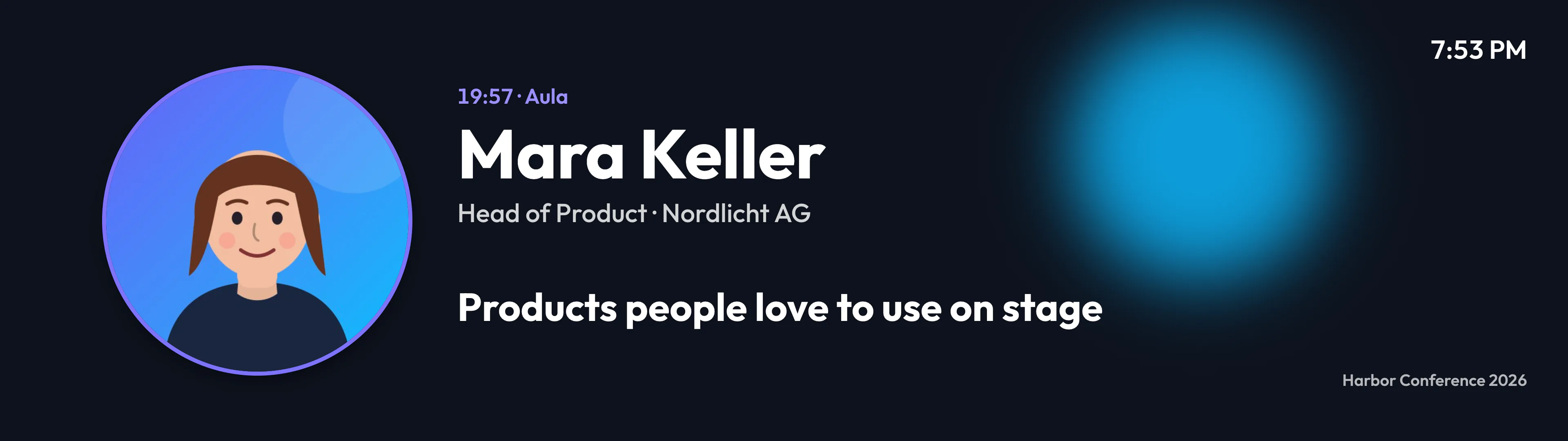
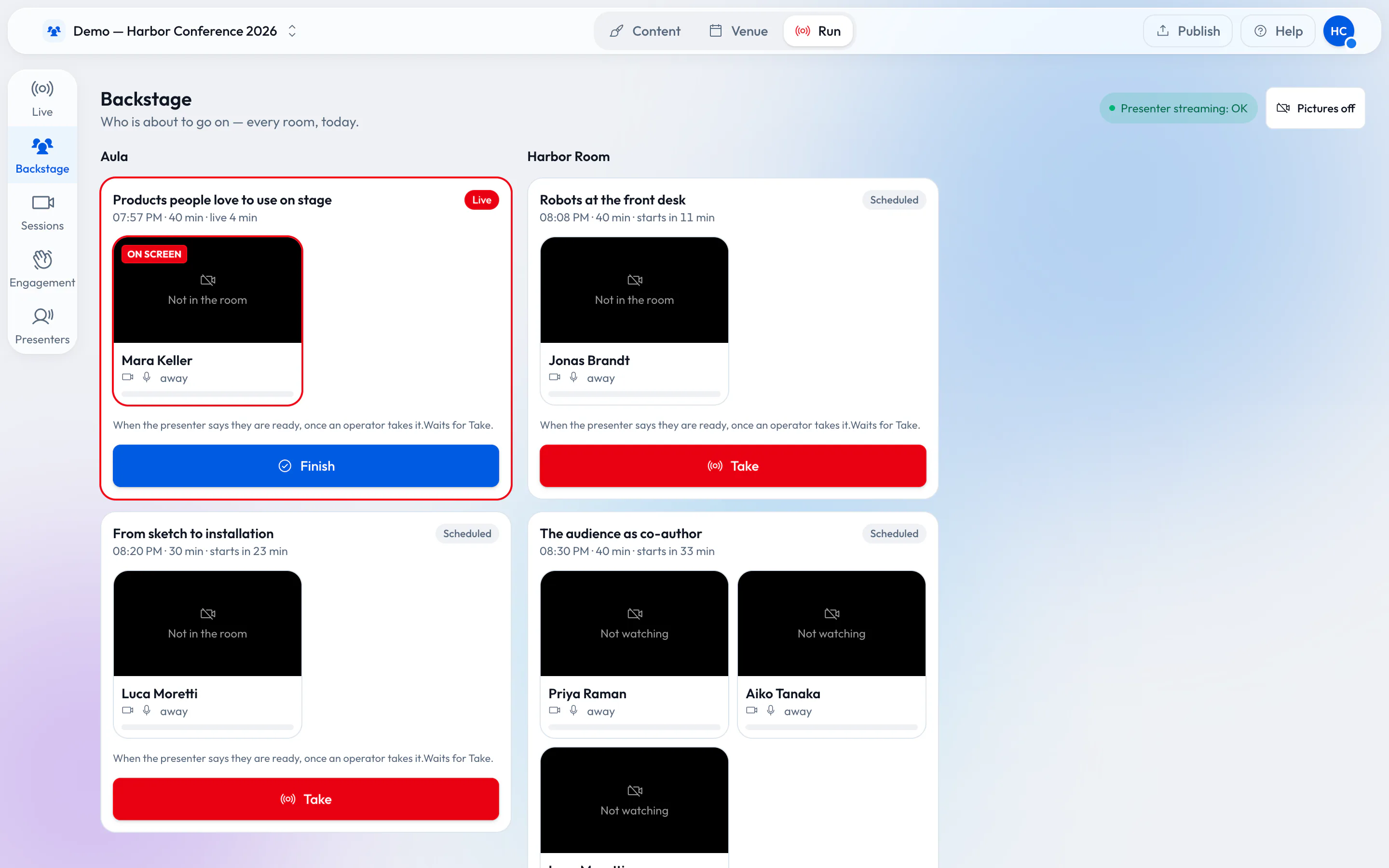
Invite a speaker to a session with a personal link. They open it in a browser, check camera and microphone backstage and say they are ready; you put them on the room’s screen inside a slide you designed. A panel shows several speakers at once.
- Rehearse with the same link, a week or a day before
- The speaker sees a small picture of the room’s screen while they are on it
Agenda boards and intros
The program keeps the screens up to date.
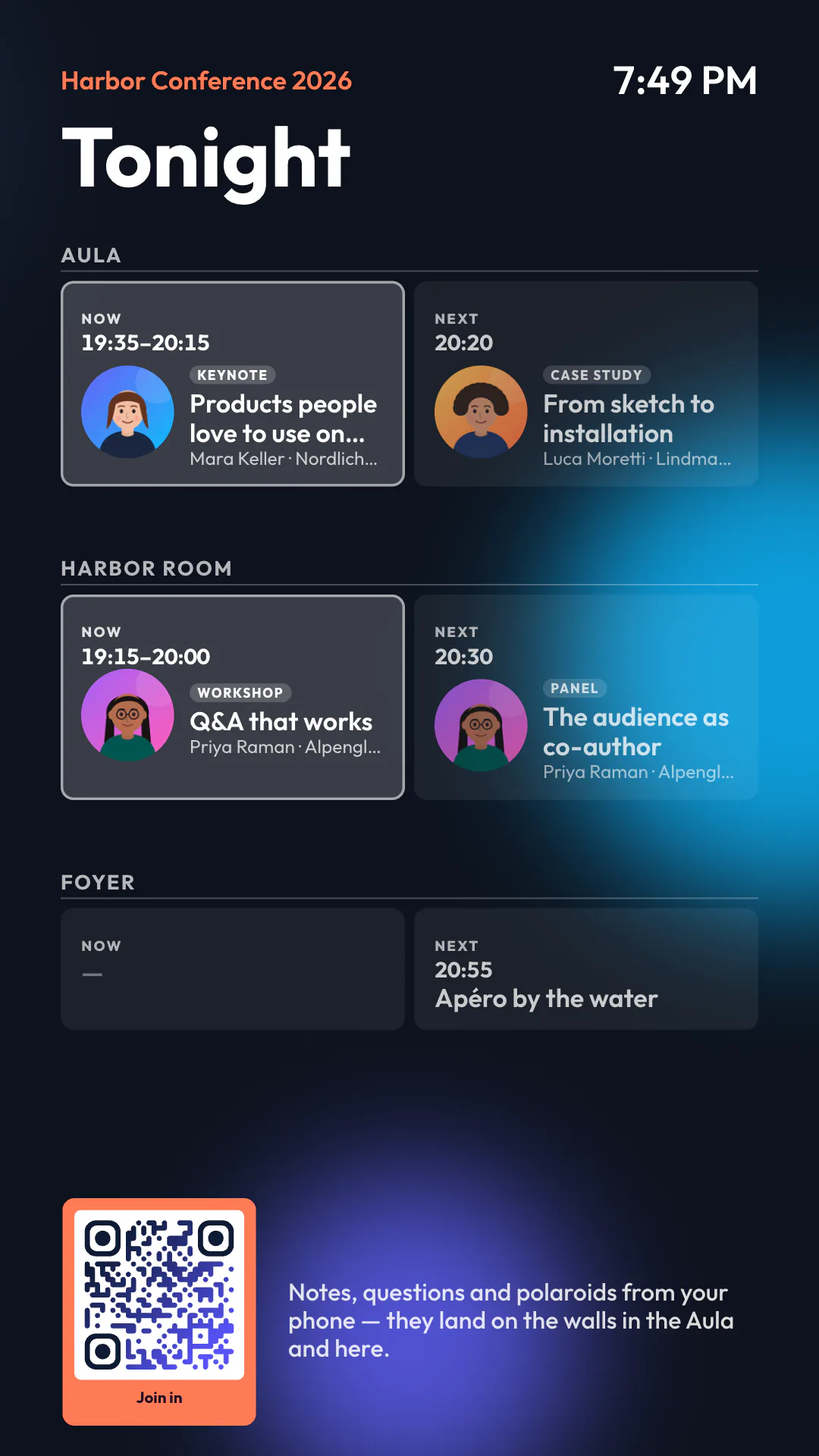
Type your program in, import a CSV or JSON file, or read a feed. Boards show what is on now and next in every room by the venue’s clock, and templates turn each session into a speaker intro or an “Up next” card with a countdown.
Change a time in the data, and every screen that shows it follows.
Audience Q&A
The best question, big on the room screen.
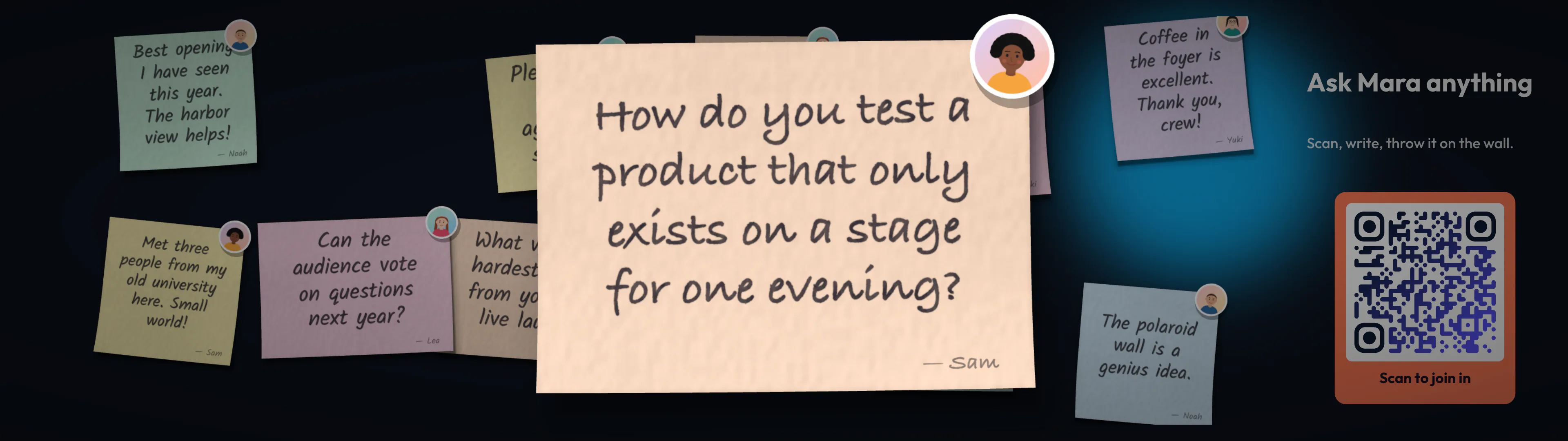
Guests scan a QR code and send sticky notes and questions from their phone — no app, no login. The operator or the speaker picks a question, and it comes forward big for the whole room.
- Moderation: open, approval first or an automatic check
- One QR code per room, and walls that show one room or all of them
- Short guest videos come with captions made on the phone
What you need
Less than you might think.
-
The screens in the rooms
Any screen with an up-to-date browser, an Android TV box or a Raspberry Pi behind it. Each pairs with a six-letter code.
-
A phone or laptop for the desk
The live desk runs in the browser, from the tech booth or from the back of the room.
-
Your speakers’ browsers
A remote speaker needs a camera, a microphone and the link you sent them. Nothing to install.
-
Your guests’ phones
For questions and notes, a QR code on a slide is all it takes.
Read more
Guides and stories for conference teams.
-
Run a conference from one live desk
Read the postWhat the day looks like when every room runs from the same desk.
-
Keynotes that wait for the speaker
Read the postWhy a session should go live when the speaker is ready, not when the clock says so.
-
Q&A tools compared
Read the postSlido, Mentimeter, Wooclap — and questions on your own screens.
-
Presenters
DocsInvites, backstage, rehearsals and panels, step by step.
-
From data to screen
DocsAgenda boards, templates and details a visitor can open.
-
Live captions
Read the postCaptions on guests’ videos, on the phone and on the big screen.
Set up your first room today.
Pair a screen, import your program and open the live desk. Your speakers only need the link.
Free while in early access. No credit card needed.