Slido, Mentimeter or Wooclap? Q&A for conferences
A fair look at three audience tools, what conference Q&A actually needs, and where showing questions on the venue’s own screens fits in.
The Wunderframe team 5 min read
Every conference wants audience questions. Very few want the moment where someone runs a microphone through the rows while the person with the best question is too shy to raise a hand. So most events now use an audience tool: people type questions on their phones and someone picks the good ones.
Slido, Mentimeter and Wooclap are the names that come up most. They are all good tools, and they are built for different jobs. This is our attempt at a fair comparison, including where Wunderframe fits, where it doesn’t, and when you should use one of the others instead.
What conference Q&A actually needs
- Joining in seconds. A code or a QR code, a phone browser, no app. Every extra step loses people.
- Moderation. Someone has to keep out the rude, the off-topic and the fifth version of the same question.
- A way to pick. The moderator or the speaker chooses what gets asked, ideally without leaving the stage.
- Visibility. Questions people can see are questions people build on. Questions that stay on a moderator’s laptop are invisible to the room.
- More than one room. Parallel tracks, a lobby, an overflow room.
- Privacy. Anonymous or named, and what happens to the data afterwards.
Slido
Slido, now part of Cisco, is the name most event organizers think of first for Q&A. Guests join with an event code or link in the browser, ask questions and upvote the ones they like, so the room decides what matters. There are polls and quizzes too, and integrations with presentation and meeting tools, such as PowerPoint, Google Slides and Webex, are a large part of its appeal.
Good fit: a conference where Q&A with upvoting is the main need, and hybrid meetings where the meeting platform matters.
Mentimeter
Mentimeter is built around interactive presentations. The speaker builds slides that ask the audience something: a poll, a word cloud, a scale, a quiz, a Q&A slide. The results appear inside the presentation as people answer.
Good fit: a workshop or a talk where the speaker designs the interaction into their deck. It works best when the presenter is willing to build their talk in it.
Wooclap
Wooclap comes from teaching. It has many question types, integrates with learning platforms and is widely used in universities and corporate training, and at events as well.
Good fit: training sessions, classes and workshops where checking understanding matters as much as collecting questions.
The question is not which tool is best. It is where the audience should see itself: in the slides, or on the walls of the room.
Where Wunderframe is different
Wunderframe doesn’t live inside the speaker’s slide deck. It lives on the venue’s screens: the stage screen, the lobby, the room next door. Audience questions are part of what those screens show, next to the speaker intro and the agenda.
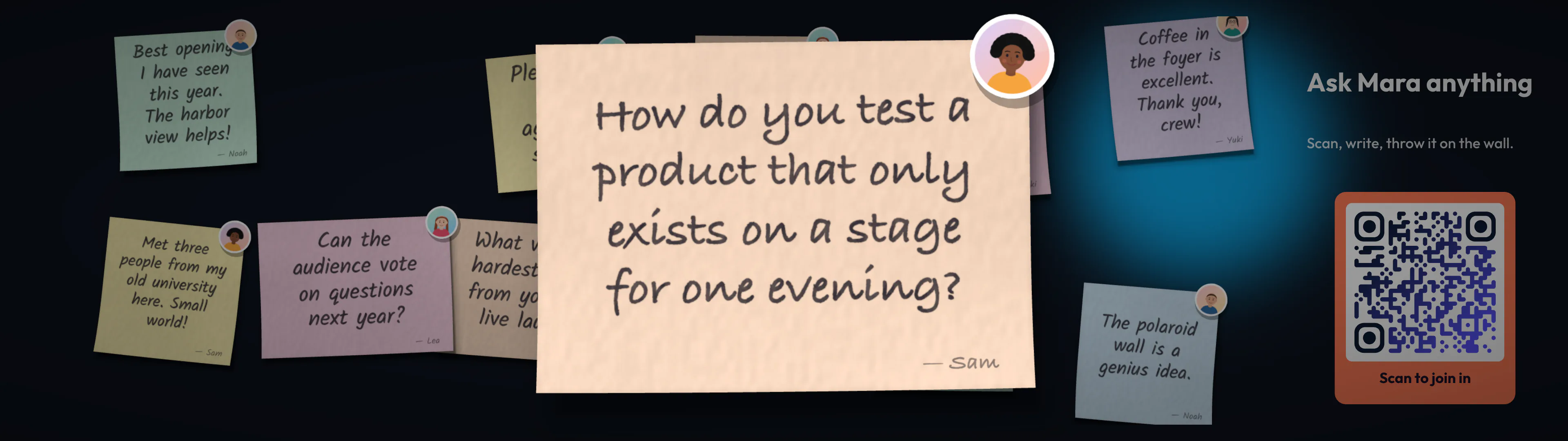
- Questions as sticky notes. A guest scans a QR code, writes on a sticky note on their phone and sends it. It lands on the notes wall as a real-looking note with handwriting.
- One question shown big. The operator on the Live desk, or the presenter from the Audience tab on their own presenter page, presses Show big. The question breaks out to fill the whole stage, or floats big inside the wall while the others move aside. Answered dims it with a tick, or removes it.
- Every screen at once. A question sent in the hall appears on the hall’s wall and the lobby’s wall at the same moment. Or give each room its own QR code and let a wall show only its own room.
- Moderation you choose per engagement. Open (posts go straight up), approval (an operator approves each one), or auto-check, which flags text by simple rules and catches bursts. Auto-check is text rules, not AI, so use approval when the stakes are high.
- No app, no account. A name is optional. The guest page can carry your event’s colors, logo and words.
The picked question shown big in the middle of the notes wall, with the QR code for more questions on the right.
Part of the room’s own screens
Most audience tools live in a second place: a plug-in in the slide deck, or a separate screen the speaker switches to. Wunderframe runs the room’s screens themselves — the speaker’s slides, the intro, the agenda, the lobby — so the audience is part of the same show.
- Questions come up big on the same screens as the talk, picked by the moderator or the speaker.
- Polls — multiple choice, word clouds and ratings — move on every screen in the room at once, in the event’s own colors, with results live or held back until you reveal them.
- Upvotes let the room decide which questions matter most.
- Session feedback asks every session how it was, the moment it ends: a rating, one per speaker, what people take away. Organizers see each session and the whole event compared; each speaker sees their own.
- Quizzes — a few questions inside a talk, or a whole quiz night at the bar — with teams, a countdown on every screen and phone, the leaderboard and a podium.
- Notes and photos fill the walls in the lobby.
One desk runs all of it, and guests use the same page from the same QR code for everything.
How to choose
- The speaker wants interaction inside their own PowerPoint file → Mentimeter.
- It’s a class or a training session → Wooclap.
- You run the screens of the venue and want the audience on them — questions shown big on the stage, polls moving in step on every screen, feedback for every session, a quiz to end the day, notes and photos on the walls, one person running it from the desk → Wunderframe.
Running Q&A well, whatever the tool
- Show the code early and often. On the Up next slide before the talk, not only at the end. With Wunderframe, the QR code is a block on any slide.
- Name a moderator. Picking questions while giving a talk is hard. Let the speaker pick only if they want to.
- Say what happens to questions. Are they shown with names? Kept after the event? In Wunderframe, a workspace owner sets consent and how long posts are kept. See Privacy.
- Test it from the back row. Scan the QR code from the last seat before doors open.
Try it
Read Live engagement for the whole picture, and Running it live for picking questions on the day. To see the guest side, read From QR code to polaroid wall. Session feedback and quizzes have their own pages — Session feedback and Quiz. Then start free, create an engagement and send your first question to a screen. Plans are on Pricing.
Related posts
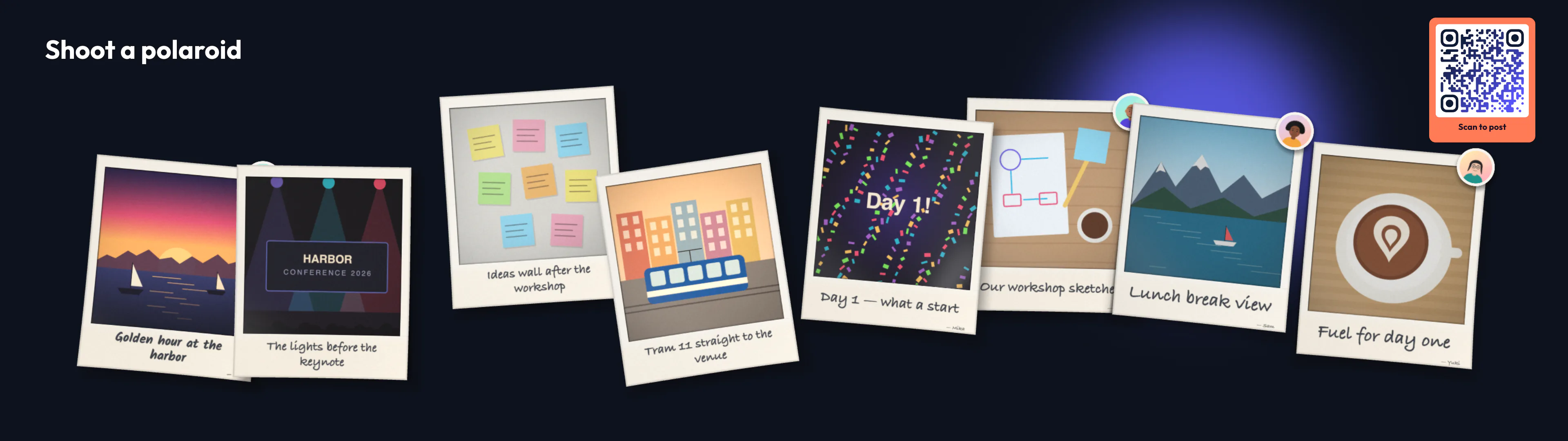
Photo booth hire vs a photo booth on your screens
A hired booth gives you prints and great light. A polaroid wall gives every guest a camera and the whole room a show. What each costs and does, and when to use both.
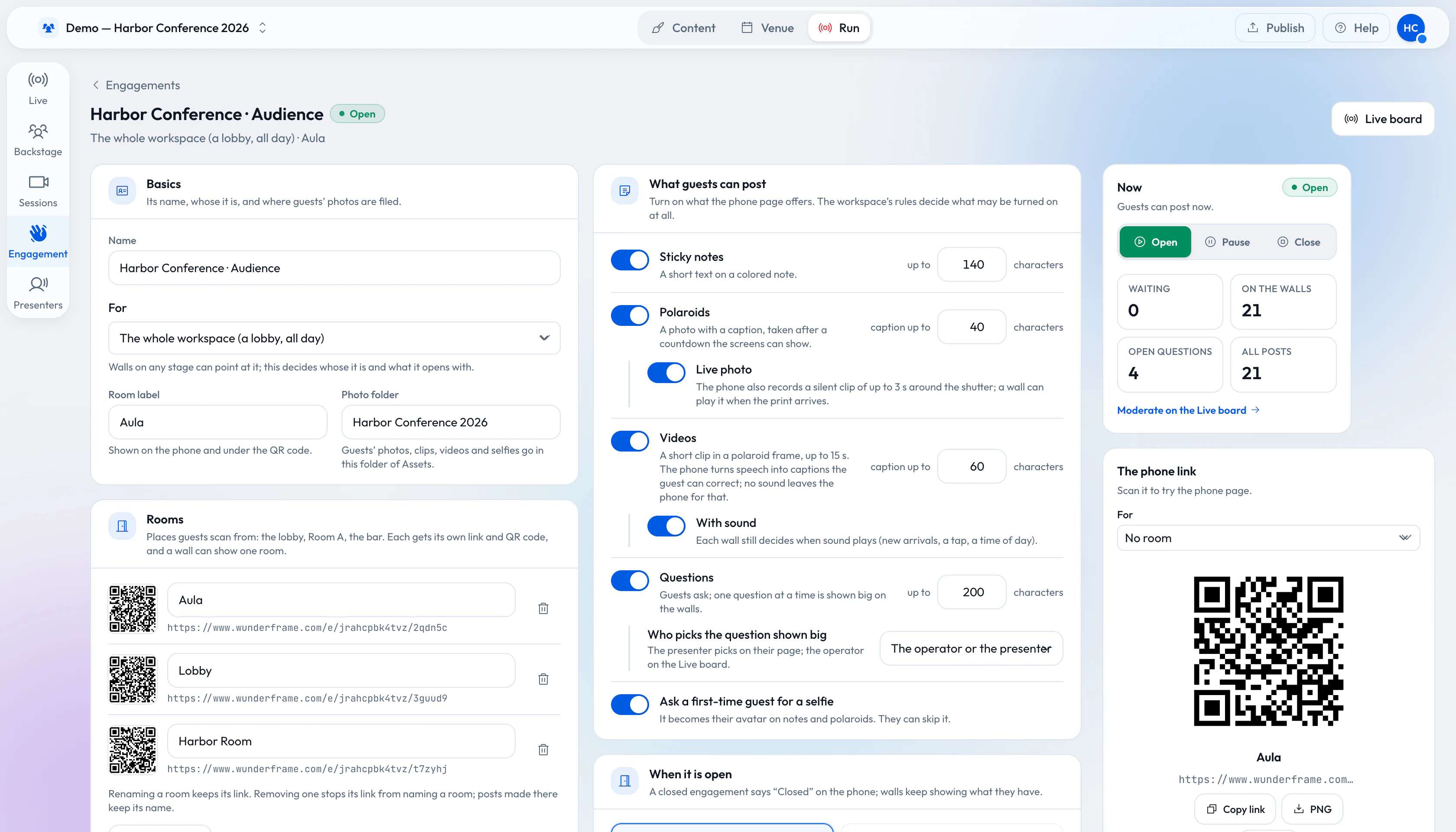
From QR code to polaroid wall: engage 1,000 guests without an app
A QR code, a phone browser and your screens. How to set up sticky notes, questions and a polaroid wall for a big crowd, and what changes when a thousand people post.
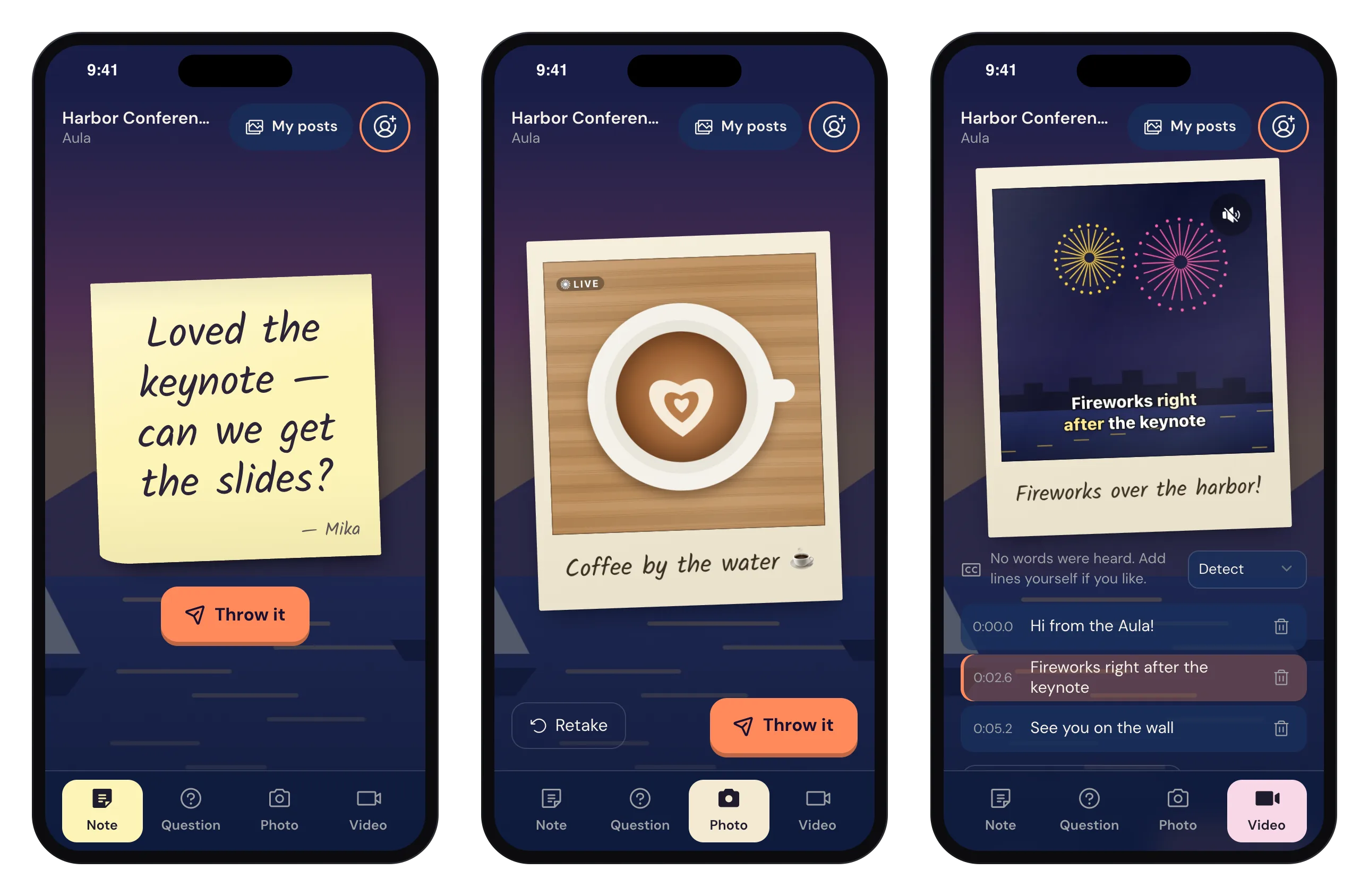
Accessible events: live captions on the phone and the big screen
Captions on guests’ videos, made on the phone and shown on the wall, a guest page that works with a screen reader, and what Wunderframe does not cover.