Old Android TV boxes and Raspberry Pis as signage players
Cheap boxes, reliable screens. What an Android TV box or a Raspberry Pi can run, where the limits are, and a checklist for event day.
The Wunderframe team 5 min read
Many venues have a drawer of Android TV boxes from an earlier project, or a few Raspberry Pis someone bought for a test. They are cheap, small and quiet, and they fit behind any screen. The question is whether they can run signage you can rely on, all day, on the day of an event.
We think they can, and we built Wunderframe to make that work: the heavy work runs natively on the device, and the software checks what a device can handle instead of assuming it’s powerful. This post covers what works, the limits, and how to set such boxes up so nobody in the room notices them.
Android TV boxes
The Wunderframe Android TV app runs on Android TV and Google TV boxes, sticks and TVs with Android 7 or newer and Android System WebView 98 or newer. An older box shows Update Android System WebView instead of playing. Update it from the Play Store and the app starts by itself.
What the app does that a browser tab can’t:
- It keeps the program and its media on the box, so it plays on through a network drop and starts right away after a reboot.
- It starts when the TV starts and restarts itself if anything hangs.
- It plays video natively, including TV channels over multicast and HLS, and handles Dolby Digital sound even on boxes that can’t decode it themselves.
- On a wall, it keeps the panels in step over the local network, even without internet.
- You look after it from the office: settings, screenshots, logs, restart and reboot.
Install the Android TV app from Google Play. If your box cannot use Google Play, the installation guide also covers installing an APK from a USB stick or over the network with adb.
Raspberry Pi
The Raspberry Pi player starts straight into the program with no desktop around it. It plays video and TV channels with the Pi’s hardware decoder, and you look after it from Devices like any other screen.
- You need a Raspberry Pi 4 (2 GB or more) or a Raspberry Pi 5, one per screen or wall panel, each driving one screen at up to 1080p, with Raspberry Pi OS Lite (64-bit).
- Storage: a good SD card, or better a USB SSD, because the offline cache writes to it.
- A network cable where you can.
A Pi 3 or Zero 2 is too small for the player. They can still show a stage by opening its player link in Chromium in kiosk mode. The Pi player is also our newest, so try it on one screen before you equip a whole venue.
The heavy work runs natively on the device. The software never assumes the box is powerful.
Built for modest hardware
An older box has little memory, a slow graphics chip and not much storage. Here is how Wunderframe deals with each:
- Light graphics chips get a light picture. The 3D sticky notes and polaroid walls switch to a flat version on screens with a light graphics chip. It looks simpler, and it keeps running.
- Nothing oversized reaches the screen. A guest’s Live photo clip that is too long or too large is refused before a frame is decoded, and the print stays a still. That protects old TV boxes and Pis from a file they couldn’t play.
- Storage is managed. The player always keeps some room free, 500 MB or a tenth of the disk, whichever is larger. When the rest isn’t enough, it plays what it has and streams the rest, and Devices says Some files stream. It never deletes a file the screen is playing now or is about to play.
- Memory is watched. When the player uses most of the memory for a while, it restarts itself, but never during a wall switch or a live presenter.
- A fresh start every day. Every screen restarts once a day, at 04:00 venue time unless you choose another time.
Before the event: a checklist
- Check the storage. Many Android TV boxes have 8 GB, with half of it used by the system. Plan free space of at least twice the media booked on the stage. Ten minutes of Full HD video is roughly 0.5 to 1 GB.
- Use a cable. Wi-Fi works, but a wall on Wi-Fi often can’t keep in step.
- Set up the TV. Turn off energy saving, “no signal” standby, automatic input switching and overscan. Most black screens are the TV’s own standby or the wrong input.
- Allow autostart. On Android 10 and newer, the app needs permission to start after a reboot. The pairing screen shows Allow autostart when it is missing.
- Tell IT what to allow. HTTPS to www.wunderframe.com, outgoing UDP for live presenters, and for walls multicast between the panels. See Set up a screen.
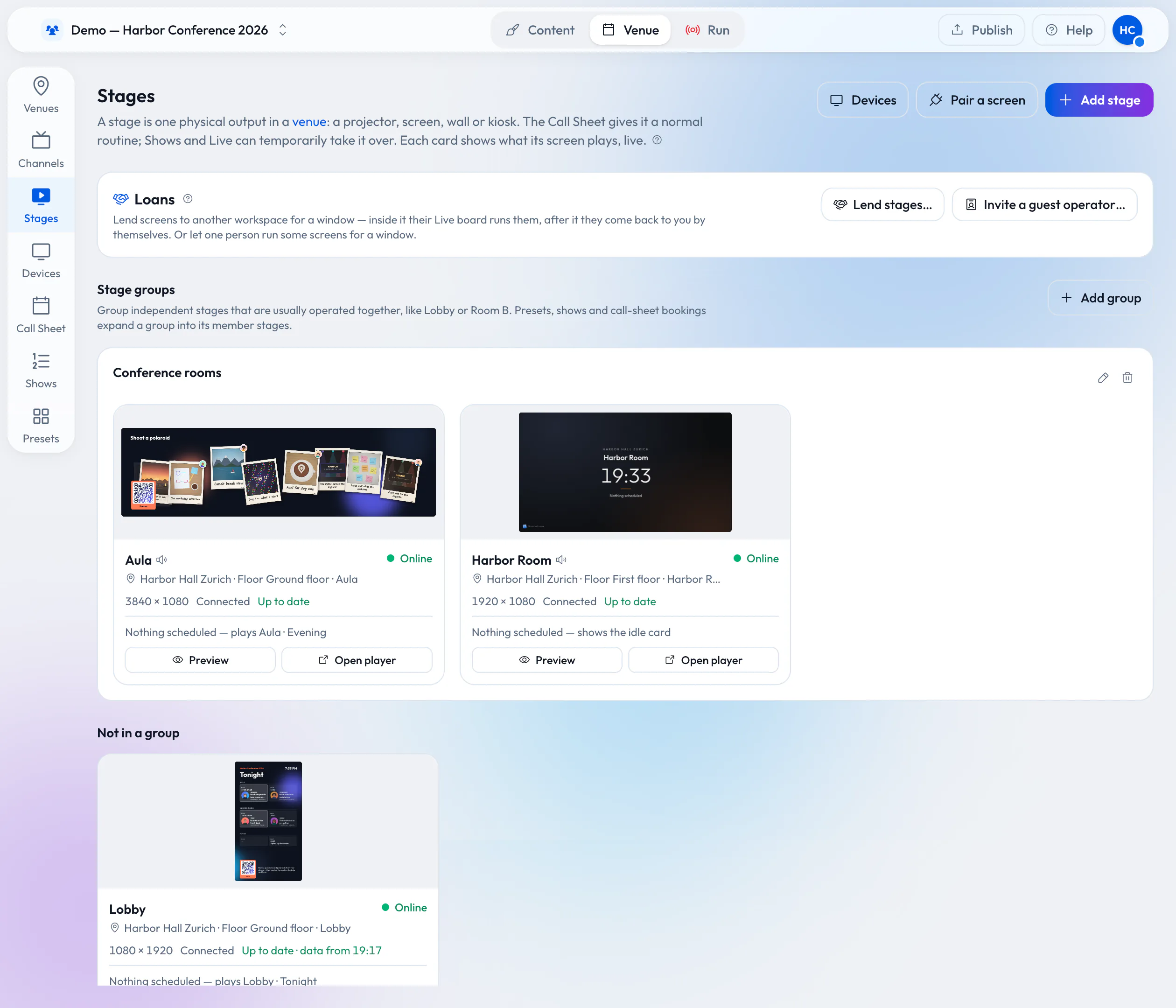
- Look at it from the office. Identify shows the stage name on the screen, Watch live shows what the screen really shows, and a badge such as Storage full or Memory high tells you what to fix before the doors open.
Every stage with what it plays, each online and up to date.
Mixing players is fine
An Android TV box, a desktop app and a Raspberry Pi can be panels of the same wall. They keep in step the same way, with one screen leading and the others following. If the leader goes away, another takes over within seconds. See Walls and synced screens.
When not to use an old box
- A 4K wall from one box. A Pi drives one screen at up to 1080p. A wide stage is a wall of panels, each with its own player.
- Heavy 3D in full motion on a weak chip. It will fall back to the flat version, which is fine for a lobby but may not be what you want on the main stage.
- A box that no longer gets a current WebView. If it can’t reach version 98, it can’t run the app.
- Apple TV and Fire TV. Apple TV has no browser, and Fire TV’s browser has no kiosk mode. Put an Android TV box or a small computer on the HDMI input instead.
Try it with what you have
Take a box from the drawer, install the app, pair it with the six-character code and book something on the stage. Offline, caching and storage explains what happens when the network drops. For the costs of the whole setup, read What does digital signage cost in Switzerland in 2026? Plans are on Pricing, and you can start free.
Related posts
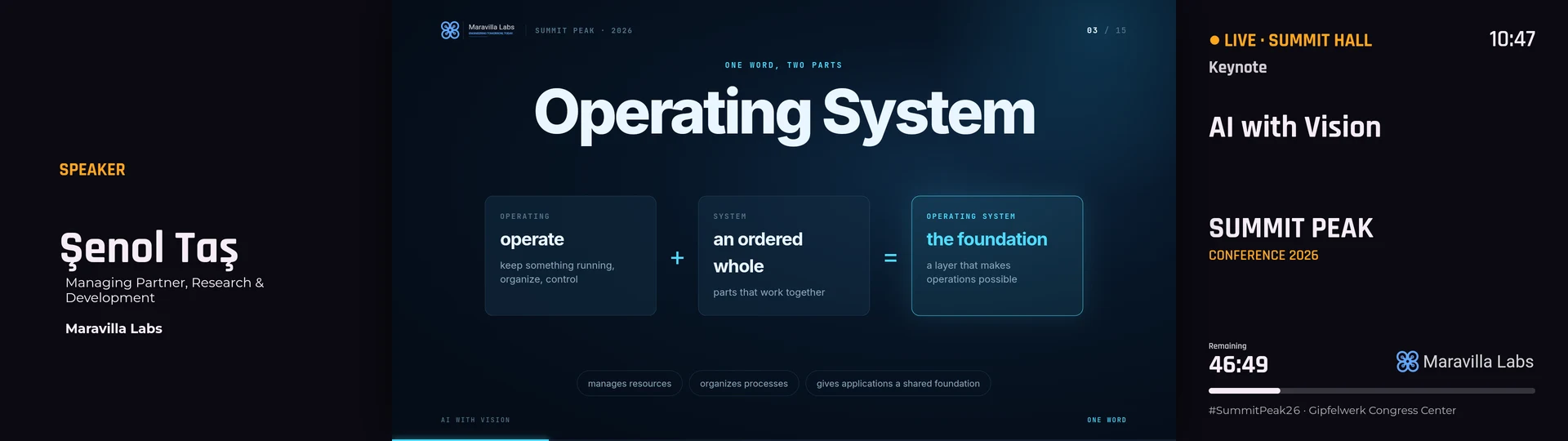
How to build a video wall from ordinary screens
Two, three or twelve TVs showing one picture, with video and motion running across all of them. What you need, how to hang and design it, and how the screens stay in step.
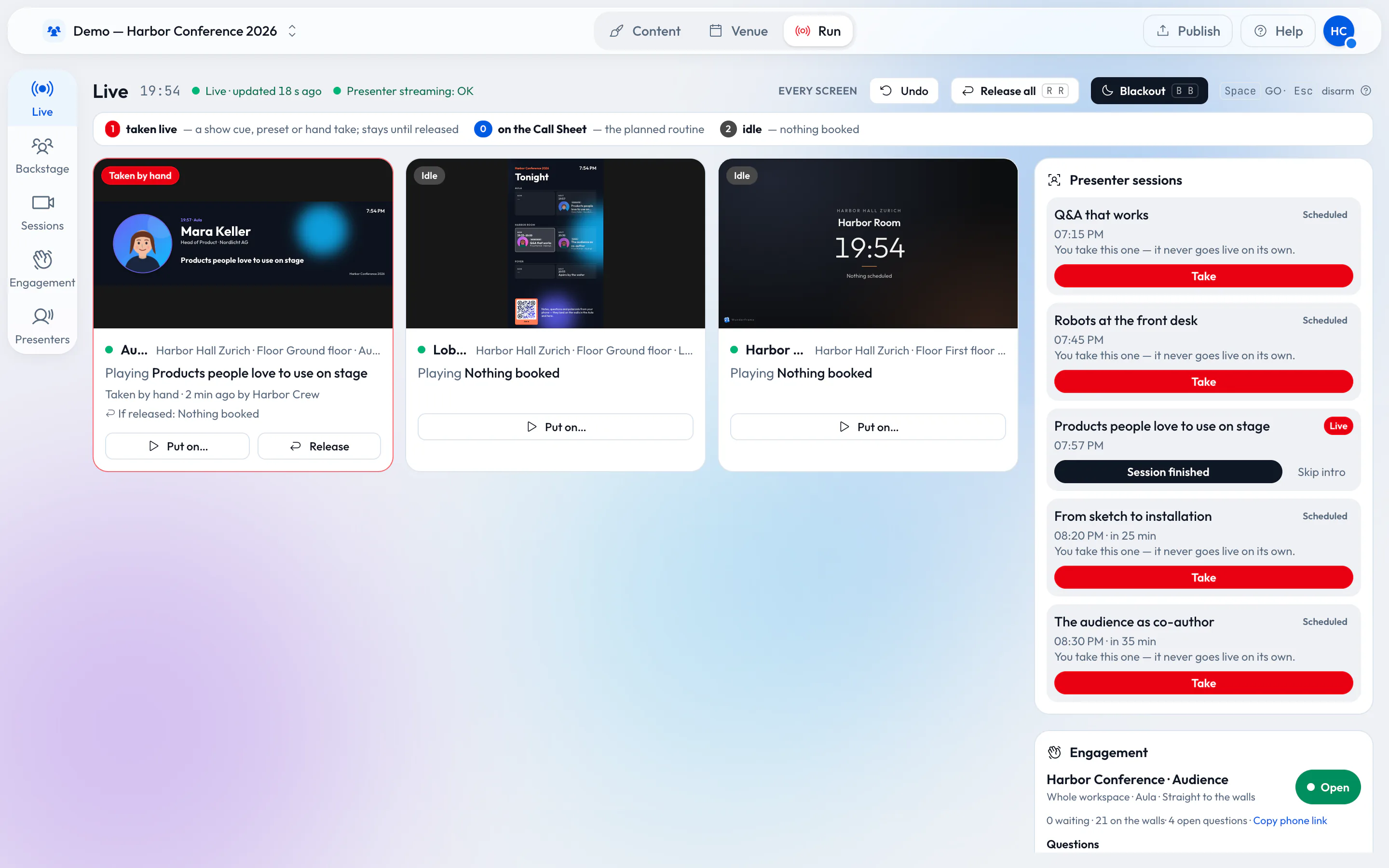
How an event should really run
A wide stage screen, speakers who join from anywhere and an operator with a phone. For a conference, a wedding or a company evening in a rented venue, with little more than a browser, an Android TV box or a Raspberry Pi.
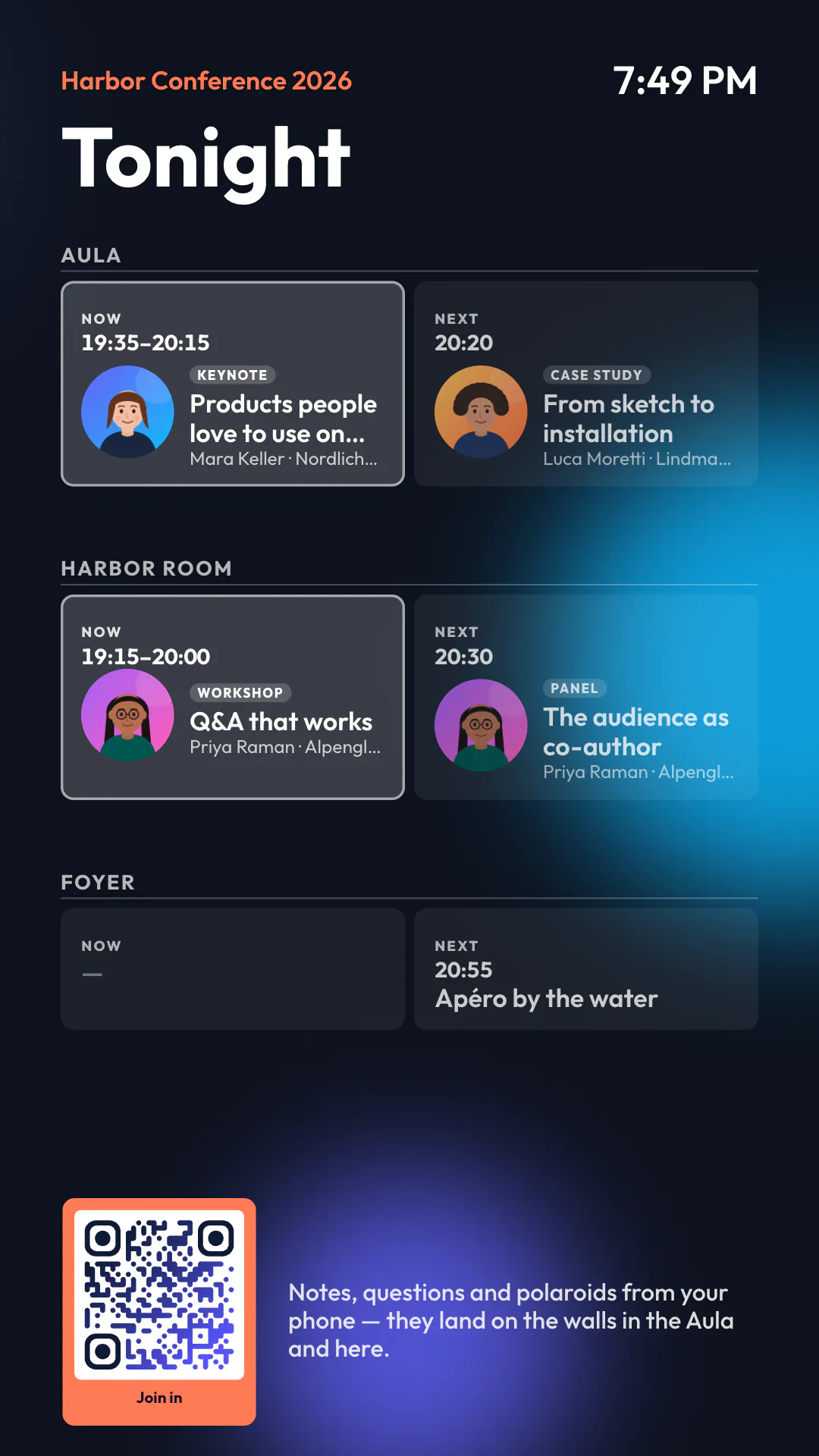
Clubhouse screens: fixtures, sponsors and a fan wall
A practical setup for a sports club: a fixture board that fills from your spreadsheet, a sponsor loop that treats every sponsor fairly, a fan photo wall on match day — and an honest word about live scores.