Lend your wired screens with the room
Your rooms already have screens on the wall. Lend them to the organizer who books the room: they prepare and run everything in Wunderframe before they arrive, nothing is wired on the day, and the screens come back to you when the booking ends.
The Wunderframe team 5 min read
A familiar morning in a rented seminar room: the screens are on the wall, the organizer arrives with a laptop and a bag of adapters, someone from the venue explains which input is which, and the screen in the corridor keeps showing the house welcome loop because nobody knows how to change it.
If your screens run on Wunderframe, you can hand them over with the room instead. The organizer gets your screens for the time they booked, prepares everything from their office, and runs it from their own phone or laptop. Nothing is plugged in on the day. When the booking ends, the screens come back to you by themselves.
What a loan is
A loan hands some of your stages to the organizer’s Wunderframe workspace for a window of time. The screens stay yours: the same player link, the same devices, the same cables. Inside the window the organizer’s program plays on them. Outside it, yours does.
The organizer never sees your other content, and you don’t see theirs in your workspace. What moves between you is the right to run those screens for those hours.
How you lend the screens
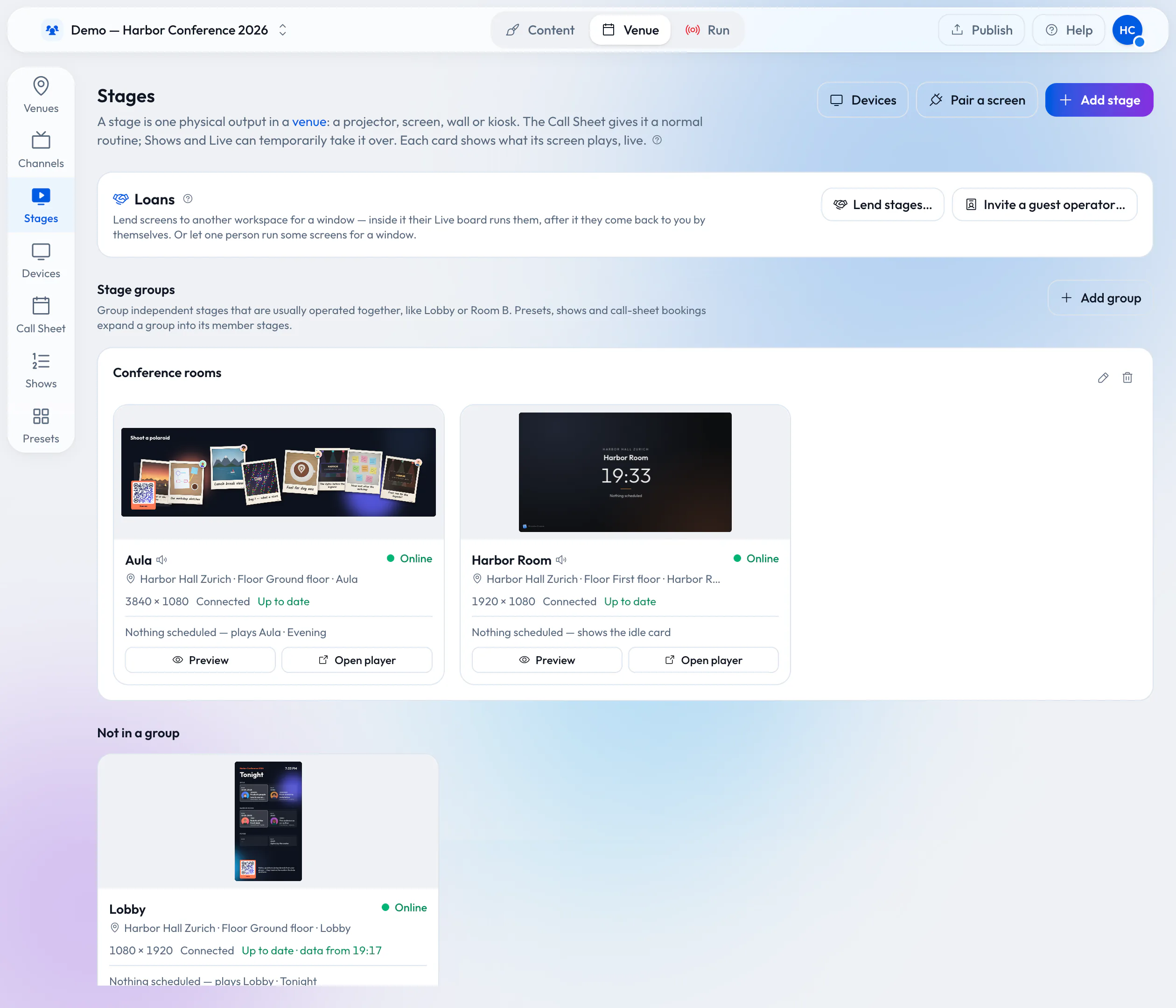
- Offer the loan. On Venue → Stages, the Loans panel has Lend stages…. Pick the stages, or a whole stage group such as “Seminar room 2”, and the window in the venue’s own time, whatever the clock of your computer says. Then choose what the organizer may do: Run it live, or Run it live and book it on their call sheet.
- Send it. Lend to one of your own workspaces by name, or choose Someone else — by email. You get a link to send, shown once, and only the account with that email can accept it.
- They accept. The organizer accepts into a workspace they own, from the link or under Offered to you on their Stages page. Before the button, the page tells them in plain words that, while the window is open, your screens can read their workspace’s content in order to play it.
A loan covers exactly the stages you picked. To change them, withdraw it and offer a new one. The windows of one stage can’t overlap, so a screen is never promised to two organizers at once.
The Loans panel on the Stages page, where every loan starts.
What the organizer does before arriving
From the moment they accept, your stages show up in the organizer’s workspace, badged On loan from … until …. They appear in their shows, presets, Backstage and Live board, and with the second right also on their call sheet. So the organizer can do all of the work from a distance, days ahead:
- build the scenes, the speaker intros and the agenda boards from their own program;
- invite presenters, who join with a personal link from wherever they are;
- check each of your screens with its Preview link, without touching what plays in your room today.
Both call sheets draw the loan as a striped band, so your team sees at a glance when the room’s screens belong to someone else.
On the day
When the window opens, your screens switch to the organizer’s program by themselves, within seconds. The organizer runs them from their own Live desk: take a scene, release it, GO, blackout, put a presenter on, from a laptop at the back of the room or a phone in the hallway. They don’t need to be in the building at all.
Your own desk shows those stages locked, with a sentence such as Lent to Acme until 18:00 Europe/Zurich. Your shows can’t take them during the window, and your bookings underneath it wait. That is the point: a screen answers to exactly one side at a time.
When the booking ends
At the end of the window the screens go back to your call sheet by themselves. Nobody has to unplug anything, and there is no player link to reset, because it never left you. Whatever the organizer left on screen does not reappear if they borrow the same room again next month.
If something goes wrong, Revoke now on the loan ends it early and clears what the organizer put on your screens. Both sides’ history records who did it.
The room comes with the screens. The screens come back with the room.
When the guest is one person
Sometimes there is no organizer’s workspace, just one external stage manager who should run your screens for an afternoon. For that, the Loans panel has Invite a guest operator…: pick the stages, the window and their email, and send the invite link.
The guest operator signs in, or creates an account if they have none, and lands on the Live desk. They see only Live and Backstage, only for the stages you picked and only inside the window: take, release, blackout, GO. None of your other content is visible to them, every take is logged with their name, and their access ends by itself. You find them under Guest operators in your member list, where End access stops it early. This fits when what plays is yours, for example a program you set up for them.
Good to know
- Only an owner of the venue’s workspace can lend stages, and guest operators need a team workspace.
- The organizer needs a Wunderframe workspace of their own to accept a loan. They can start one for free.
- Running remotely still depends on the venue’s network. Screens keep their program on the device and play on through a drop, but live presenters need the connection.
- Sound, lighting and the screens themselves stay your venue’s business, as they are today.
Offer it with your next booking
The steps are also in the docs under Lending stages to another workspace and Guest operators. What the organizer can then do with your screens is in How an event should really run. Plans are on Pricing. Start free, pair one room’s screen and lend it to a colleague’s workspace for an hour to see the handover yourself.
Related posts
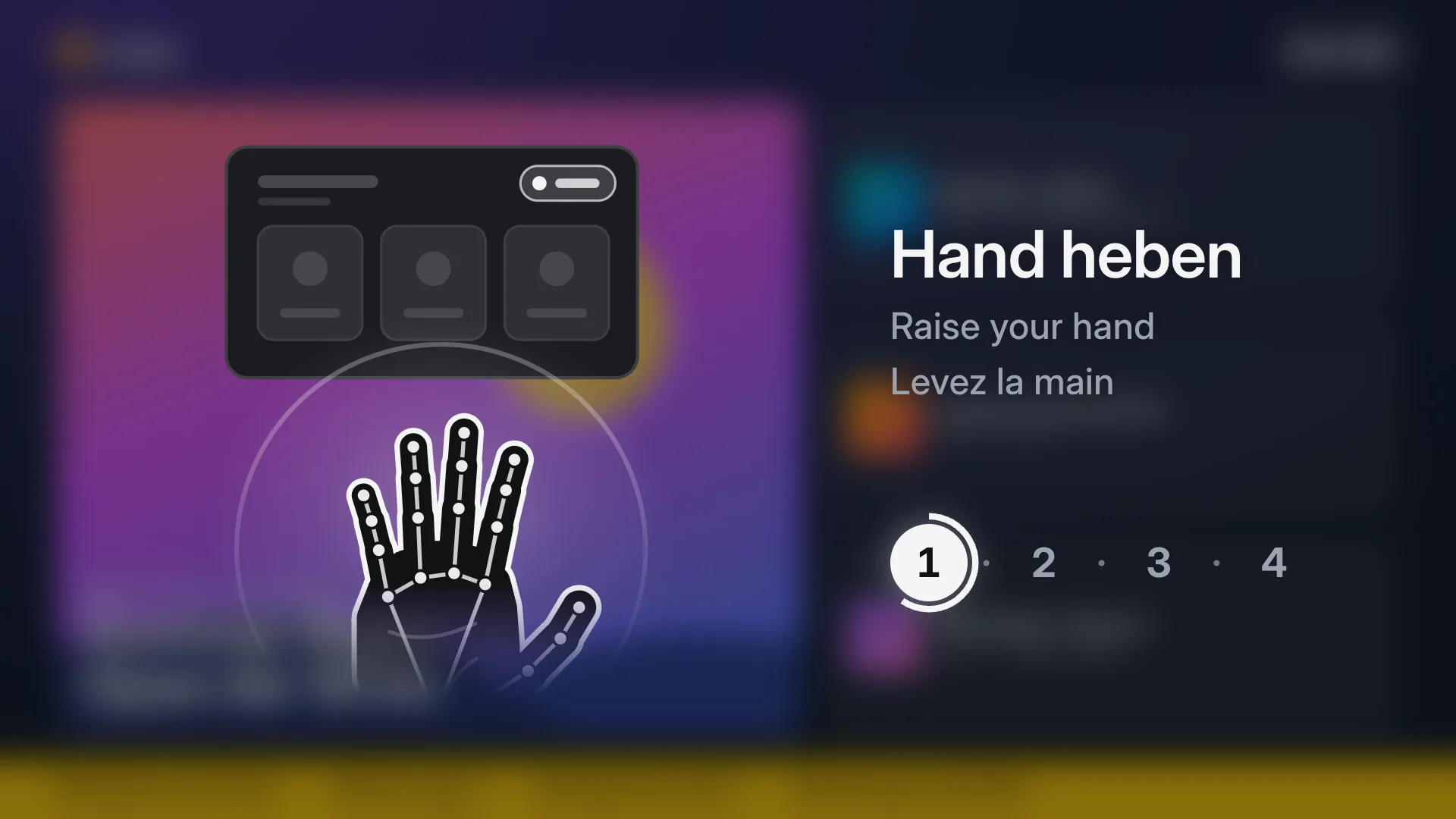
Screens you use with your hands: no touch, no app
Any TV and an ordinary webcam make a kiosk visitors use from a step away: raise a hand, point, pinch, swipe. How it works, what it needs, how people learn it, and how to set it up in four steps.
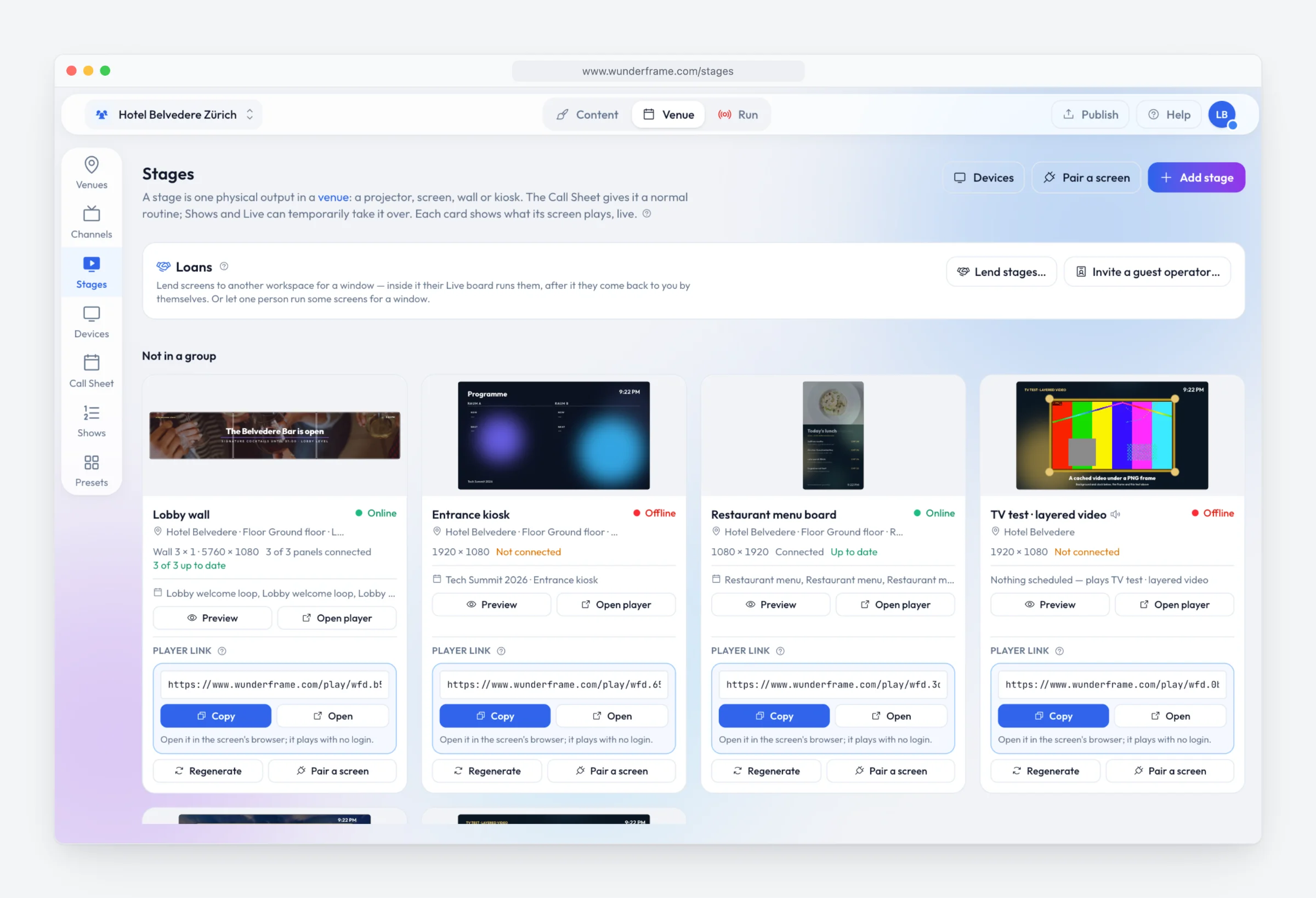
Digital signage with Wunderframe: not only for events
We are often asked whether Wunderframe is only for events. It is not: the same system runs the menu board, the reception screen and the shop window every day — and can turn an ordinary TV into a screen people use with their hands.
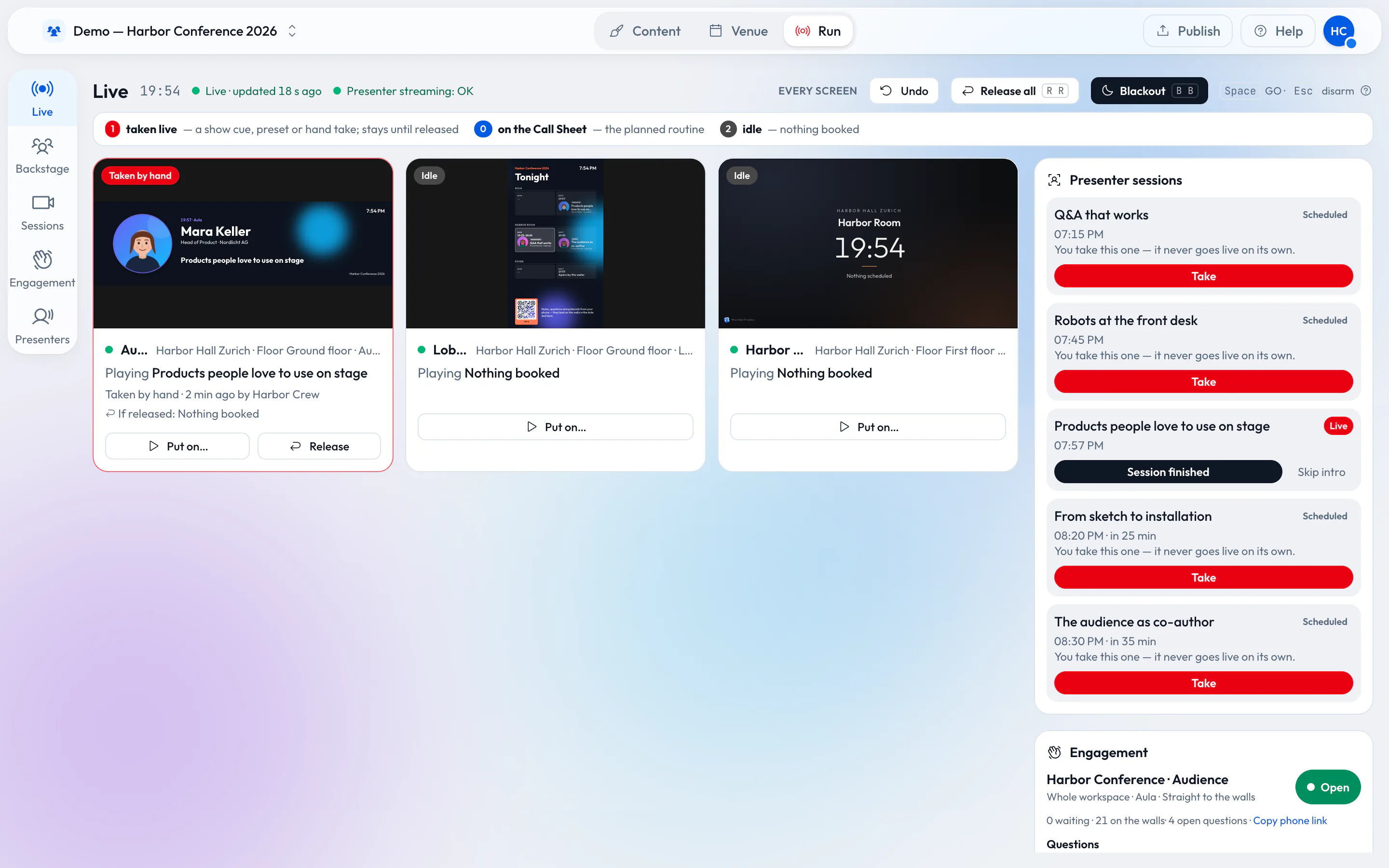
How an event should really run
A wide stage screen, speakers who join from anywhere and an operator with a phone. For a conference, a wedding or a company evening in a rented venue, with little more than a browser, an Android TV box or a Raspberry Pi.