ScreensInteractive screensGuides
Screens you use with your hands: no touch, no app
Any TV and an ordinary webcam make a kiosk visitors use from a step away: raise a hand, point, pinch, swipe. How it works, what it needs, how people learn it, and how to set it up in four steps.
The Wunderframe team 7 min read
An interactive kiosk usually means a touch screen: a special panel, or a touch foil glued onto a TV, mounted low enough to reach, and wiped down every hour. Many of the places that need one most can’t have that: the info point behind a shop window, the screen high up on a wall, the hall where people wear gloves.
Wunderframe does it differently. An ordinary TV and an ordinary USB webcam make a screen people use from a step away, with their hand in the air. Nothing to touch, no special hardware, and no app to install, for you or for the visitor. This post shows what a visitor does, what happens under the hood, how people learn it, and how to set it up.
What a visitor does
Five gestures, and nobody has to learn more than two of them:
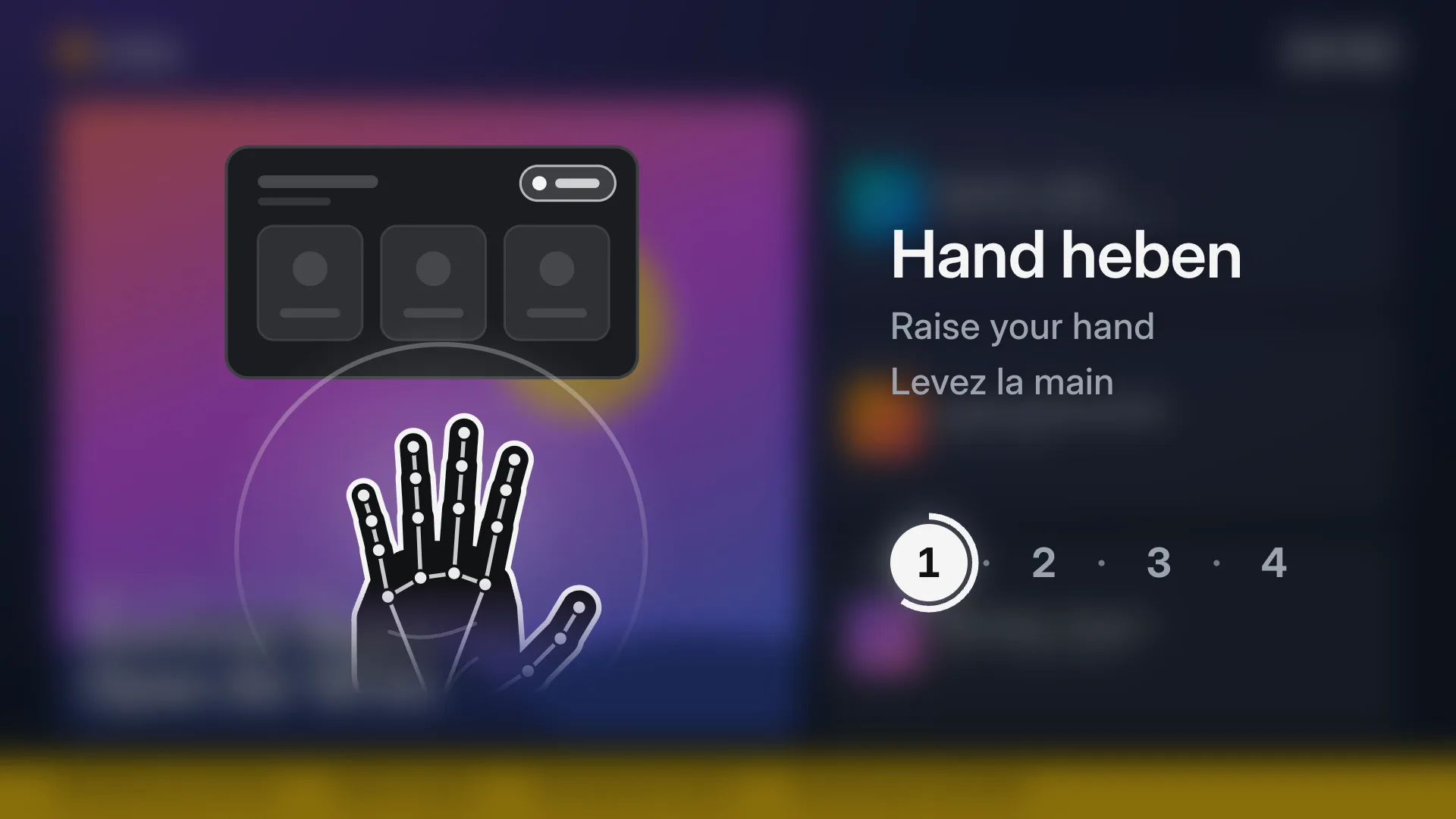
- Raise a hand. The screen notices it and shows a cursor.
- Point. The cursor follows the hand, and whatever is under it lights up.
- Pinch thumb and index to choose, like a click.
- Hold still over something for a moment to choose it, for people who don’t pinch. A ring fills while they wait.
- Swipe with an open hand to go to the next or the previous page.
A visitor opens a row for its details, presses a button, pages through and goes back. When they walk away, the screen returns to its loop by itself, ready for the next person.
The invitation every hand-controlled screen starts with: raise your hand.
Why not just a touch screen?
Touch is fine where people can reach the glass and don’t mind touching it. A hand in the air goes further:
- Hygiene. Nothing is touched, so there is nothing to wipe, in a clinic, a canteen or an airport.
- Gloves. A touch panel wants a bare fingertip. A hand in the air doesn’t care.
- Through glass. A screen in a shop window can be used from the pavement, after closing time.
- Out of reach. A screen mounted high on a wall, or behind a counter, is still within a pointing hand’s reach.
- Size and cost. A 75-inch TV plus a webcam costs far less than a 75-inch touch panel.
And where touch makes sense, keep it: a stage can take touch, hands or both, so a touch screen with a camera works either way.
The screen you already have, a webcam, and a hand in the air. That is the whole kiosk.
A real example: the info point at a regional airport
At a regional airport, a large screen in the terminal is the info point. Most of the time it plays a calm loop: the departures, the weather, and an attract screen that says Raise your hand to start. A traveller raises a hand and a menu appears:
- Flights, with the gate and the status of each one.
- Where to eat and what is open now.
- The region: places to go once you have landed.
- Language: German, English or French, and the whole screen follows.
When something changes, a gate or a delay, an alert band flips in like a departure board. When the traveller leaves, the screen goes back to its own language and its loop.
The same idea works in a shop window (the catalogue after closing time), a museum (the story behind an object), a trade-fair stand (products and references without a sales rep) or a hotel lobby (restaurants, the spa, the way to the meeting room).
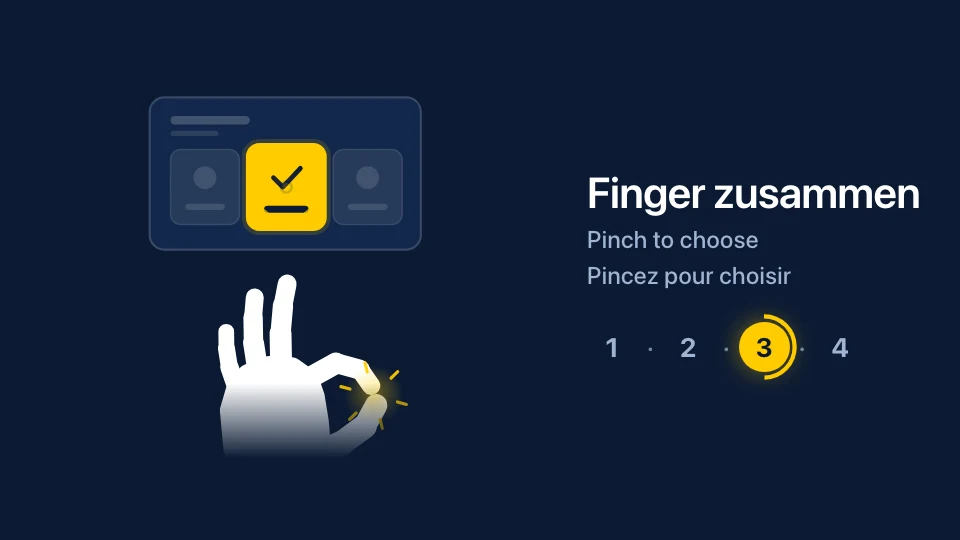
The gesture guide in airport colors: pinch to choose.
Under the hood
- Hand tracking runs on the screen’s player. It uses MediaPipe, Google’s hand-tracking model, on the device itself, on every player: Android TV, desktop, Raspberry Pi and the browser. No cloud service looks at the picture.
- The screen wakes up when someone comes close. The same camera notices a person standing in front of the screen and can switch to an invitation, a welcome or a product film for them. It only reacts to people who are close, not to the crowd walking past.
- A short dropout doesn’t cancel anything. A camera loses a hand for a moment all the time: a fast movement, the edge of the picture, the light. For that moment the cursor stays where it is, a filling ring keeps its progress and a pinch stays pinched. The visitor never notices.
- A calm cursor. The pointer is smoothed so it holds still when the hand rests and follows without lag when it moves. We tuned it with a real camera at real distances, not in a lab.
- Never black, never stuck. If the camera is unplugged, the screen keeps playing its loop (and keeps touch, if it has it). A visitor never sees an error or a permission prompt.
The camera sees, and forgets
A camera in a public place raises the right questions, so here are the answers. Each camera picture is looked at in the moment, on the screen’s own player, and then dropped. It is never shown, never stored and never sent anywhere, not to us and not to you. The screen doesn’t recognize faces, doesn’t identify or count people, and doesn’t guess age or mood. All it knows is “a hand is there” and where it points. The camera is off unless the stage turns it on, and Devices shows when it runs. See Privacy on the presence page.
Teaching people how
Most people have never used a screen with their hand, so they walk past it, or walk up and touch the glass. So the screen shows them. On the stage, tick Show visitors how: when someone stops in front of the screen, a drawn hand appears over whatever is playing, lightly tinted with the program blurred behind it. It raises, points, pinches, holds still and swipes, a little screen answers each gesture, and a caption says it in German, English and French. The moment the visitor raises a hand, the guide fades away so nothing covers what they point at. With nobody there, the program plays clean.
The guide teaches only the gestures your screen understands, and its title (So geht’s · How it works · Comment ça marche unless you write your own) and captions are yours. Want it in a corner, as a strip along the bottom or as a scene of its own? The same guide is also a block you place and style yourself. See The gesture guide.
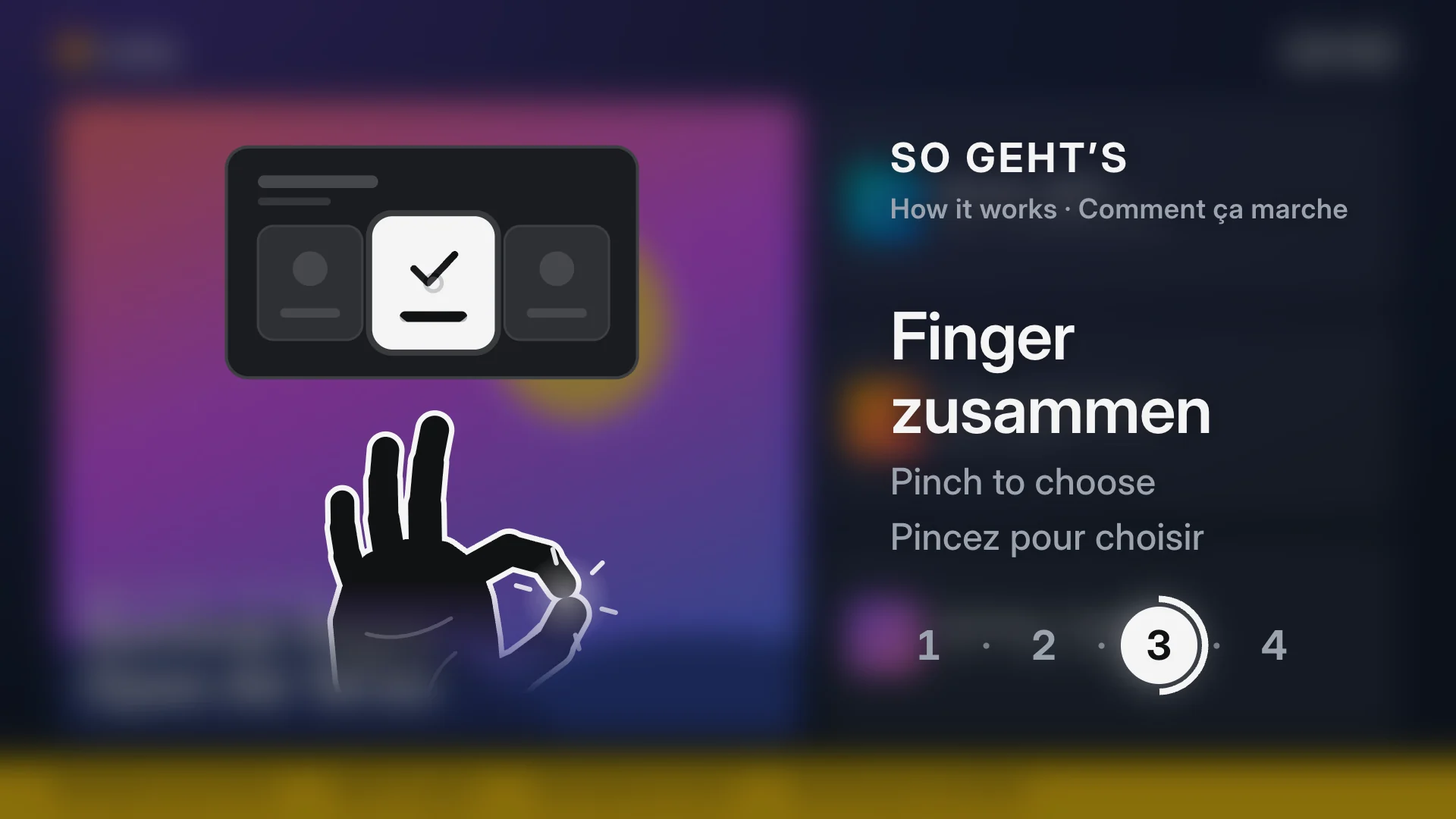
Someone stopped: the screen shows them how to choose, until they raise a hand.
Every visitor’s language
The screen can speak several languages, German, English and French for example. A visitor points at English or Français and everything follows at once: headings, buttons, the list of flights, the date under the clock. When they walk away, the screen goes back to its first language for the next person.
Two hands, two pointers
The screen follows up to two hands at once, each with its own pointer: two people side by side, a child and a parent, or one person using both hands. Each pointer chooses on its own, so nobody has to wait for the other to finish.
Set it up in four steps
- Let visitors use the stage. Under Run → Stages, edit the stage and turn on Visitors can use this screen with Hands (and Touch too, if the screen has it). Choose whether a hand chooses by pinching, by holding still or either, and after how many seconds without a visitor the screen goes back to its story.
- Connect a webcam. An ordinary USB webcam on the player behind the screen, ideally at the top edge pointing at the visitor. Hands work on every Wunderframe player: the Android TV app, the desktop app, the Raspberry Pi and a browser on the stage’s player link.
- Turn on the gesture guide. On the same stage, tick Show visitors how, and turn on Notice people in front of the screen so the guide appears for the person who stops. That is one switch; the details are in One switch on the stage.
- Give visitors something to choose. Add buttons and give each an action on its Rules tab: open a scene, go back, start again, switch the language. Or let the rows of a board open their detail. See Overview and detail.
You don’t need a camera to try it. Every preview has Try it: click with the mouse as if it were a hand, or turn on your laptop’s camera and use the real thing at your desk.
Raise your hand
Take a TV you already have, plug in a webcam and open a scene in Try it. Five minutes later you are choosing things on it with your hand. For everyday screens beyond events, read Digital signage with Wunderframe: not only for events, and for cheap players, Old Android TV boxes and Raspberry Pis. Start free, or see Pricing.
Related posts
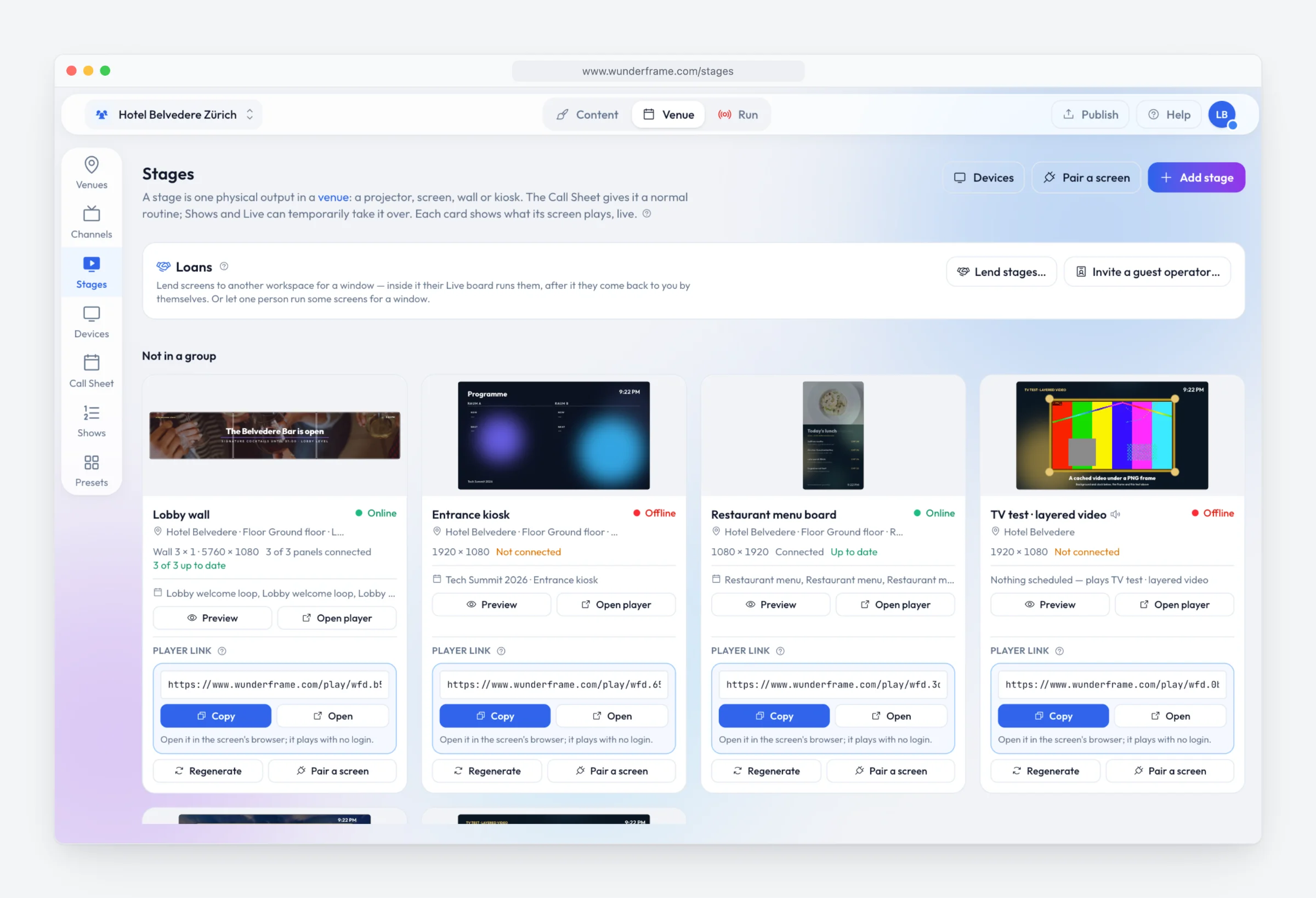
Digital signage with Wunderframe: not only for events
We are often asked whether Wunderframe is only for events. It is not: the same system runs the menu board, the reception screen and the shop window every day — and can turn an ordinary TV into a screen people use with their hands.
Lend your wired screens with the room
Your rooms already have screens on the wall. Lend them to the organizer who books the room: they prepare and run everything in Wunderframe before they arrive, nothing is wired on the day, and the screens come back to you when the booking ends.
What does digital signage cost in Switzerland in 2026?
Software subscriptions, all-in rental and the costs nobody lists. Published prices with their sources, and a five-screen, three-year example you can redo with your own numbers.