What your venue’s screens can do between bookings
A venue’s screens are busy on event days and forgotten the rest of the week. A call sheet, an idle card and a few rules keep them useful every day, without anyone standing next to them.
The Wunderframe team 3 min read
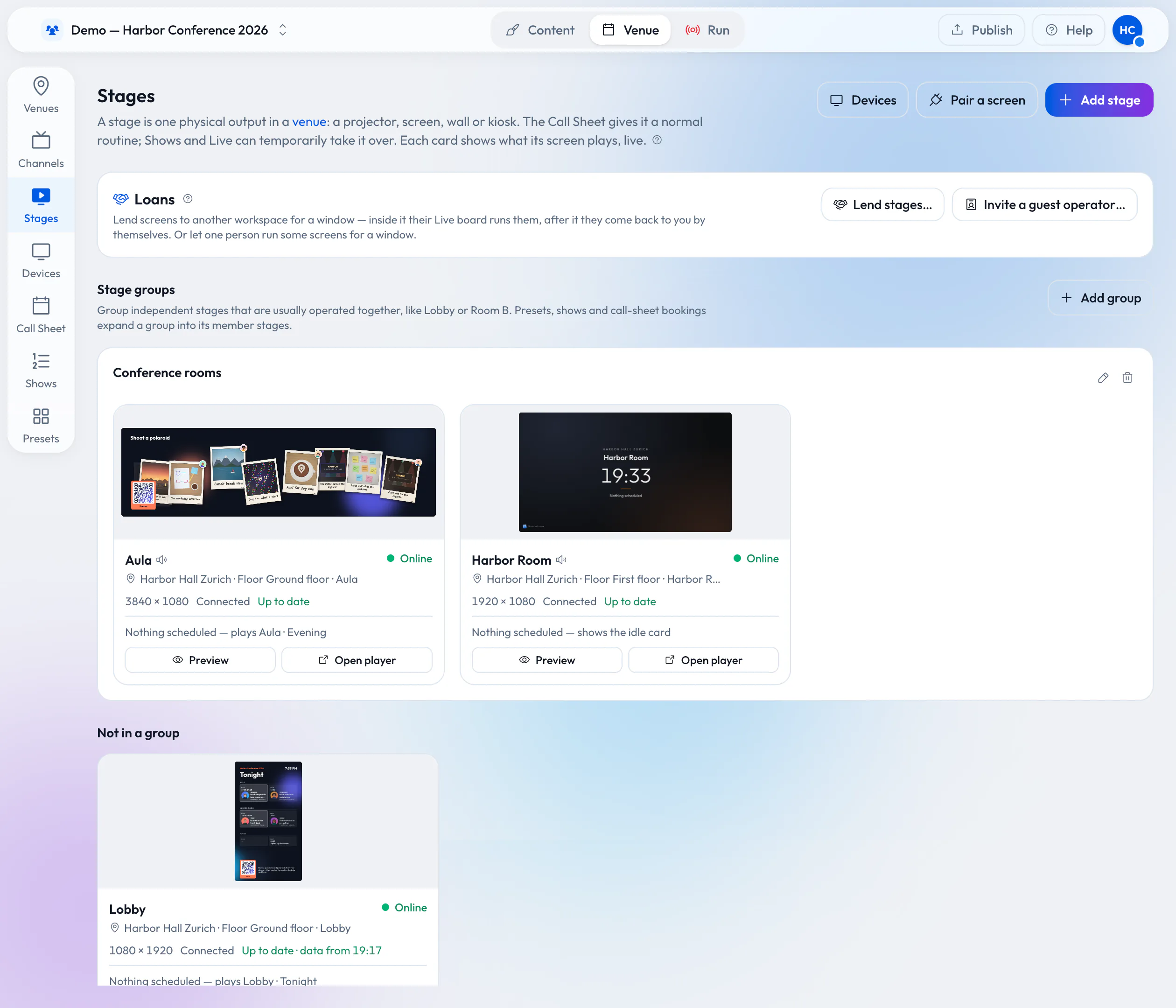
Walk through most hotels or conference venues on a Tuesday afternoon and count the screens. Some show a welcome slide from last month, some an input-not-found message, some are simply off. On event days the same screens are the center of attention; in between, nobody owns them.
This post is about the in-between: how to make installed screens useful on an ordinary day without a person standing next to them.
Give every screen a default
In Wunderframe every screen is a stage in a venue, and every stage always knows what to play. When nothing else applies, it plays its idle card or idle story: the house welcome, a clock, today’s events. Set that first. It is the one thing that makes a screen look looked-after on a quiet day.
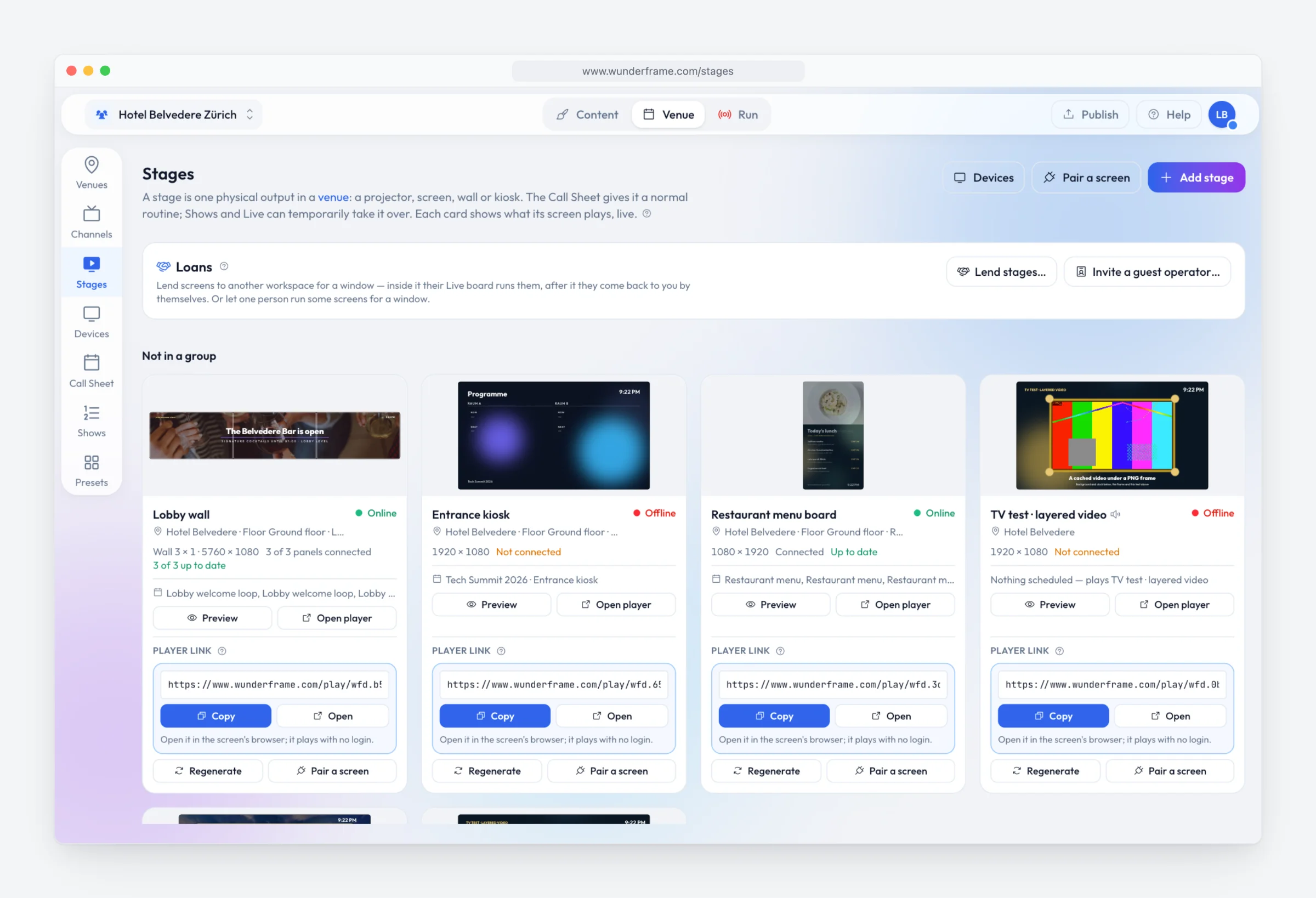
Every screen as a stage, with its live picture, its size and whether it is online.
Plan the day on a call sheet
The call sheet books stories onto stages at set times: the breakfast menu in the restaurant until ten, the day’s meetings in the lobby, the bar’s evening loop from six. One-day overrides handle the exceptions, and when a booking ends the screen falls back to its idle card by itself.
Rules do the rest: “when it is after 22:00, play the quiet version”, or “when a session is live in the room, show the speaker”. A rule is checked every few seconds, so the screen changes without anyone pressing a button. More in Screens that change themselves.
Let the program fill the lobby screen
A lobby board that someone has to update by hand is out of date by lunchtime. Keep the day’s events as data instead — typed in, a CSV from your booking system or a JSON address — and let an agenda board show what is on now and next in every room, by the venue’s clock. When a meeting moves rooms, you change one row.
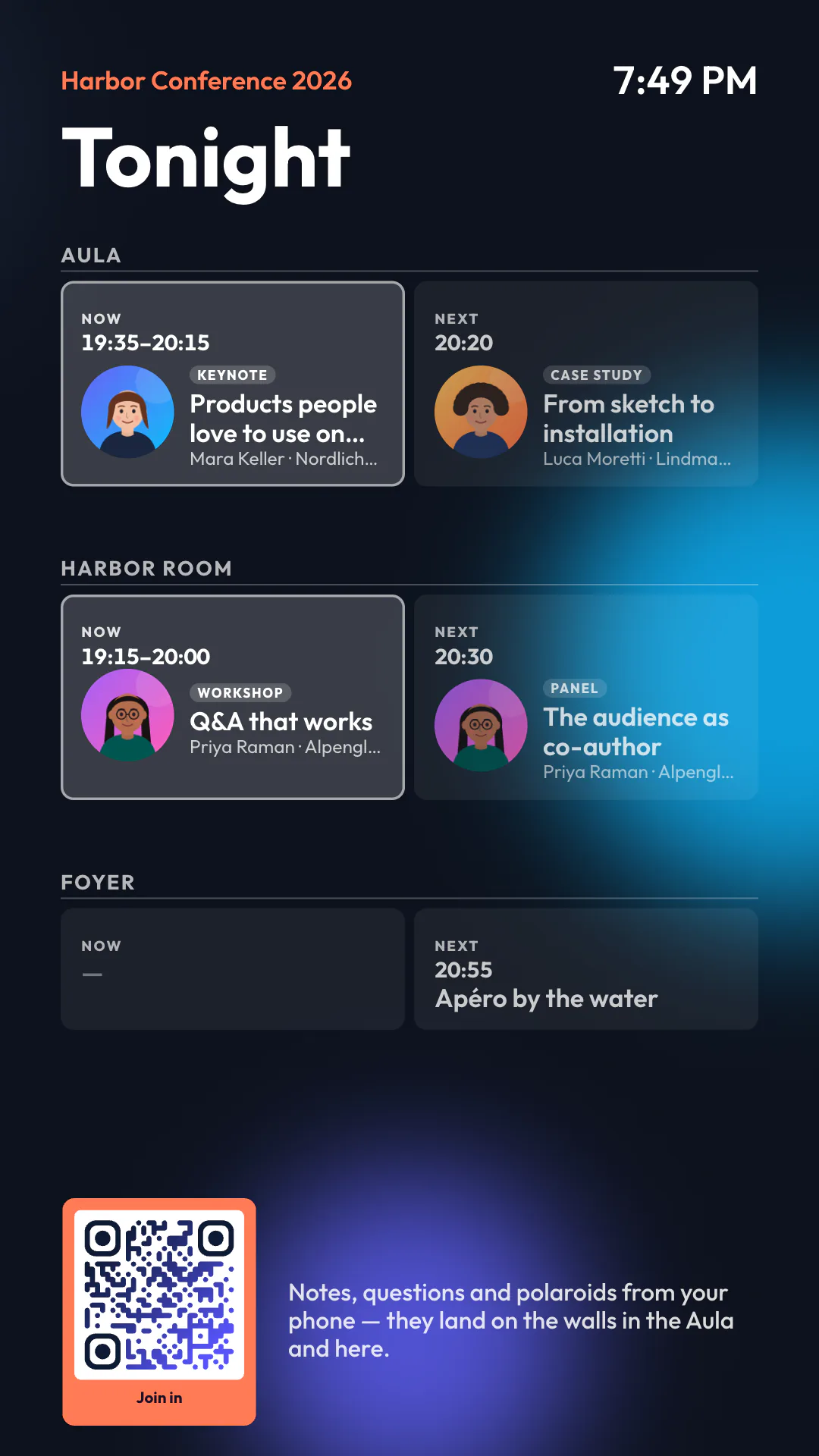
A portrait lobby board, filled from the day’s data.
The lounge and the bar
Some screens are there for television. Add your TV provider’s channel list to the venue and a video block can play a channel inside your own frame, with the time and what is on. Switch channels from the Live desk or by a rule, for example the news in the morning and sport in the evening. See TV channels.
Cheap players, remote care
A screen needs a player: a browser on a smart display, an Android TV box with the Wunderframe app, or a Raspberry Pi. Each pairs with a six-letter code. Players keep their program on the device and play on through a network drop, and you can see from the Stages page which ones are online and up to date — so a technician is not the first to notice a dark screen.
What this doesn’t do
Wunderframe does not replace your room booking system, and it does not read it by itself. If your system can export a CSV or offer a JSON address, the board can follow it; otherwise someone types the day in. Sound, lighting and the screens themselves stay your venue’s business.
And on event days
Once your screens run like this, an event day is just another booking. You can even hand a room’s screens to the organizer for the length of their booking and get them back automatically. What that looks like for a venue is on Wunderframe for venues and hotels. Start free and give your first screen an idle card today.
Related posts
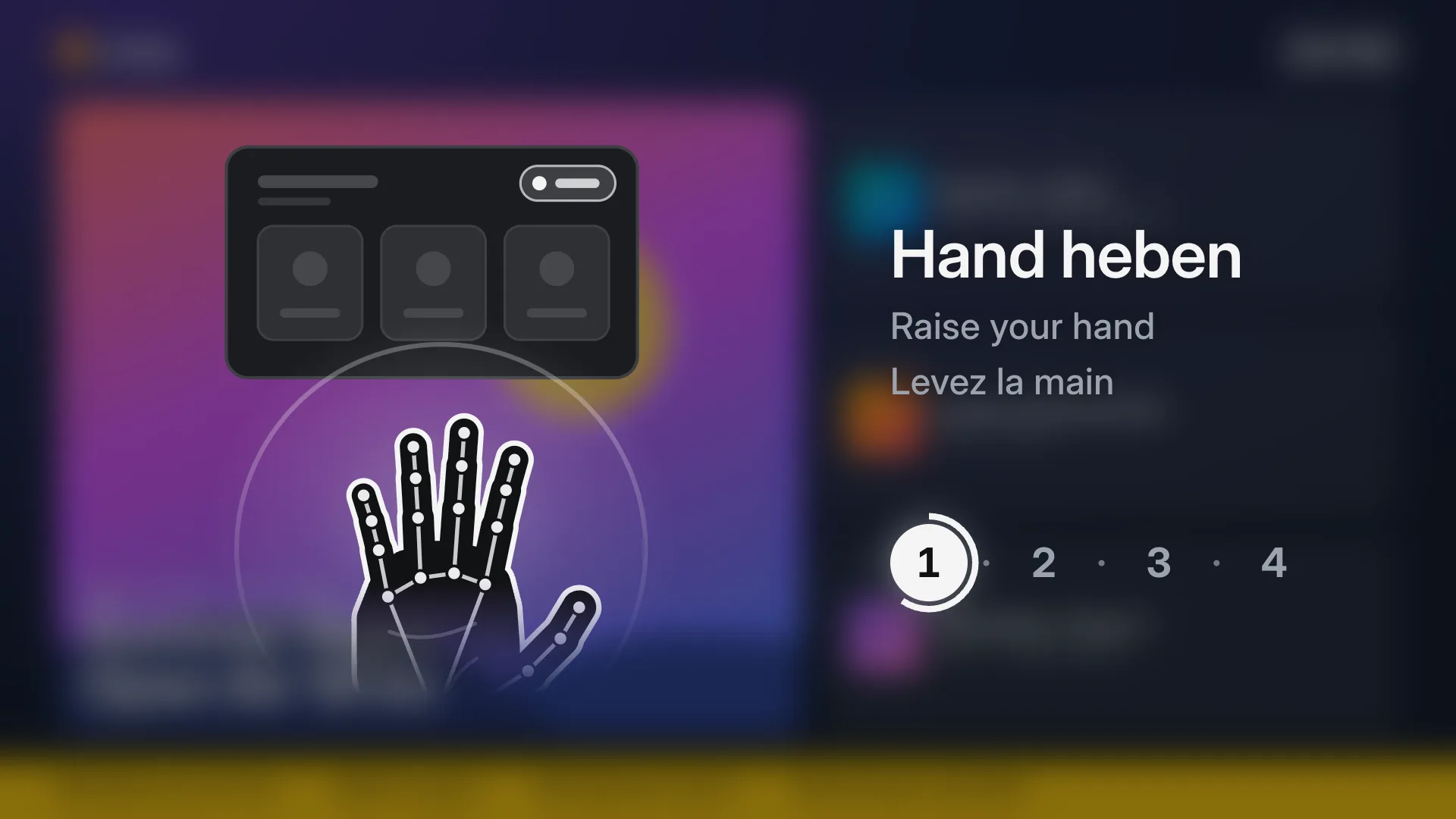
Screens you use with your hands: no touch, no app
Any TV and an ordinary webcam make a kiosk visitors use from a step away: raise a hand, point, pinch, swipe. How it works, what it needs, how people learn it, and how to set it up in four steps.
Digital signage with Wunderframe: not only for events
We are often asked whether Wunderframe is only for events. It is not: the same system runs the menu board, the reception screen and the shop window every day — and can turn an ordinary TV into a screen people use with their hands.
Lend your wired screens with the room
Your rooms already have screens on the wall. Lend them to the organizer who books the room: they prepare and run everything in Wunderframe before they arrive, nothing is wired on the day, and the screens come back to you when the booking ends.