How-toLive presentersAI agents
Keynotes that wait for the speaker
A morning of three keynotes in one hall, and why the screen should move on when a person is ready, not when a timer runs out. Timed stories and live sessions, and how to tell which one you need.
The Wunderframe team 7 min read
Picture the main hall of a conference on its opening morning. The program says 11:00 to 11:45: a short opening, then two keynotes. The big screen behind the lectern shows each speaker’s slides with a lower third carrying their name and talk title.
On paper that is three blocks of fifteen minutes. In the room it never is. The opening runs four minutes long because the host thanks the sponsors. The first keynote speaker needs a moment to plug in their laptop. The second starts early because the first one finished early. Whatever drives the screen has to follow the people, not the program.
The first draft, and what was wrong with it
We set this morning up with an AI agent over the Wunderframe MCP server, the way many of you now do. It came back quickly with a story of three chapters: Opening, Keynote 1 and Keynote 2. Each chapter had a full-width cast zone for the speaker’s screen and its own lower third. It looked right in the preview.
Then it added a caveat worth reading twice: chapters advance on a timer, keynote handoffs rarely run on schedule, so it could set a very long duration on each chapter “as a safety net” and someone could press next by hand.
That caveat is the whole story. The agent had reached for the tool that plays things in order, and in Wunderframe the tool that plays things in order plays them by time. There is no chapter that waits for someone to say “next”, and a safety-net duration is a timer that cuts a speaker off at the worst moment. The right building block was one level over: the session.
A story moves on when its time is up. A session moves on when a person says so.
Two ways a screen moves on
Almost everything on a Wunderframe screen falls into one of two shapes.
- A story is content that runs by the clock: chapters in order, each playing its moments for as long as they last, round and round. The welcome loop, the agenda board, the sponsor reel, news and then TV. Nobody has to be in the room for it to work, and that is the point.
- A session is a slot for a person: a dated time on one stage, with presenters, a presenter slide and an optional speaker intro. It goes live when the presenter is ready, and it stays on screen until someone presses Finish. Running past the planned end only raises an alert. Nothing cuts the speaker off.
The question that decides it is simple: does the handoff happen on the clock, or when a person is ready? If it is the person, you want a session, however tidy the timings look in the program.
The same morning, done with sessions
The same morning becomes three sessions on the hall’s stage, in order:
- Opening, with the host as presenter, 11:00.
- Keynote 1, with the first speaker, 11:10.
- Keynote 2, with the second speaker, 11:25.
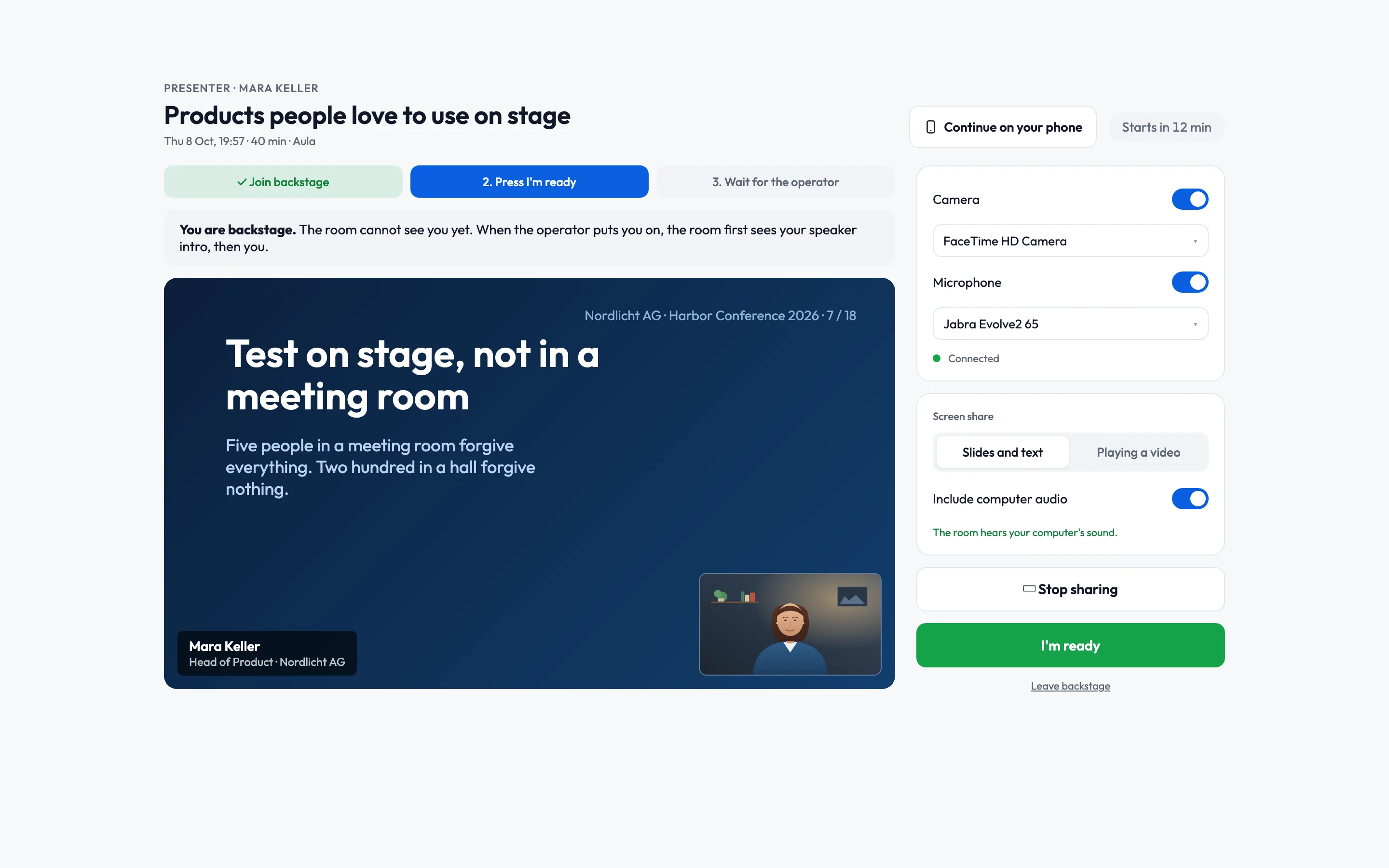
All three use the same presenter slide: the speaker’s screen large, and a lower third that fills in the name, title and organization of whoever is live. Each speaker gets a private invite link. They open it on their laptop, share their screen, check the preview backstage and press I’m ready.
The start times are still useful. They feed the agenda board, the Up next screen outside the hall, the countdown on the hall’s own screen and the alerts at the desk. They just don’t decide when the picture changes.
Two questions for every session
Going live is two separate settings, and it helps to answer them one at a time.
When is it due? Either when the presenter is ready, the moment they press I’m ready, or at the start time, for a slot that must begin on the minute.
Who puts it on screen? Either nobody, it switches by itself, which is right for a remote talk in an unattended room, or an operator at the desk. Then the live board lights up Presenter ready — Take and the stage waits for that press.
For the hall we chose when the presenter is ready and an operator at the desk. A technician sits at the back of the hall and can see whether the next speaker is actually at the lectern. Their laptop being ready and them being ready are not the same thing.
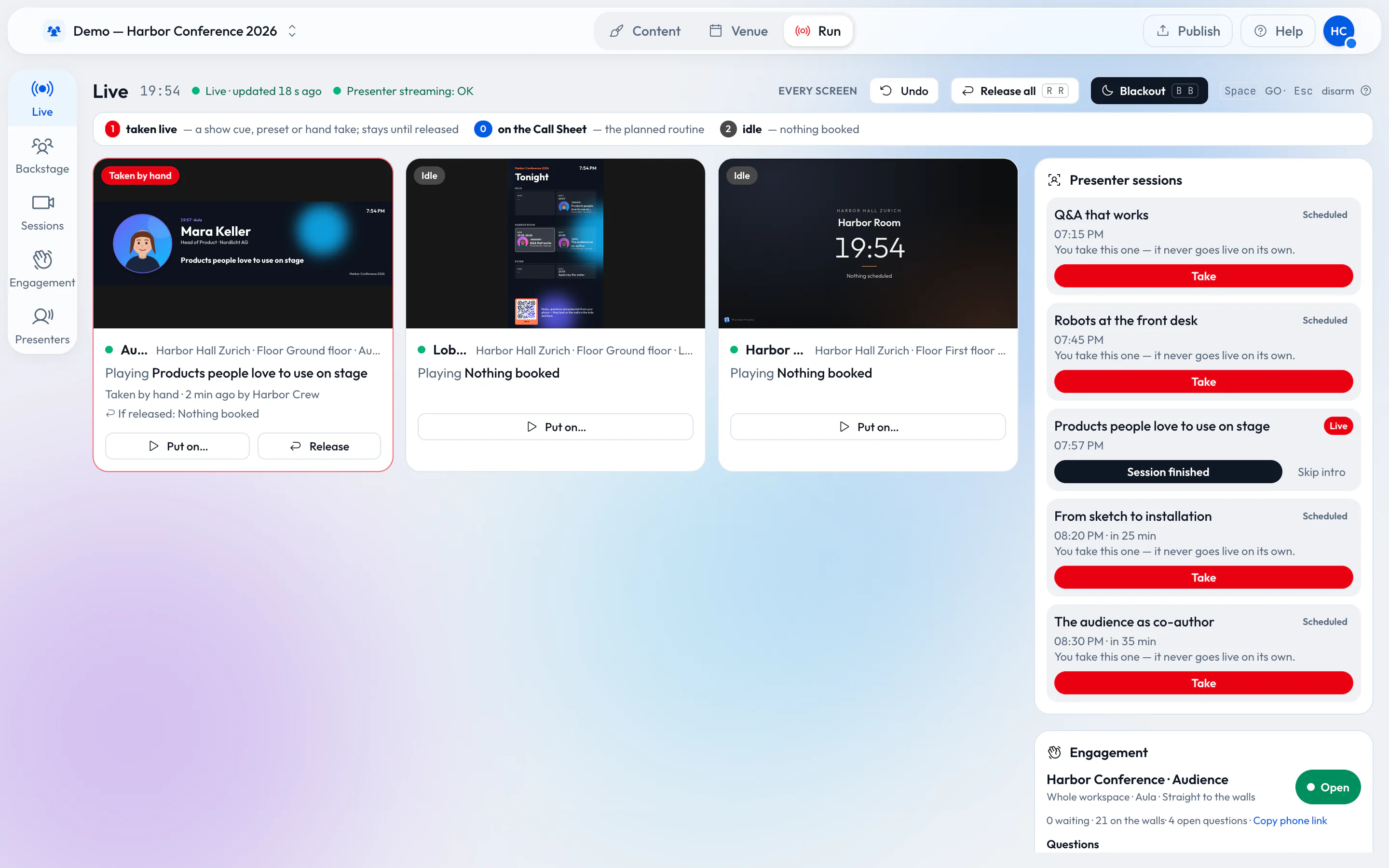
What the morning looks like at the desk
- Before 11:00 the hall plays its usual story: the welcome loop, the agenda board and a countdown to the opening.
- The host presses I’m ready backstage. The live board shows Presenter ready — Take. The technician waits for the room to settle and presses Take. The opening slide comes up.
- The host wraps up four minutes late. That’s fine, nothing cuts the host off. The technician presses Finish, and the stage goes back to the welcome loop for the changeover. Its countdown has moved on by itself and now counts down to the first keynote.
- The first keynote speaker was ready ten minutes ago. Take puts them up the moment they reach the lectern.
- The same again for the second keynote. After the last Finish, the hall returns to its day: the agenda board and the lunch announcement.
What happens after Finish is a setting on the session: give the stage back to what it was playing, play a story you picked (a “Next up” slide, say), or move the show on.
A countdown that follows the sessions
The welcome slide between the talks carries a countdown or a progress bar aimed at next_session_at. Every screen fills that in with the start of its own stage’s next session, so the one slide counts down to the opening, then to Keynote 1, then to Keynote 2, without anyone editing it. A text block next to it says what is coming: {next_session_title} · {next_session_time}.
If a speaker is late, the countdown waits at 00:00 instead of skipping to the next talk. When the desk presses Take, the stage switches to the speaker anyway. The countdown reads the sessions themselves, so it works without an agenda.
Stepping through with GO
If one person runs several rooms, or the morning has more than talks in it (a video before the opening, the sponsor loop between keynotes, the house lights cue), put the sessions in a show. A show is a run of cues stepped through with GO. A cue can put a session on a stage, and a session set to move the show on advances to the next cue when it finishes. The technician then has one button for the whole morning, and a show holds its stages so nobody else cuts in by accident. See Going live.
Cast zone or presenter block?
Both put someone’s screen on the wall, which is why they are easy to mix up.
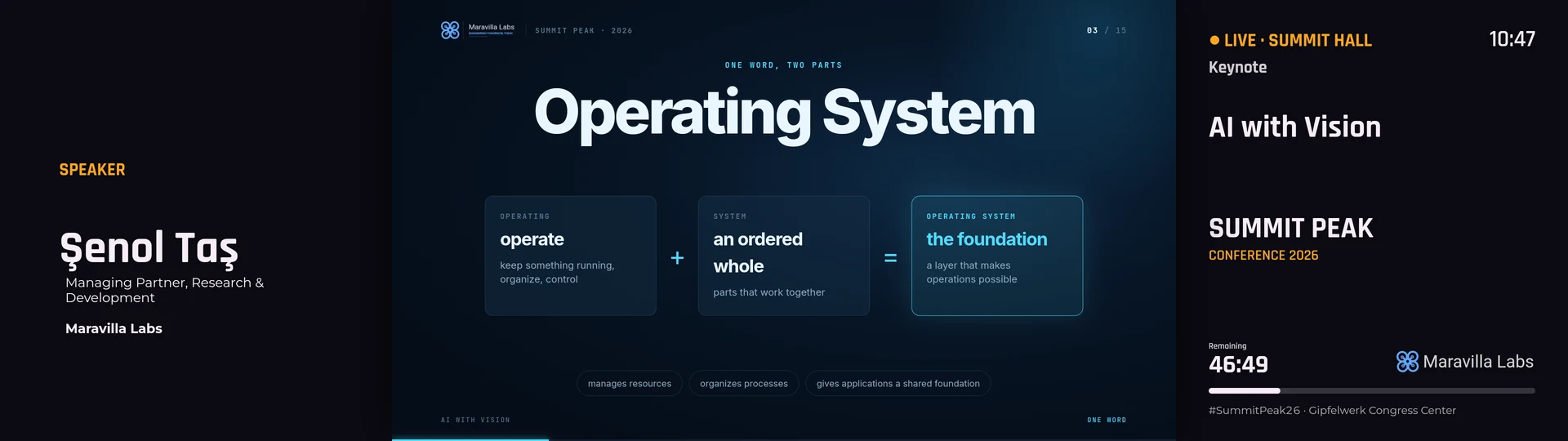
- A presenter block shows the presenter of a live session: their camera or their shared screen, framed by your slide, with their name available to the lower third. It is empty until a session is live.
- A cast zone takes anyone’s screen who has the join code, for as long as its chapter plays. It fits a meeting room, a hackathon demo corner or a lounge screen. It doesn’t fit a keynote with a name on the program.
What we changed for AI agents
The agent’s first draft wasn’t careless. It could only make sessions by importing a whole agenda, and it had no way to add one keynote to a stage that already existed. So it built a keynote from the parts it had. We fixed that at the source:
- A new create_session tool adds one talk to one stage. It asks who puts the speaker on screen every time, because only you know whether someone will be at the desk.
- The tools that build stories now say that chapters move on by time. When an agent drops a cast zone or presenter block into a chapter, the answer it gets back says: if this is a talk, make it a session.
- After creating a session, the agent tells you how it will behave on the day: when it’s due, who takes it, that it stays until Finish, and what happens next.
- Agents know the countdown and progress widgets too, and aim them at the next session without being told how.
Ask your agent for “the opening and two keynotes in the main hall, 11:00 to 11:45, the technician takes each speaker live” and you now get three sessions set to wait for the desk, plus the invite links to send. Add “with a countdown to each talk on the welcome slide” and it puts that in too.
The short version
- Content that runs by the clock is a story.
- A person on screen whose handoff depends on them is a session. It stays up until Finish.
- Decide separately when a session is due and who puts it on screen. Choose the desk whenever someone is watching the room.
- Several sessions in a row, or mixed with other cues, go in a show you step through with GO.
Read Presenters and sessions for the full operator guide, and AI agents to connect yours.
Related posts
Live speakers without surprises: a playbook for event managers
Rehearsals, the backstage link, a network you control, operators for every room and a Q&A that knows who picks the questions. What to prepare with your speakers before the day, and how the day itself runs.
How to build a video wall from ordinary screens
Two, three or twelve TVs showing one picture, with video and motion running across all of them. What you need, how to hang and design it, and how the screens stay in step.
How an event should really run
A wide stage screen, speakers who join from anywhere and an operator with a phone. For a conference, a wedding or a company evening in a rented venue, with little more than a browser, an Android TV box or a Raspberry Pi.